
How to Defragment and Optimize Your PC Drives Correctly
Over time, Windows PCs can slow down as files become scattered across your storage drives, forcing your system to work harder to retrieve data. Knowing how to correctly defragment and optimize your drives prevents unnecessary wear and tear while restoring lost performance. This guide covers the critical differences between optimizing Solid-State Drives (SSDs) and Hard Disk Drives (HDDs) to ensure you do not accidentally shorten your hardware's lifespan.
- HDDs require defragmentation to physically align scattered file pieces, reducing mechanical arm movement.
- SSDs must never be defragmented; instead, they use the TRIM command to clear deleted data blocks.
- Windows 10 and 11 handle these processes automatically by default, making third-party defrag tools largely obsolete.
- Manually running optimization is highly beneficial after large file transfers, system updates, or heavy software uninstalls.
Understanding the Difference: HDD Defragmentation vs. SSD Optimization
To optimize your computer correctly, you must first understand the storage technology inside your machine. Hard Disk Drives (HDDs) and Solid-State Drives (SSDs) read and write data in fundamentally different ways. Applying the wrong maintenance technique to a drive can result in degraded performance or even permanent hardware degradation.
Hard Disk Drives (HDDs) are mechanical. They use spinning magnetic platters and a moving read/write head. When you save a file, the drive writes it to the first available space. Over time, as files are created, modified, and deleted, a single file can end up scattered in fragments across different parts of the platter. Defragmentation physically reorganizes these pieces so they sit next to each other, allowing the drive head to read the file in one continuous spin.
Solid-State Drives (SSDs) have no moving parts. They store data on flash memory chips. Because there is no physical head to move, fragmented files read just as fast as contiguous ones. However, SSDs write data in "blocks," but can only erase data in larger "pages." If an SSD wants to write to a partially used block, it must read the existing data, erase the block, and write the combined data back. This is where the TRIM command comes in. TRIM tells the SSD which blocks of data are no longer needed, allowing the drive to wipe them in the background so future writes can happen instantly.
| Feature | Hard Disk Drive (HDD) | Solid-State Drive (SSD) |
|---|---|---|
| Primary Action | Defragmentation (Defrag) | TRIM / Optimization |
| How It Works | Consolidates fragmented files into contiguous sectors. | Clears deleted data blocks to prepare them for new writes. |
| Optimal Frequency | Once a week to once a month. | Automatic background process (weekly schedule). |
| Impact of Wrong Method | Running TRIM on an HDD is harmless but does nothing. | Defragging an SSD causes unnecessary write cycles, reducing its lifespan. |
How to Optimize Drives in Windows 10 and Windows 11
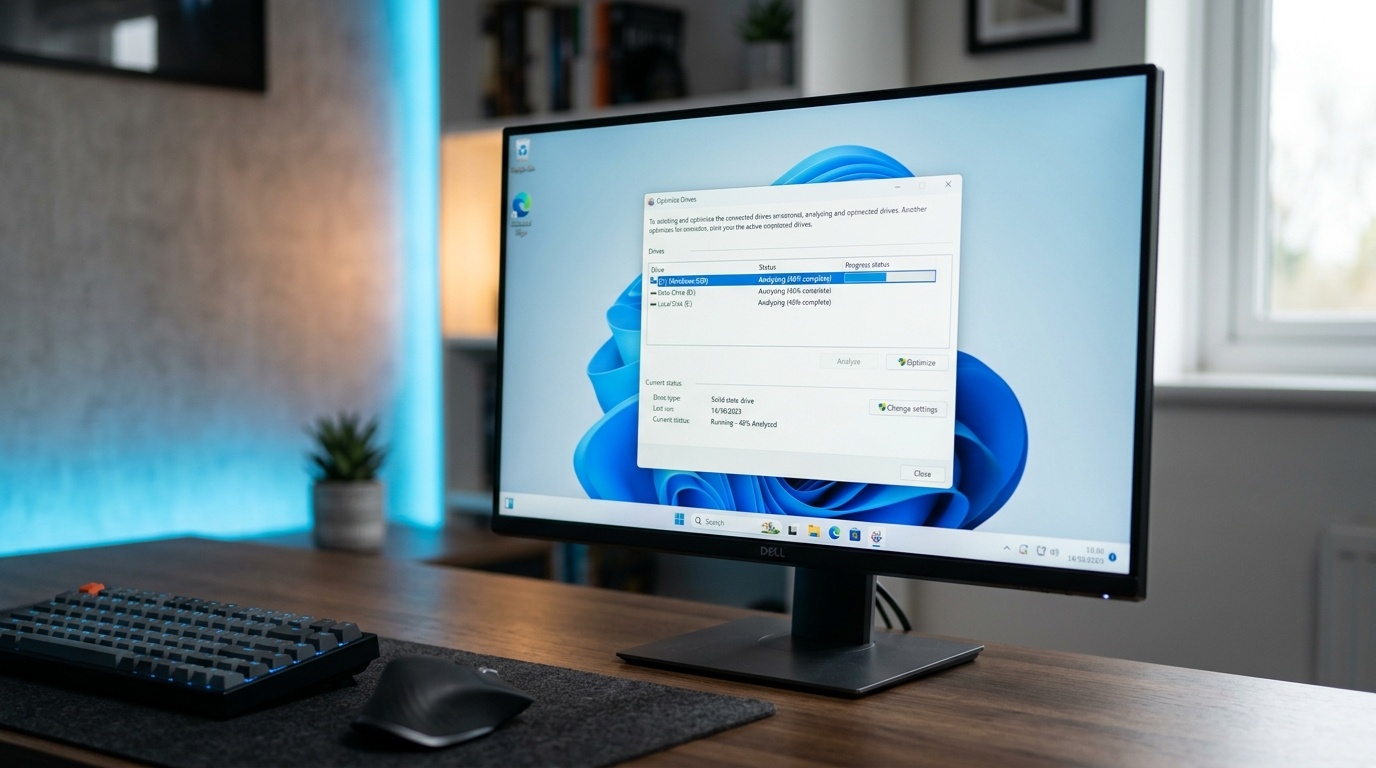
Modern versions of Windows feature a unified tool called "Optimize Drives." This tool automatically identifies whether a drive is an HDD or an SSD and executes the appropriate process (defragmentation for HDDs, TRIM for SSDs). Follow these steps to check, schedule, and run optimization manually:
-
Open the Optimization Tool: Press the
Windows Key, type Defragment and Optimize Drives in the search bar, and pressEnter. - Analyze Your Drives: Select your mechanical hard drive (HDD) from the list and click the Analyze button. This will calculate the percentage of fragmentation. Note that the Analyze button is typically greyed out for SSDs because analyzing fragmentation is irrelevant for flash storage.
- Optimize Your Drive: Select the drive you wish to maintain and click Optimize. For an HDD, Windows will begin defragmenting. For an SSD, Windows will run the TRIM command, which usually completes in a matter of seconds.
- Set an Automatic Schedule: Click on Change settings under the Scheduled Optimization section. Ensure that "Run on a schedule" is checked. A weekly interval is highly recommended for most general-use computers.
winsat diskformal, and press Enter. This forces Windows to re-evaluate your drive speeds and update the drive classification correctly.
Real-World Scenarios: When to Manually Optimize
While the automated scheduler handles routine maintenance, there are specific situations where a manual intervention yields noticeable performance gains.
Scenario 1: After Installing or Uninstalling Large Software Packages
Imagine you just uninstalled three modern video games totaling 250 GB from a mechanical storage drive, and then immediately installed a massive video editing suite. Because of the massive chunks of newly freed space, the installer likely split the new software files across hundreds of separated sectors. Running a manual defragmentation immediately after this transition ensures your newly installed software launches and runs at maximum speed.
Scenario 2: Pre-Production Check for Creative Professionals
If you are a photographer or videographer working with an external SSD scratch disk, you constantly write, modify, and delete large media caches. Before initiating a heavy rendering queue or importing thousands of RAW image files, manually triggering a TRIM optimization on your SSD clears out leftover blocks from previous projects, ensuring your drive writes at its maximum rated speed throughout the export process.
Common Mistakes and Trade-offs
More maintenance is not always better. Avoid these common pitfalls to keep your storage healthy:
- Using Outdated Third-Party Software: Older defragmentation utilities designed for Windows XP or Windows 7 may not recognize modern SSDs. If they attempt to defragment an SSD, they can exhaust its write limits (TBW - Terabytes Written) prematurely. Stick to the built-in Windows utility unless you are using a verified, modern, SSD-aware alternative.
- Disabling the Disk Defragmenter Service: Some online optimization guides suggest disabling Windows services to save RAM. Disabling this service prevents critical TRIM operations on your SSDs, which will eventually lead to significantly slower write speeds over time.
- Over-Optimizing: Defragmenting an HDD daily is unnecessary and increases wear on the mechanical drive arm. Stick to a weekly or monthly schedule unless you have a highly specific, high-volume write workflow.
Frequently Asked Questions
Does defragmenting erase my files?
No. Defragmenting simply moves the physical location of your data blocks on the platter to make them contiguous. Your files, shortcuts, and operating system settings remain completely intact.
Why is the "Analyze" button greyed out for my SSD?
Windows disables the analysis function for Solid-State Drives because file fragmentation does not impact read speeds on solid-state media. Analyzing fragmentation on an SSD serves no functional purpose.
Can I use my PC while defragmentation is running?
Yes, you can continue using your computer. However, because defragmentation requires heavy disk read and write operations, you may experience temporary system slowdowns. It is best to run it when you do not plan to perform resource-intensive tasks like gaming or rendering.
How long does the optimization process take?
Optimizing an SSD via TRIM takes only a few seconds. Defragmenting a large, highly fragmented HDD can take anywhere from several minutes to several hours, depending on the size of the drive, the speed of the disk, and the level of fragmentation.


Post a Comment for "How to Defragment and Optimize Your PC Drives Correctly"