
Best Graphics Settings for Genshin Impact on Mid-Range Android Phones
Genshin Impact remains one of the most visually stunning yet resource-intensive titles on mobile, often pushing mid-range Android devices to their absolute thermal limits. Finding the perfect balance between fluid 45–60 FPS gameplay and acceptable visual fidelity requires a strategic approach rather than just lowering every setting to "Low." This guide breaks down exactly which settings to sacrifice and which to keep high to ensure smooth, stutter-free exploration across Teyvat.
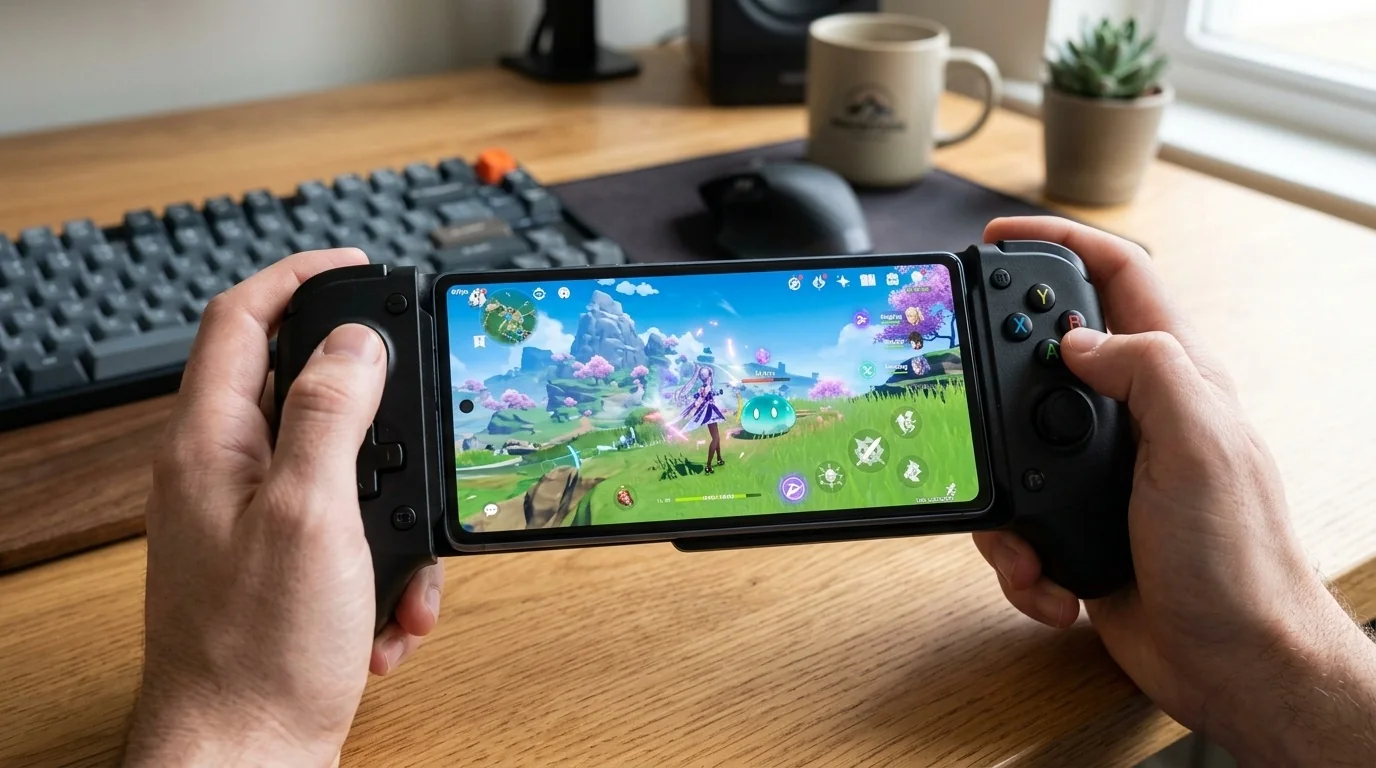
- Render Resolution is the single most impactful setting for both frame rate and battery life.
- Targeting 60 FPS with lower sub-settings yields a much smoother experience than forcing 30 FPS on High settings.
- Disabling Motion Blur and lowering Shadow Quality dramatically reduces thermal throttling.
- Mid-range chipsets require active thermal management to prevent sudden performance drops during long sessions.
Understanding the Mid-Range Android Bottleneck
Mid-range Android phones, typically powered by processors like the Snapdragon 7-series, MediaTek Dimensity 7000/8000 series, or Exynos 1400-series, possess capable GPUs but lack the robust thermal dissipation systems found in dedicated gaming phones. When you boot up Genshin Impact, the system can run the game beautifully for the first ten minutes. However, as heat builds up, the processor automatically throttles its speed to protect the battery and internal components, resulting in sudden frame drops, stuttering, and unresponsive touch controls.
To combat this, the goal is not to achieve the absolute highest benchmark score, but to establish a stable "thermal equilibrium." This means configuring settings so that the heat generated by your phone matches the heat it can naturally dissipate, preventing the performance cliff altogether.
The Optimal Graphics Settings Configuration
To access these settings, open the Paimon Menu in-game, tap the gear icon (Settings), and navigate to the Graphics tab. Change the Graphics Quality preset to Custom and apply the following parameters:
- Render Resolution: Medium (Crucial for keeping the GPU load under control without making the screen look overly blurry).
- Shadow Quality: Low (Shadow rendering is incredibly heavy on mobile GPUs; setting this to Low saves massive processing power).
- Visual Effects: Medium (Keeps elemental reactions looking distinct and satisfying without dropping frames during chaotic combat).
- SFX Quality: Medium (Balances the visual flair of character abilities with sustained performance).
- Overall Settings: Custom
- FPS: 60 (Even if your phone cannot hit a constant 60, selecting this option reduces input latency and allows the game to run smoother than the 30 FPS cap).
- Motion Blur: Off (This setting is highly subjective, but turning it off improves visual clarity during fast camera movements and saves GPU cycles).
- Bloom: On (Bloom adds a glowing effect to light sources that makes the world feel alive with minimal performance cost).
- Anti-Aliasing: TAA (Essential to smooth out jagged edges on characters and foliage; has a negligible performance impact on modern mid-range chips).
- Crowd Density: Low (Reduces CPU overhead in major cities like Fontaine or Liyue Harbor).
- Co-Op Teammate Effects: Partially Off (Prevents your screen from lagging when playing with friends who use visually complex characters).
Practical Performance Scenarios
To see how these adjustments play out in practice, let us look at two common gaming scenarios on a typical mid-range device, such as a phone running a Snapdragon 7 Gen 3 processor with 8GB of RAM.
Scenario A: The Spiral Abyss Speedrun (Performance First)
In this scenario, the player is tackling Floor 12 of the Spiral Abyss. The screen is filled with multiple enemies, elemental reactions, and rapid character swapping. Under default "Medium" or "High" presets, the phone quickly overheats within five minutes, causing the frame rate to plunge from 50 FPS down to a choppy 20 FPS, resulting in missed dodge timings.
By applying our optimized settings—specifically dropping Render Resolution to Medium, Shadow Quality to Low, and turning off Motion Blur—the GPU load drops by roughly 30%. The phone maintains a highly stable 50–55 FPS throughout the entire run. Visuals remain sharp enough to track enemy movements, and the critical input response remains crisp.
Scenario B: Casual Exploration in Fontaine (Visual Balance)
Here, the player wants to explore the underwater regions of Fontaine and enjoy the scenery. Because underwater exploration is less demanding on combat physics but highly demanding on lighting and water rendering, a slightly different approach can be taken.
For this relaxed playstyle, the player can safely turn Bloom to On and increase Visual Effects to Medium-High. Since there are fewer rapid camera pans and intense particle explosions compared to combat, the device can sustain a comfortable, visually gorgeous 40–45 FPS without crossing the thermal threshold that triggers aggressive throttling.
Mid-Range Chipset Performance Profiles
Different mid-range processors handle Genshin Impact's engine in unique ways. The table below outlines what to expect from major chipset families using our recommended custom settings:
| Chipset Tier | Example Processors | Optimal Render Res | Target FPS | Thermal Behavior |
|---|---|---|---|---|
| Upper Mid-Range | Dimensity 8200, Snapdragon 7+ Gen 2 | Medium / High | 55 - 60 FPS | Mild warming; stable over 1 hour. |
| Standard Mid-Range | Snapdragon 7 Gen 3, Dimensity 7200 | Medium | 45 - 50 FPS | Moderate heat; stable with minor dips. |
| Entry Mid-Range | Snapdragon 6 Gen 1, Helio G99 | Low / Medium | 30 - 40 FPS | Warm; requires 30 FPS lock for long play. |
Common Optimization Mistakes to Avoid
Many players inadvertently degrade their gaming experience by falling into common configuration traps. Avoid these three missteps to keep your device running at its best:
- Playing While Charging: Charging your battery generates significant internal heat. Combining this with the heat generated by running Genshin Impact will trigger thermal throttling almost instantly, leading to severe lag and long-term battery degradation.
- Leaving Phone Cases On: Heavy protective cases, especially those made of thick silicone or leather, act as thermal blankets, trapping heat inside the phone. Removing the case during extended gaming sessions can lower internal temperatures by 2–3°C.
- Using Aggressive Utility "Boosters": Many third-party booster apps claim to magically increase FPS by force-closing system processes. In reality, these apps often run constantly in the background, consuming valuable CPU cycles and conflicting with Android's native resource management. Stick to your phone's built-in game space utility (such as Samsung Game Booster or Xiaomi Game Turbo).
Frequently Asked Questions
Why does my game still lag after lowering all graphics settings?
If your settings are already low and you still experience lag, your phone is likely already thermal throttling from a previous load, or you have background apps consuming CPU power. Try restarting your phone, removing your phone case, and playing in a cooler environment.
Is it better to cap the frame rate at 30 FPS or 60 FPS on a mid-range phone?
For most mid-range devices, targeting 60 FPS in the settings is recommended even if the phone averages 45–50 FPS. The 60 FPS setting reduces input latency, making controls feel much tighter. However, if your phone gets uncomfortably hot or the battery drains too quickly, capping it at 30 FPS will provide a more consistent, albeit less fluid, experience.
Does "Render Resolution" affect the game's UI?
No, the Render Resolution setting only affects the 3D world, characters, and environments. Your user interface, text, damage numbers, and menus will remain sharp and native to your phone's screen resolution.
Should I turn on "Anisotropic Filtering" on a mid-range phone?
Anisotropic Filtering improves the sharpness of textures viewed at an angle (like distant roads or stone paths). On modern mid-range Android GPUs, this setting has a very low performance cost. You can safely leave it at 2x or 4x without noticing a drop in frames.
Post a Comment for "Best Graphics Settings for Genshin Impact on Mid-Range Android Phones"