
Quickly Sending Funds to Loved Ones When Using Venmo on Your Mobile Device
Facilitating immediate financial exchanges among friends and family has become a fundamental aspect of modern digital life. Venmo, a prominent mobile payment service, offers a streamlined platform for these peer-to-peer (P2P) transactions, making it a go-to solution for splitting bills, sending gifts, or contributing to shared expenses. Understanding its operational nuances is key to leveraging its full potential securely and efficiently.
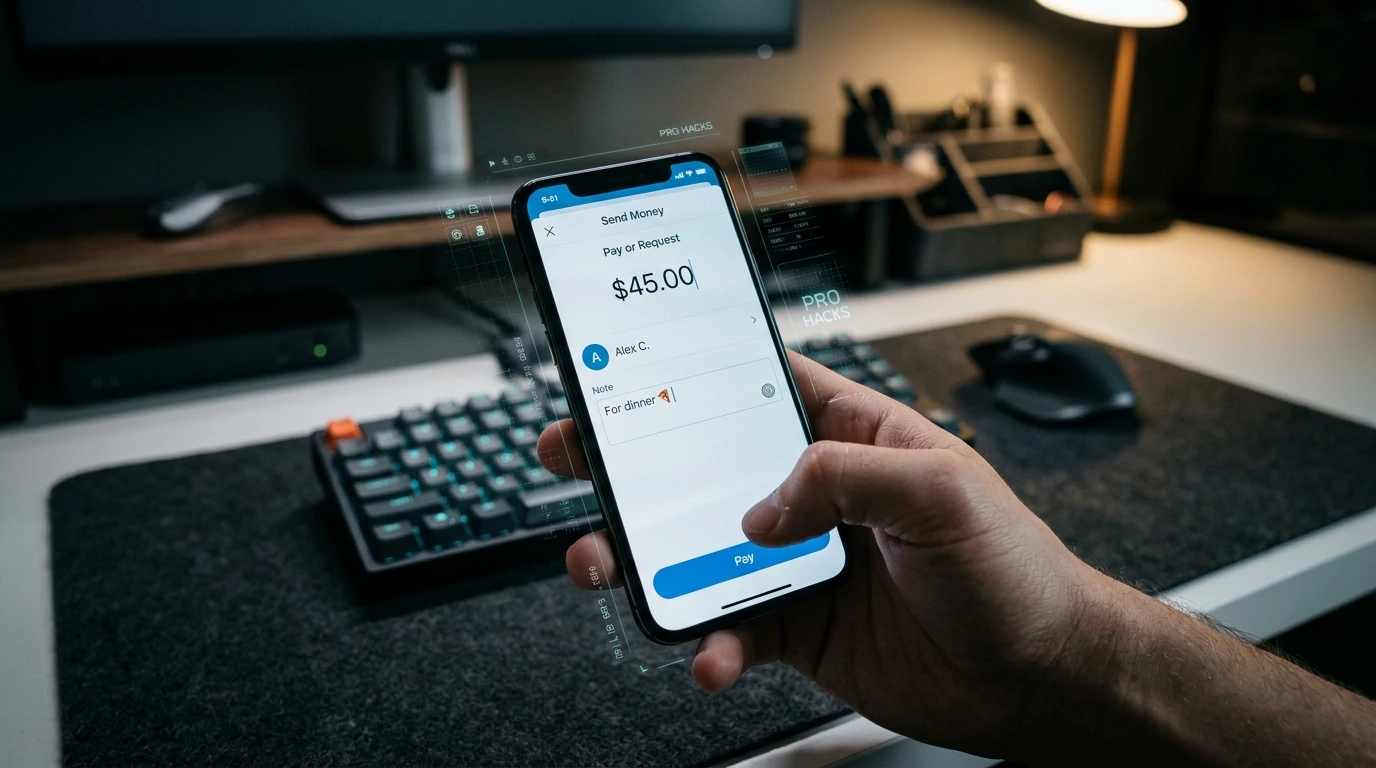
Preparing Your Venmo Account for Seamless Transfers
Before initiating any transfers, ensuring your Venmo account is properly configured and secured is paramount. The primary challenge for new users often revolves around linking appropriate funding sources and understanding security protocols.
Essential Prerequisites and Tools:
- Compatible Mobile Device: An iOS (iPhone) or Android smartphone with the latest operating system updates.
- Venmo Application: Downloaded and installed from the Apple App Store or Google Play Store.
- Active Venmo Account: A registered and verified account, typically requiring an email address, phone number, and identity verification.
- Linked Funding Source: A verified U.S. bank account or a major debit card (Visa, MasterCard, American Express, Discover) connected to your Venmo profile.
- Stable Internet Connection: Wi-Fi or cellular data for app functionality.
To set up your account, simply follow the on-screen prompts after downloading the app. This generally involves creating a strong password, verifying your identity, and securely linking your preferred bank account or debit card, which Venmo uses for funding your payments.
Executing a Venmo Payment: A Step-by-Step Guide
Sending money through Venmo is designed to be intuitive, but a methodical approach ensures accuracy and reduces potential errors. This process outlines the standard procedure for sending funds to another Venmo user.
- Launch the Venmo Application: Open the Venmo app on your smartphone and log in if prompted.
- Tap the Pay/Request Icon: Locate the “Pay & Request” button, usually represented by a pencil and paper icon or a simple “Pay/Request” text, typically found at the bottom or top right of the screen.
- Select Your Recipients:
- You can search for friends by their username, phone number, or email address.
- Alternatively, select from your Venmo friends list or your phone’s contacts if they are linked to Venmo.
- Ensure you select the correct individual to avoid misdirected payments.
- Enter the Amount and Add a Note:
- Input the exact dollar amount you wish to send.
- Include a clear, concise note describing the purpose of the payment (e.g., “Dinner last night,” “Rent,” “Birthday gift”). This note is visible to the recipient and, depending on your privacy settings, potentially to your Venmo network.
- Choose Your Funding Source:
- By default, Venmo attempts to use your Venmo balance first. If insufficient, it will draw from your linked bank account or debit card.
- You can manually select your preferred funding source (e.g., a specific debit card) before confirming the transaction.
- Review and Confirm:
- Carefully review all transaction details: recipient, amount, note, and funding source.
- Tap the “Pay” button to finalize the transfer.

Avoiding Common Transactional Pitfalls
While Venmo is user-friendly, certain common mistakes can lead to complications. Awareness of these issues can save significant time and frustration.
- Incorrect Recipient: Sending money to the wrong person is perhaps the most frequent and difficult error to rectify. Venmo payments are typically irreversible if sent to an active account.
- Inaccurate Amount: Double-checking the numerical value before hitting “Pay” is crucial to avoid overpaying or underpaying.
- Privacy Settings Oversight: Venmo transactions default to public visibility, meaning your friends and even the public can see your payment notes. Adjust your privacy settings for each transaction or globally in your settings to “Friends” or “Private” as needed.
- Scams and Unauthorized Transactions: Be wary of requests from unknown individuals or suspicious links. Venmo is designed for transactions between trusted parties. Report any fraudulent activity immediately.
- Insufficient Funds: If your Venmo balance or linked bank account lacks sufficient funds, the transaction may be declined or result in an overdraft fee from your bank.
PRO TIP: Always Double-Check Details
Before confirming any Venmo payment, take an extra moment to verify the recipient's username, the exact amount, and the transaction note. This simple habit can prevent the vast majority of common payment errors.
Confirming Successful Transfers and Transaction History
After sending funds, verifying that the transaction was successful is an important final step. Venmo provides several mechanisms for confirmation.
Post-Transfer Verification Checklist:
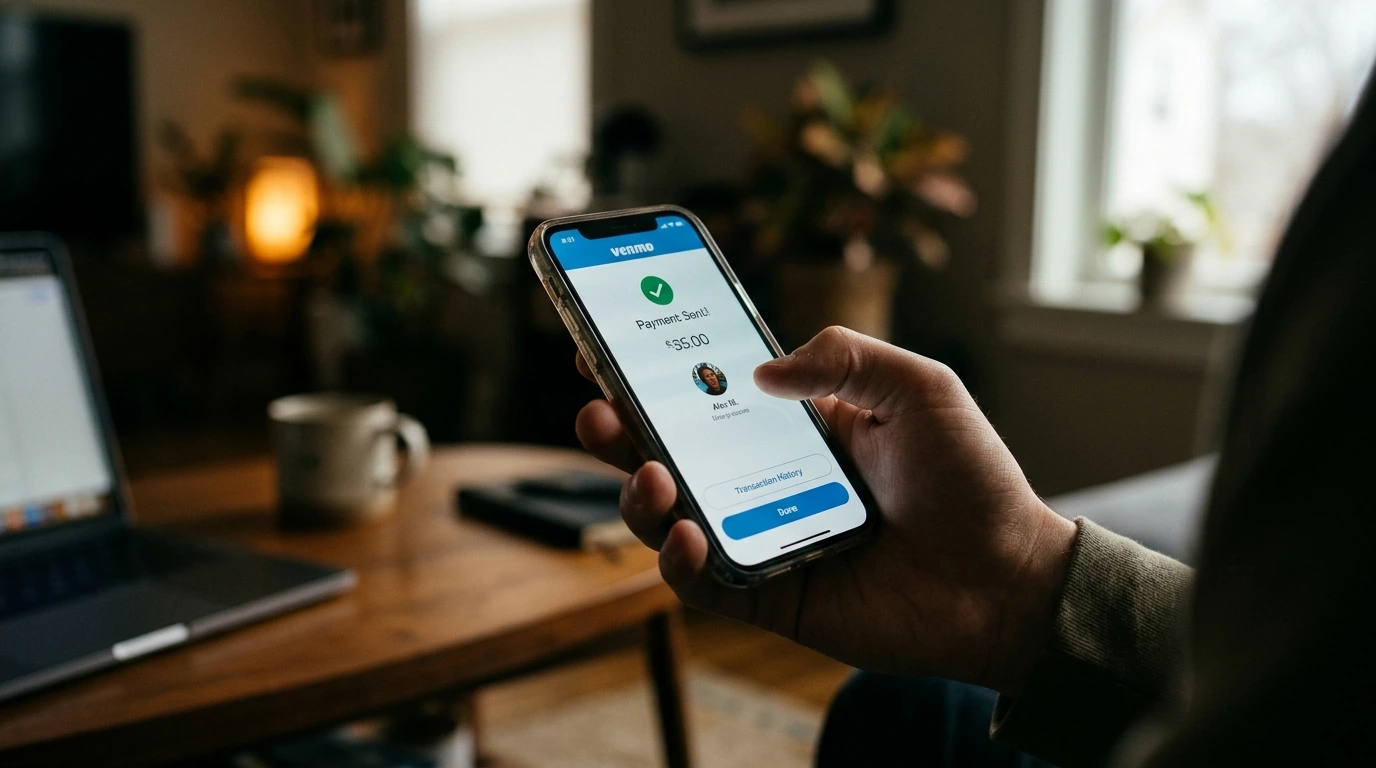
- In-App Notification: Venmo typically provides an immediate in-app notification confirming the payment has been sent.
- Transaction History: Navigate to the “Me” tab within the app to view your personal transaction history. The payment should appear there with a “Completed” status.
- Recipient Confirmation: The most reliable method is to receive direct confirmation from your friend or family member that they have received the funds. They will also receive an in-app notification and an email from Venmo.
- Email Confirmation: If you have email notifications enabled, Venmo will send an email confirming the payment.
If you encounter any discrepancies or believe a payment did not go through as expected, consult Venmo’s support resources within the app or on their official website. Prompt action is often critical for resolving payment issues.
Mastering DigitalOcean Deployments: Advanced Strategies for 2026 Cloud Infrastructure →
Frequently Asked Questions About Venmo Transfers
Is there a fee to send money on Venmo?
Sending money from a linked bank account, debit card, or your Venmo balance is typically free. A standard 3% fee is applied when sending money using a credit card, though this can vary by promotion or specific card type.
How long does a Venmo transfer take to reach the recipient?
Payments sent between Venmo users are generally instant. The funds appear in the recipient's Venmo balance immediately, ready for them to use or transfer to their bank.
Can I cancel a Venmo payment?
Once a payment is sent to an active Venmo account, it is usually irreversible. You would need to politely request the recipient to send the money back. Payments to inactive accounts or those with unverified details might be cancelable, but this is an exception rather than the rule.
What are Venmo's transaction limits?
Venmo has weekly rolling limits for sending money, which can vary based on your account verification status. For verified users, the typical weekly sending limit for person-to-person payments is around $4,999.99, but it's advisable to check the most current limits directly within the app or on Venmo’s official support pages as these figures can be adjusted.


Post a Comment for "Quickly Sending Funds to Loved Ones When Using Venmo on Your Mobile Device"