
Checklist for Android Google Pay Setup and Sending Money to Friends
Setting up a digital wallet on your Android device for seamless transactions and peer-to-peer payments can streamline your financial interactions. Google Pay, a robust platform from Google, offers a straightforward way to manage your cards and send funds to friends directly from your smartphone. This guide walks through the necessary steps to get you started and ensure your digital payments are both convenient and secure.
Key Takeaways
- Ensure your Android device meets minimum OS requirements and has an active Google account.
- Verify your identity and payment methods for secure transactions and higher limits.
- Always double-check recipient details and amounts before confirming money transfers.
- Utilize strong device security (PIN, fingerprint, face unlock) to protect your Google Pay account.
Initial Requirements for Google Pay
Before diving into the setup process, a few prerequisites must be in place to ensure a smooth experience. Confirming these items beforehand will prevent common delays.
Required Prerequisites:
- Compatible Android Device: Your smartphone must be running Android 7.0 (Nougat) or higher. Most modern Android devices from 2020 onwards meet this criterion.
- Active Google Account: Google Pay is intrinsically linked to your Google account. Ensure you are signed in and have access to it.
- Internet Connection: A stable Wi-Fi or mobile data connection is essential for downloading the app, adding cards, and making transactions.
- Payment Method: A valid credit or debit card from a participating bank. Google Pay supports most major card networks, including Visa, Mastercard, American Express, and Discover.
- Device Security: For enhanced security, your device should have a screen lock enabled (PIN, pattern, password, fingerprint, or face unlock).
Activating Your Google Pay Account and Adding Payment Methods
Getting Google Pay ready involves downloading the application and securely linking your financial instruments. This multi-step process ensures your data is protected from the outset.
- Step 1: Download and Open the Google Pay App
- Navigate to the Google Play Store on your Android device.
- Search for "Google Pay" and install the official application.
- Once installed, open the app. It will typically prompt you to sign in with your existing Google account.
- Step 2: Add a Payment Method
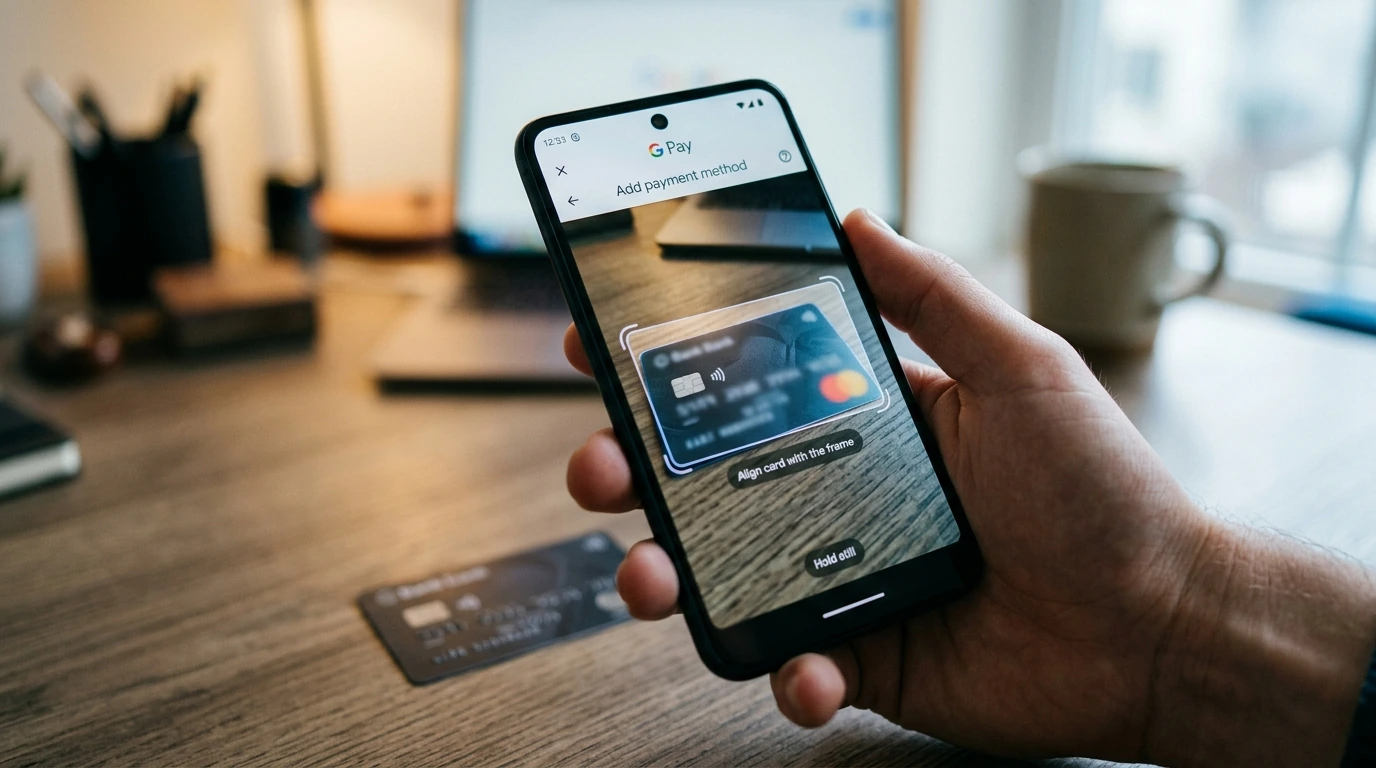
- From the Google Pay home screen, look for an option like "Add a card" or a "+" icon.
- You will be given the choice to add a credit or debit card. Select the appropriate option.
- You can either use your phone's camera to scan the card details automatically or manually enter the card number, expiration date, and CVV.
- Provide your billing address if prompted.
- Step 3: Verify Your Card
- For security purposes, your bank will need to verify the card. This usually involves a small authorization charge or a verification code sent via SMS, email, or a phone call.
- Follow the on-screen instructions to complete the verification. This step is critical for activating your card for transactions.
- Step 4: Set as Default (Optional but Recommended)
- If you have multiple cards, you can set a default card for quicker transactions. Tap on the card you wish to make default and select the "Set as default" option.
Initiating Secure Money Transfers to Contacts
Once your Google Pay account is set up with a payment method, sending money to friends or family is a straightforward process. This feature works best when your contacts also have Google Pay enabled.
- Step 1: Open Google Pay and Navigate to Send Money
- Launch the Google Pay app on your Android device.
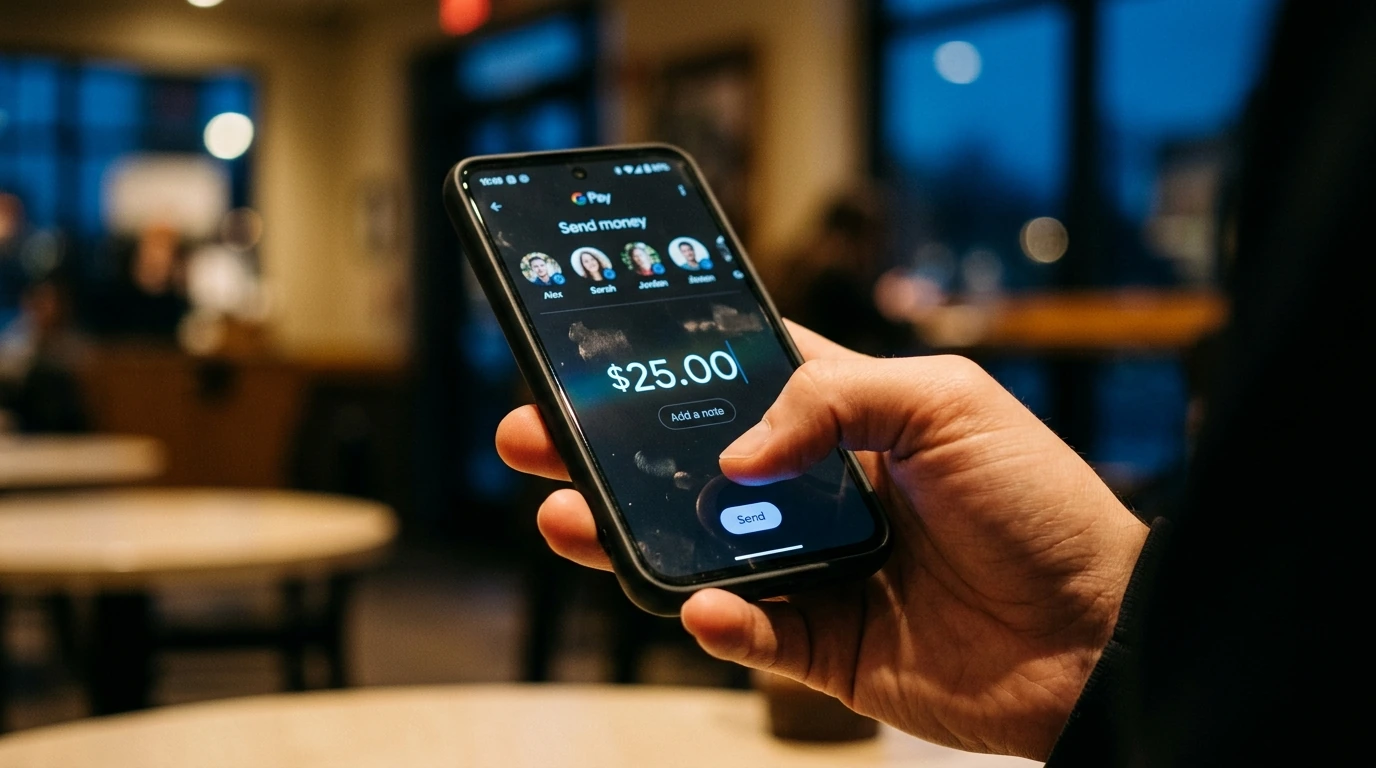
- Look for a "Send" or "Send money" button, often prominently displayed on the main screen.
- Step 2: Select a Contact or Enter Details
- You can typically choose a recipient from your phone's contact list that is linked to their Google Pay account.
- Alternatively, you can manually enter their phone number or email address associated with their Google Pay profile.
- Step 3: Enter the Amount and Add a Note
- Input the exact amount of money you wish to send.
- Optionally, add a note or message to clarify the purpose of the payment (e.g., "Dinner last night").
- Step 4: Confirm and Send
- Review all the details: recipient, amount, and payment method (if you have multiple).
- Tap "Confirm" or "Send" to complete the transaction. You may need to authenticate with your device's security (PIN, fingerprint, etc.).
Avoiding Common Transaction Hurdles
While Google Pay is generally reliable, users can encounter specific issues. Being aware of these can help you troubleshoot or prevent problems.
- Incorrect Payment Method Selected: Always verify which card is being used for a transaction, especially if you have multiple cards linked. Accidentally using a credit card for a payment intended for a debit card can incur different fees or interest.
- Insufficient Funds: Ensure the linked bank account or card has sufficient funds for the transaction. Transfers can fail if the balance is too low.
- Recipient Not Set Up: If you're sending money to a friend, they must also have Google Pay set up to receive the funds. If they haven't, Google Pay will typically send them an invitation to join. Funds may remain pending until they do.
- Security Lockouts: Repeated incorrect PIN entries or unusual transaction patterns can trigger temporary security lockouts. Contact your bank or Google Pay support if this occurs.
- Outdated App Version: Running an old version of the Google Pay app can lead to bugs or compatibility issues. Regularly update the app via the Play Store.
PRO TIP: Enable Two-Factor Authentication (2FA) for your Google account. This adds an extra layer of security, requiring a second verification step beyond your password, significantly reducing the risk of unauthorized access to your Google Pay funds and personal data.
Confirming Your Google Pay Readiness
After setting up Google Pay and understanding its functionalities, a quick check can confirm everything is working as expected.
- Check Card Status: Open the Google Pay app and verify that your added cards show as "Ready for use" or similar.
- Review Recent Activity: If you've made a test transaction or sent money, check the "Activity" section within the app to ensure it's recorded correctly.
- Confirm Device Security: Ensure your device's screen lock is active and that fingerprint or face unlock is enabled for Google Pay transactions if supported.
- NFC Functionality: For in-store tap-to-pay, verify that NFC (Near Field Communication) is enabled in your Android device's settings.


Post a Comment for "Checklist for Android Google Pay Setup and Sending Money to Friends"