
Digital Wallet or Physical Card - Setting Up Apple Pay for Seamless Transactions
Are you still fumbling for your physical wallet at the checkout, or are you ready to embrace the streamlined convenience of digital payments? Apple Pay, a contactless payment system, transforms your Apple devices into a secure digital wallet, enabling swift and private transactions in stores, within apps, and on the web. As a core component of the Apple ecosystem, it integrates deeply with your iPhone, Apple Watch, and Mac, leveraging advanced security protocols to protect your financial information.
Key Takeaways
- Effortless Setup: Adding credit or debit cards to Apple Pay is a straightforward process via the Wallet app, often requiring just a scan or manual entry.
- Enhanced Security: Transactions are secured through tokenization, Face ID/Touch ID, and device passcodes, ensuring your actual card numbers are never shared.
- Widespread Acceptance: Apple Pay works anywhere contactless payments are accepted, including millions of physical stores, apps, and websites.
- Device Compatibility: Compatible with a wide range of Apple devices, including iPhone, Apple Watch, iPad, and Mac, offering flexibility in how you pay.
Embracing Digital Transactions: The Apple Pay Ecosystem
Apple Pay offers a high-level summary of what a modern digital wallet can achieve. Its core strength lies in its ability to simplify transactions while bolstering security. Instead of carrying multiple physical cards, users can consolidate them into a digital format accessible through their Apple devices. This system is designed for broad compatibility, functioning seamlessly with existing NFC-enabled payment terminals found globally. The user experience prioritizes speed and discretion, allowing for quick taps at the point of sale without the need to open specific apps or sign receipts for most transactions.
Core Mechanics: How Apple Pay Secures Your Finances
The technical foundation of Apple Pay is built on several layers of security and proprietary hardware integration. At its heart is Near Field Communication (NFC) technology, which facilitates secure, short-range communication between your Apple device and a payment terminal. When a card is added, Apple Pay doesn't store your actual card numbers on the device or on Apple servers. Instead, it assigns a unique Device Account Number, encrypts it, and stores it securely in the Secure Element—a dedicated, certified chip designed to hold payment information safely. Each transaction is authorized with a one-time unique dynamic security code.
Authentication for payments relies on biometric identification (Face ID or Touch ID) or your device's passcode, ensuring that only the authorized user can initiate a transaction. This multi-factor authentication significantly reduces the risk of unauthorized use, even if a device is lost or stolen. The system's build quality is intrinsically linked to the robust security architecture of Apple's hardware, providing a durable and reliable platform for sensitive financial data.
Getting Started: Adding Your Cards to Apple Wallet
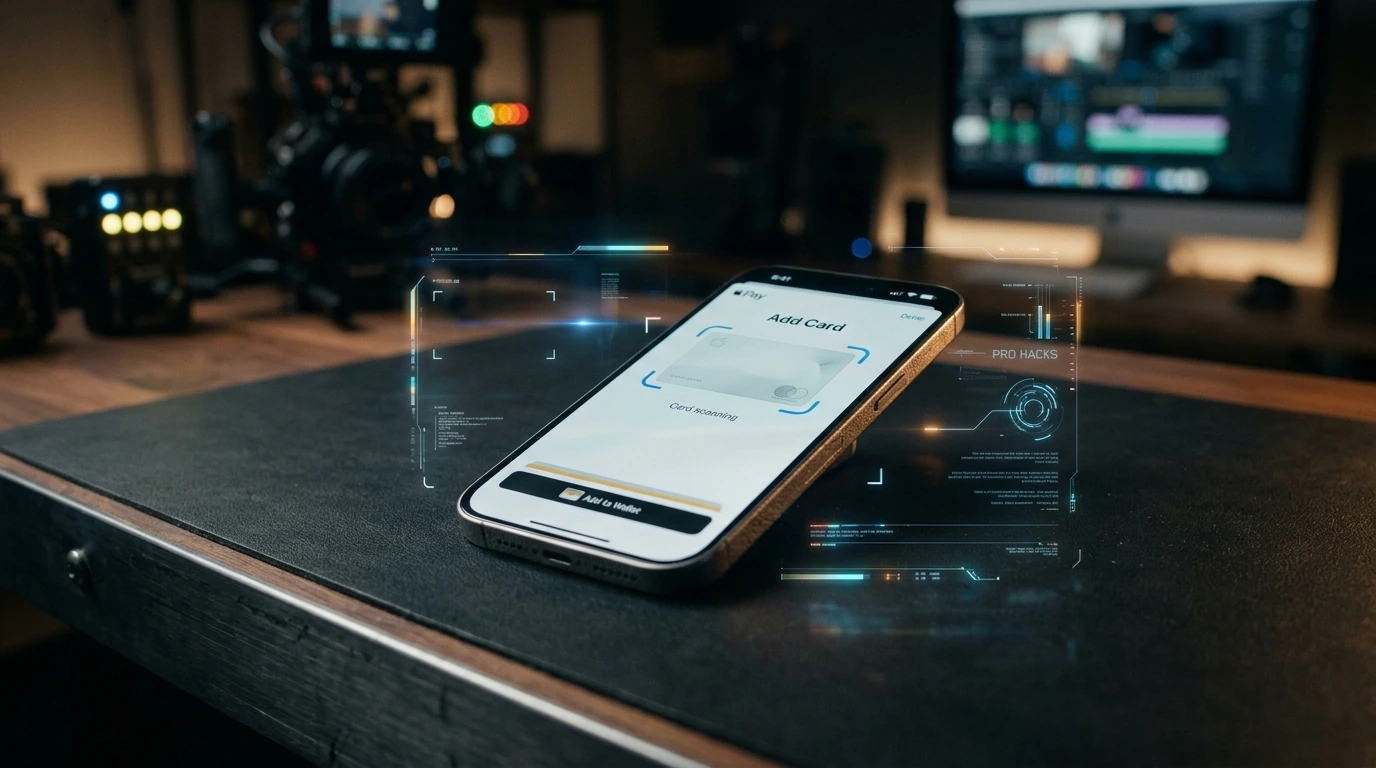
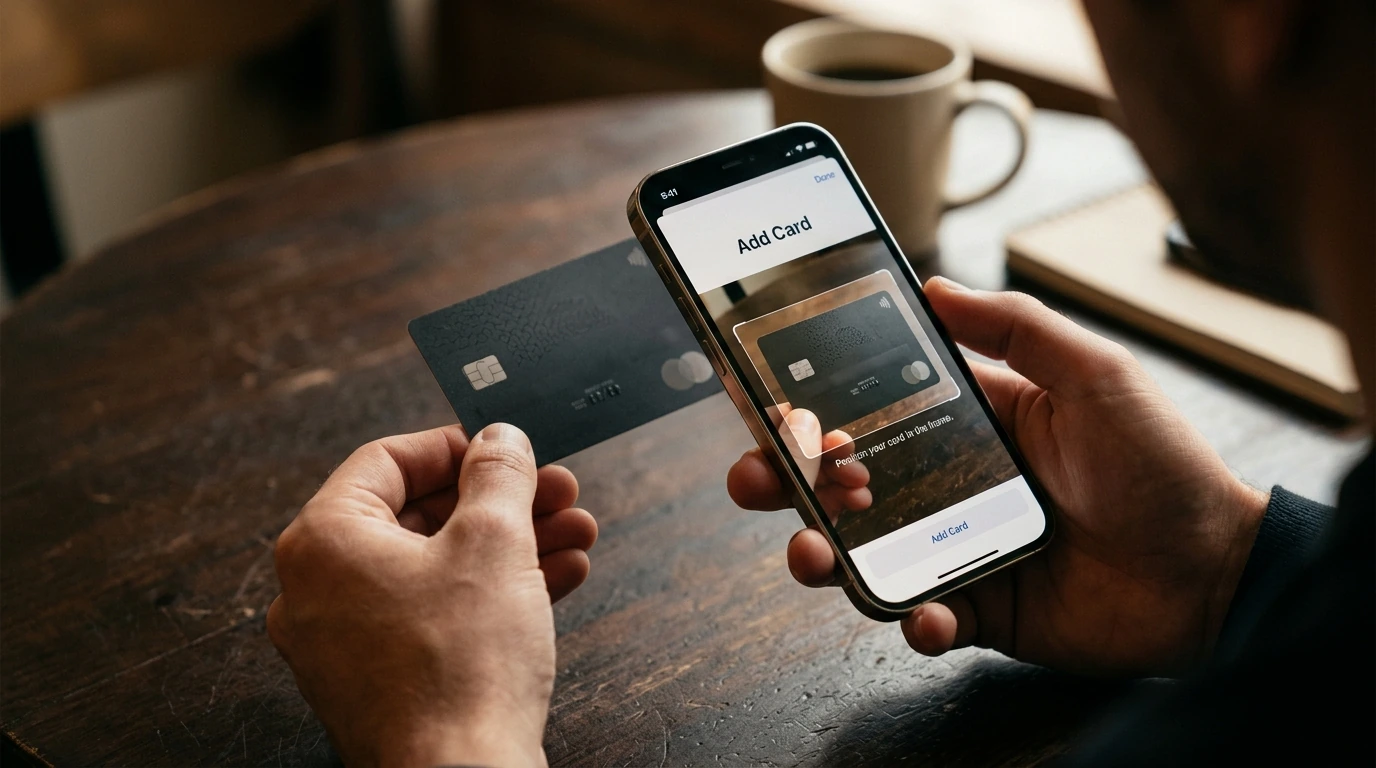
Setting up Apple Pay is designed to be intuitive, allowing users to quickly integrate their financial cards into their digital lifestyle. The primary method involves using the Wallet app on your iPhone. You'll typically tap the '+' icon in the upper right corner, then follow the on-screen prompts to add a credit or debit card. This can often be done by simply positioning your card within the iPhone's camera frame, which automatically reads the card number and expiration date. Alternatively, you can enter the card details manually. Your bank will then verify the card, often requiring a quick confirmation via text message, email, or a call.
For your Apple Watch, the process is similar. Open the Apple Watch app on your iPhone, navigate to 'Wallet & Apple Pay,' and then tap 'Add Card.' Cards added to your iPhone can often be easily transferred to your Watch, streamlining the setup. For Mac users, Apple Pay can be configured in System Settings (or System Preferences) under 'Wallet & Apple Pay' to enable online purchases.
Pro Tip: Keep Your Default Card Organized
While you can add multiple cards to Apple Pay, designate your most frequently used card as the default in the Wallet app. This reduces friction during checkout, as it will be the first card presented for payment. You can easily change the default card or select a different one during a transaction by tapping it.
Making Payments: Tapping and Confirming in Stores
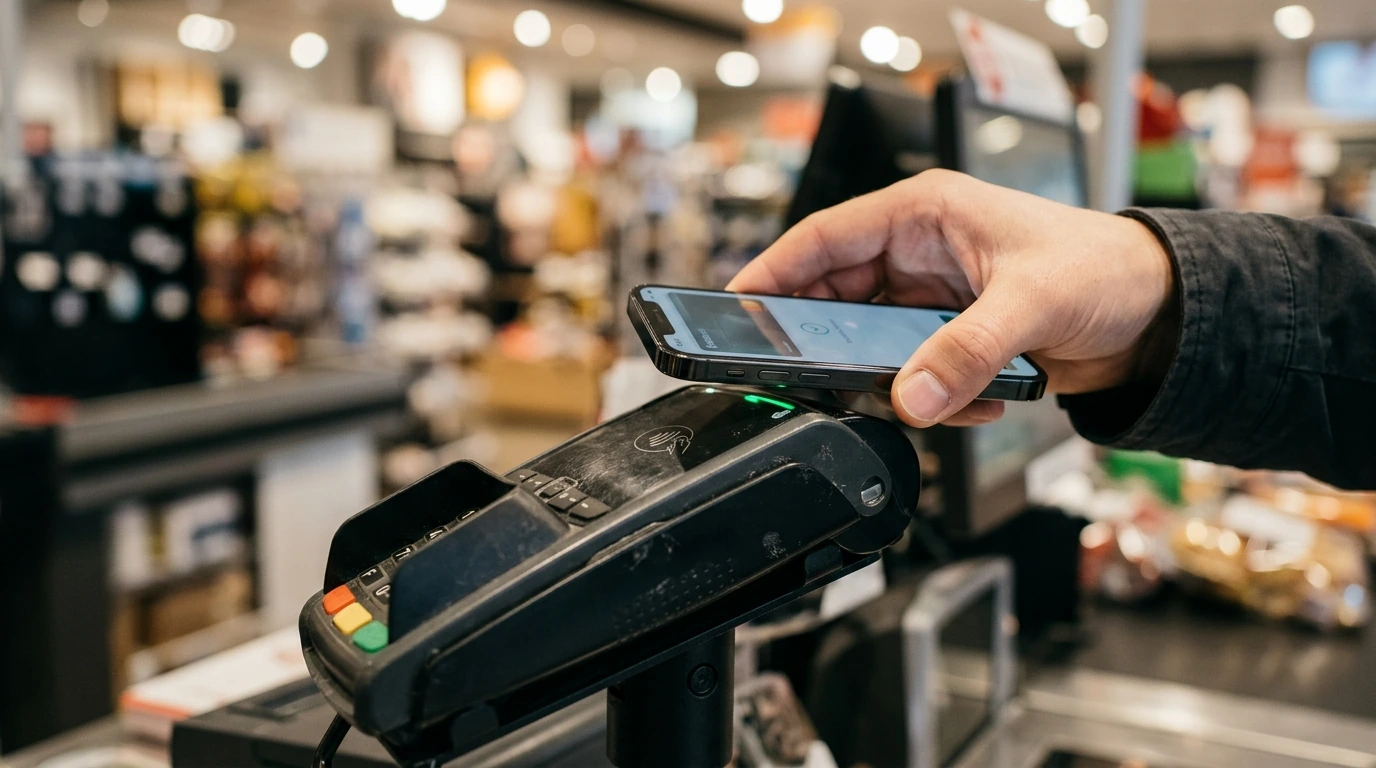
Paying with Apple Pay in a physical store is designed for speed and simplicity. When you're ready to pay at a terminal that accepts contactless payments (look for the contactless symbol), here's how it generally works:
- For iPhone with Face ID: Double-click the side button, glance at your iPhone to authenticate with Face ID, then hold the top of your iPhone near the reader.
- For iPhone with Touch ID: Rest your finger on the Touch ID sensor, then hold the top of your iPhone near the reader.
- For Apple Watch: Double-click the side button, then hold the face of your Apple Watch near the reader.
A gentle vibration and a checkmark on your device screen confirm that your payment was successful. For online purchases or within apps, you'll typically select Apple Pay as the payment method at checkout and then authenticate with Face ID, Touch ID, or your passcode on your device.
Advantages and Considerations for Apple Pay Users
Advantages:
- Superior Security: Card numbers are never stored or transmitted, and each transaction uses a unique, encrypted token, offering a higher level of security than traditional card swipes.
- Unparalleled Convenience: Eliminates the need to carry physical cards, allowing for quicker checkouts with just a tap of your device.
- Privacy Protection: Apple does not store transaction details that can be tied back to you, ensuring your purchasing habits remain private.
- Global Reach: Widely accepted at millions of merchant locations worldwide that support contactless payments.
Considerations:
- Device Dependency: Requires an Apple device with Apple Pay capability, meaning users without compatible hardware cannot utilize the service.
- Merchant Acceptance: While widespread, not all merchants or regions have adopted contactless payment terminals, limiting its use in some scenarios.
- Battery Life: If your device's battery dies, you lose access to your digital wallet, which can be a point of friction if you rely solely on Apple Pay.
Demanding Workloads, Enduring Support: Evaluating 2026's Top Workstation Laptops for Data Science →
Is Apple Pay Right for You? A Definitive Verdict
For anyone deeply integrated into the Apple ecosystem and seeking a more secure, convenient, and private method for everyday transactions, Apple Pay represents a compelling choice. Its robust security framework, leveraging tokenization and biometric authentication, significantly mitigates the risks associated with traditional card payments. The ease of setup and the seamless payment experience, whether in a physical store or online, make it an attractive alternative to fumbling with a physical wallet.
If you frequently use an iPhone or Apple Watch and prioritize digital efficiency and financial security, adopting Apple Pay is a logical and highly beneficial step. While it doesn't entirely replace the need for a physical card in every scenario (due to varying merchant acceptance), it dramatically streamlines the majority of your payment interactions. Consider it an essential upgrade to your personal computing and payment strategy, offering peace of mind and unparalleled convenience in 2026.


Post a Comment for "Digital Wallet or Physical Card - Setting Up Apple Pay for Seamless Transactions"