
How to Speed Up a Slow Computer: 15 Effective Fixes That Deliver Results
Is your computer taking an eternity to boot up, launch applications, or even switch between tabs? A sluggish system can hinder productivity and create significant frustration. Fortunately, many common causes of slow performance are addressable with a series of targeted fixes. This guide outlines 15 practical steps to help restore your machine's responsiveness and efficiency, leveraging established domain knowledge and widely reported best practices.
Identifying the Performance Hiccups and Preparing Your System
Before diving into solutions, understanding the root cause of your computer's slowdown is crucial. Performance issues can stem from software bloat, insufficient resources, or even hardware degradation. A systematic approach begins with diagnosis and preparation.
Essential Preparations and Tools
- Administrative Access: Ensure you have administrator privileges on your computer to make necessary system changes.
- Data Backup: Always back up critical data before undertaking significant system modifications. While these fixes are generally safe, unforeseen issues can occur.
- Patience: Some steps require time for scanning or processing.
- Key Tools: Your operating system's built-in Task Manager (Windows) or Activity Monitor (macOS), Disk Cleanup utility, and a reputable antivirus/anti-malware program.
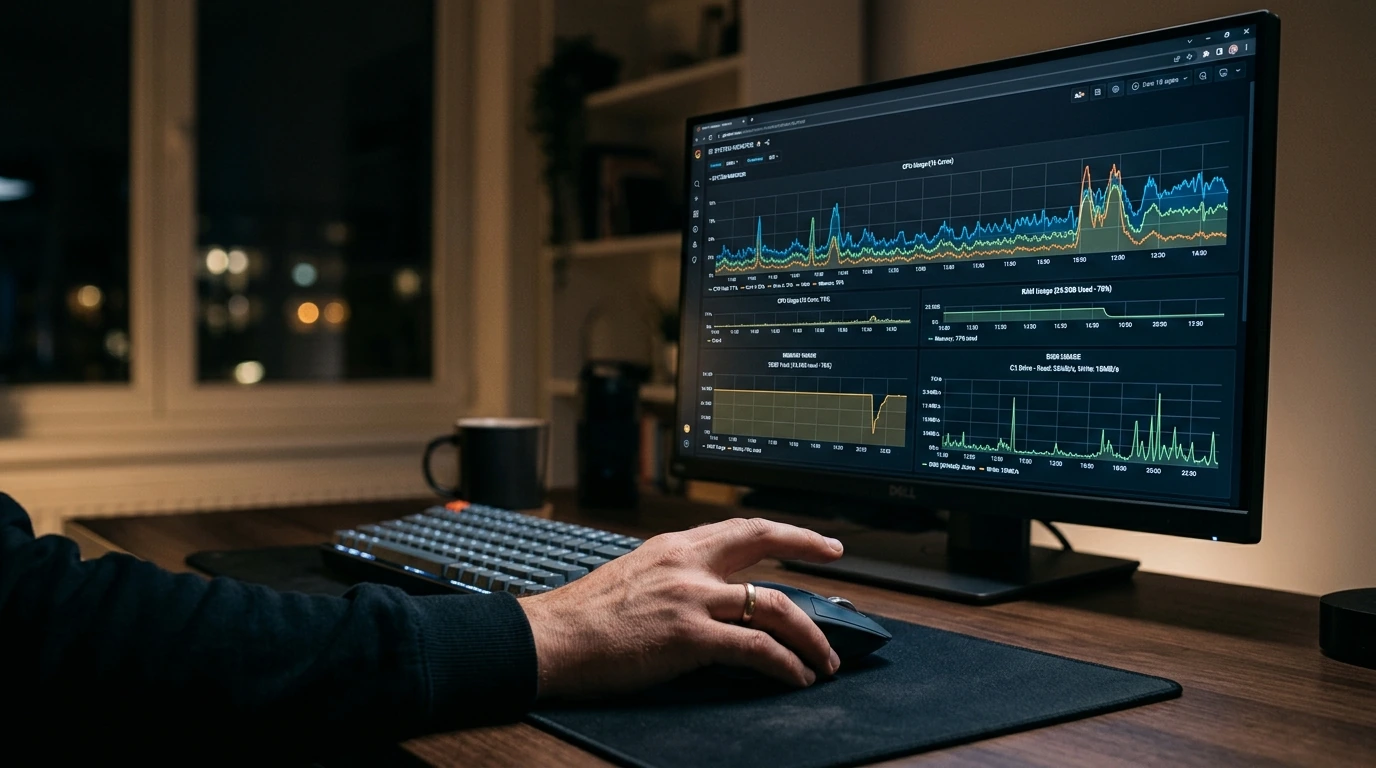
Streamlining Your Software Environment
Software often contributes significantly to system slowdowns. Managing applications, startup processes, and maintaining a clean digital workspace can yield immediate improvements.
-
Curbing Startup Programs
Many applications are configured to launch automatically with your operating system, consuming valuable RAM and CPU cycles from the moment you power on. Disabling unnecessary startup items can drastically reduce boot times.
- Windows: Open Task Manager (Ctrl+Shift+Esc), navigate to the 'Startup' tab, and disable any non-essential programs.
- macOS: Go to System Settings > General > Login Items, and remove unwanted applications.
-
Purging Unused Applications
Every installed program occupies disk space and can leave behind residual files, potentially impacting performance. Regularly uninstall software you no longer use.
- Windows: Use 'Add or Remove Programs' in System Settings or Control Panel.
- macOS: Drag applications from the Applications folder to the Trash.
-
Keeping Drivers and OS Up-to-Date
Outdated drivers can cause system instability and performance bottlenecks. Similarly, operating system updates often include critical performance enhancements and security patches.
- Windows: Check for updates via Windows Update and use Device Manager to update specific drivers.
- macOS: Updates are found in System Settings > General > Software Update.
-
Running Comprehensive Malware and Virus Scans
Malware, viruses, and other unwanted software can clandestinely consume system resources, leading to severe slowdowns. A thorough scan with a reputable security suite is essential.
-
Optimizing Your Web Browser
Web browsers, especially with numerous extensions and open tabs, can be significant resource hogs. Regularly clear cache and cookies, and disable or remove unnecessary extensions.

Optimizing Storage and System Resources
How your computer manages its storage and internal resources directly impacts its speed. These steps focus on improving disk efficiency and resource allocation.
-
Clearing Out Temporary Files
Your operating system and applications generate temporary files that, over time, can accumulate and consume significant disk space. Regularly deleting these can free up resources.
- Windows: Use the Disk Cleanup utility.
- macOS: Utilize 'Optimise Storage' features or third-party cleaning tools.
-
Disk Defragmentation (for HDDs)
For traditional Hard Disk Drives (HDDs), files can become fragmented, meaning parts of a single file are scattered across the disk. Defragmenting reorganizes these files for faster access. This step is not necessary for Solid State Drives (SSDs) and can even reduce their lifespan.
-
Adjusting Virtual Memory Settings
Virtual memory (or paging file) acts as an extension of your RAM, using disk space when physical RAM is exhausted. While typically managed automatically, adjusting its size can sometimes help, particularly on systems with limited RAM. It's generally recommended to let the system manage this, but advanced users might experiment with a fixed size within manufacturer guidelines.
-
Disabling Non-Essential Visual Effects
Modern operating systems feature numerous visual enhancements like animations, shadows, and transparency. While aesthetically pleasing, these can consume GPU and CPU resources. Disabling them can improve performance on less powerful systems.
- Windows: Search for 'Adjust the appearance and performance of Windows'.
- macOS: While fewer direct options exist, reducing transparency and motion in Accessibility settings can help.
-
Optimizing Power Plan Settings
Your computer's power plan can influence its performance. A 'Balanced' or 'Power Saver' plan might throttle components to conserve energy. Switching to a 'High Performance' plan can ensure your CPU and other components operate at their full potential, though it will consume more power.
Advanced Tweaks and Hardware Considerations
For persistent performance issues, or to achieve a significant speed boost, sometimes more drastic software measures or hardware upgrades are necessary.
-
Resetting or Reinstalling the Operating System
A clean slate can resolve deep-seated software conflicts and accumulated bloat. Resetting your OS (which often allows keeping personal files) or performing a full clean reinstallation can restore 'out-of-the-box' performance. This is often the most effective, albeit time-consuming, software solution.
-
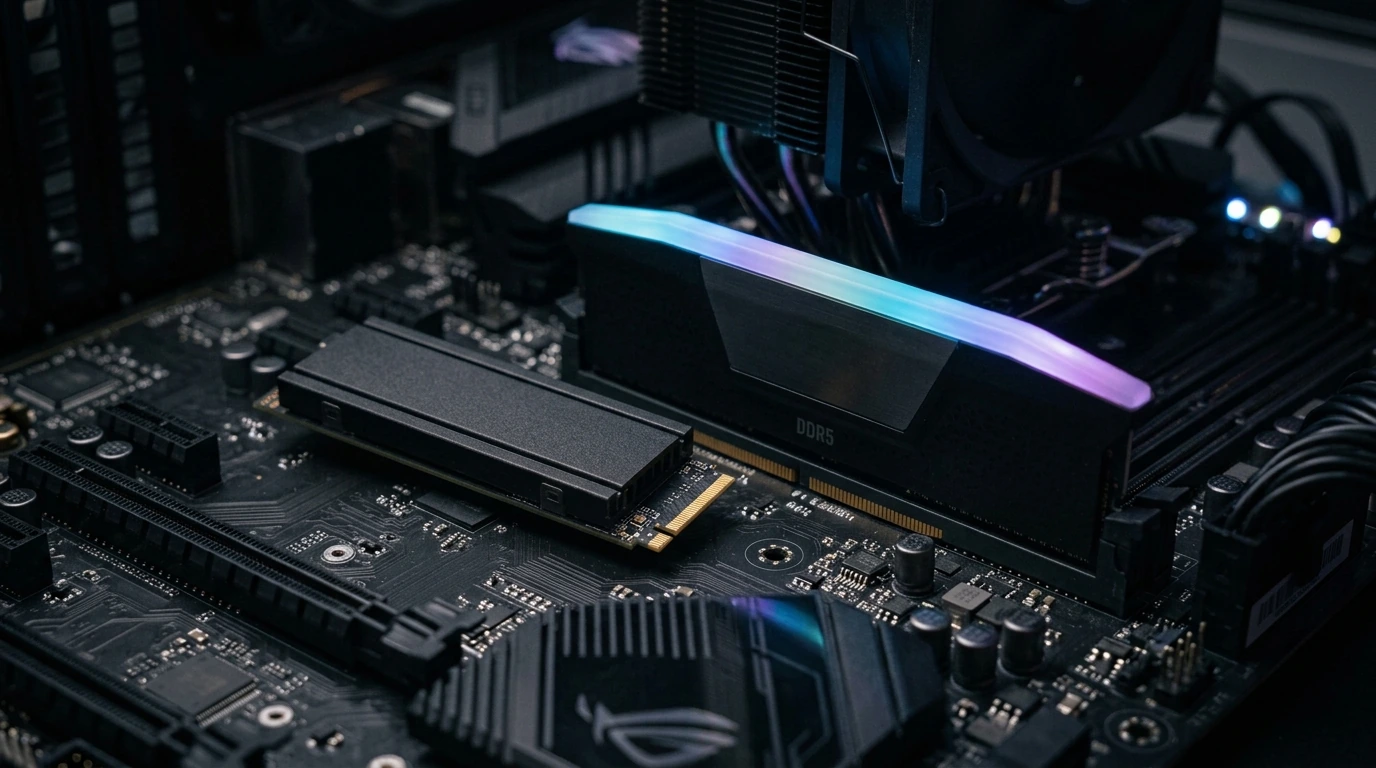
Upgrading System RAM
Insufficient RAM is a common bottleneck, especially for users who multitask, run demanding applications, or open many browser tabs. Increasing RAM allows your computer to handle more data simultaneously without relying heavily on slower virtual memory. Most modern systems benefit from 8GB or 16GB of RAM, with 32GB becoming standard for high-performance use.
-
Switching to a Solid State Drive (SSD)
If your computer still uses a traditional Hard Disk Drive (HDD), upgrading to an SSD is arguably the single most impactful performance upgrade. SSDs offer dramatically faster boot times, application loading, and overall system responsiveness due to their flash-based architecture. This aligns with widely reported user feedback and industry benchmarks.
-
Cleaning Internal Components
Dust accumulation inside your computer can obstruct airflow, causing components like the CPU and GPU to overheat. Overheating triggers thermal throttling, where components reduce their speed to prevent damage. Regularly cleaning dust from fans and heatsinks can maintain optimal operating temperatures and performance.
-
Monitoring Component Temperatures
High CPU or GPU temperatures can indicate a cooling problem, leading to performance degradation. Utilize monitoring software to keep an eye on these temperatures, especially during demanding tasks. Sustained temperatures above typical operating ranges (e.g., 70-80°C under load for CPUs) suggest a need for improved cooling or internal cleaning.
Avoiding Performance Traps and Common Errors
While seeking speed, it's easy to fall into traps that either offer minimal gain or introduce new problems. Understanding these pitfalls is crucial.
Pro Tip: Be wary of 'one-click' optimization tools from unknown developers. Many promise dramatic speed improvements but often install bloatware, collect data, or even introduce security vulnerabilities. Stick to reputable utilities or your operating system's built-in tools.
- Ignoring Updates: Delaying OS and driver updates can leave your system vulnerable and missing out on crucial performance optimizations.
- Installing Unverified Software: Always download software from official sources to avoid bundled bloatware or malware.
- Overfilling Your Primary Drive: Keeping your main system drive (especially an SSD) near full capacity can significantly degrade performance. Aim to maintain at least 15-20% free space.
- Unnecessary Overclocking: While overclocking can boost performance, it increases heat and can shorten component lifespan if not done carefully and with adequate cooling. For most users, the risks outweigh the benefits.
- Deleting Unknown System Files: Never delete files or folders if you're unsure of their purpose. You could inadvertently remove critical operating system components.
Verifying Your System's Newfound Responsiveness
After applying these fixes, it's important to confirm that your efforts have yielded the desired improvements. A quick verification process can help.
Performance Verification Checklist
- Boot Time: Note how quickly your computer starts up from a cold boot. Significant reductions indicate success.
- Application Launch Speed: Test the launch times of frequently used applications. They should open noticeably faster.
- Multitasking Responsiveness: Open several applications and browser tabs simultaneously. Your system should switch between them smoothly without freezing.
- Resource Monitor Check: Use Task Manager or Activity Monitor to observe CPU, RAM, and Disk usage during typical workloads. Look for lower idle usage and less frequent spikes.
- Overall User Experience: Does navigating the desktop, opening folders, and general interaction feel snappier and more fluid?
By systematically addressing these areas, from software management to potential hardware upgrades, you can significantly enhance your computer's performance and extend its useful life. Consistent maintenance is key to keeping your system running smoothly.


Post a Comment for "How to Speed Up a Slow Computer: 15 Effective Fixes That Deliver Results"