
High-fidelity mobile gaming on iOS offers console-quality graphics, but it comes at a steep cost to your iPhone's battery lifespan and daily runtime. If your battery percentage plummets by 30% or more after just a brief session of resource-heavy titles, you do not have to abandon your gaming habits. By fine-tuning a few critical iOS system settings, you can drastically reduce power consumption while maintaining smooth, responsive gameplay.
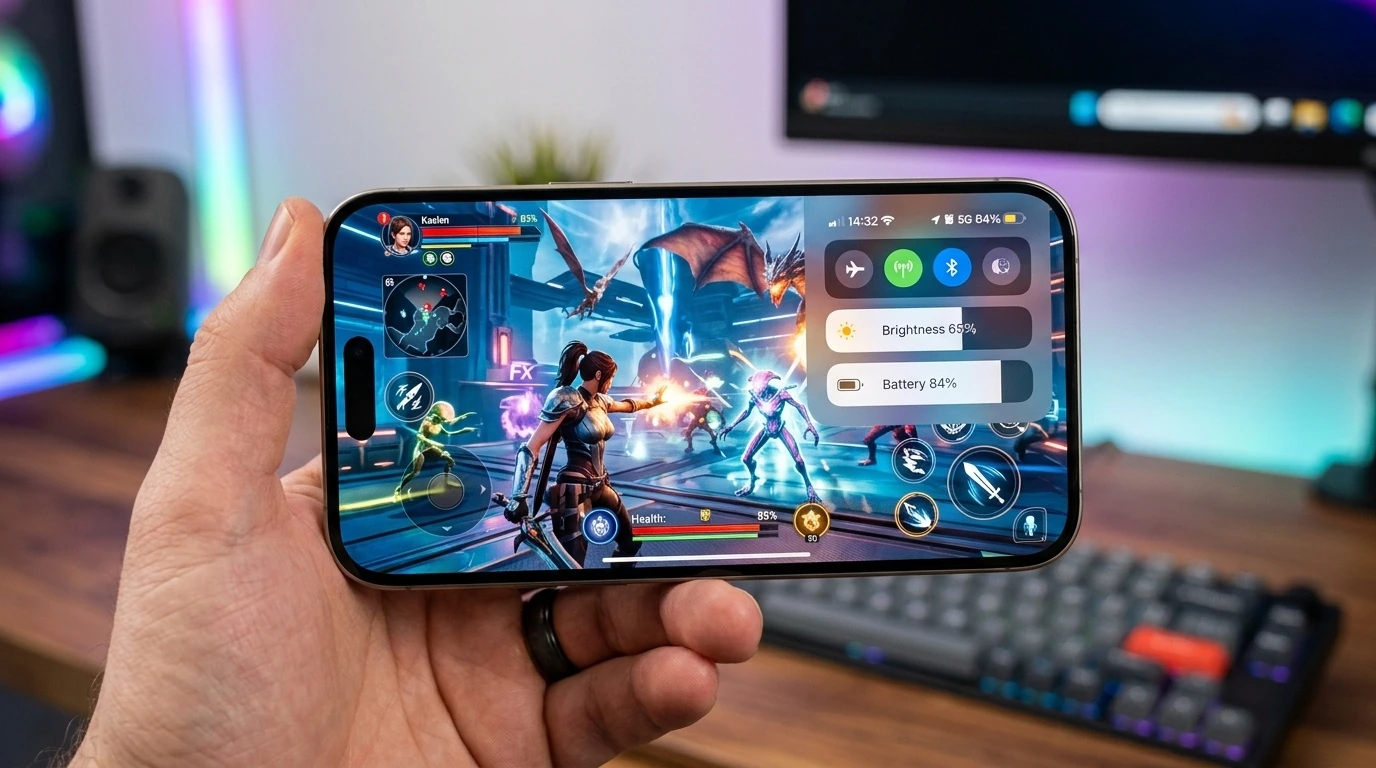
- Cap Frame Rates: Limiting games to 60 FPS (or 30 FPS for casual titles) prevents unnecessary GPU strain.
- Utilize Game Mode: iOS automatically prioritizes gaming performance and limits background tasks, but manual configurations yield even better battery savings.
- Manage Thermals: Keeping your iPhone cool is the single most effective way to prevent accelerated battery drain.
- Disable Background Sync: Turning off location tracking and background app refresh preserves vital system resources.
The Core Power Drains in iOS Gaming
To optimize your iPhone, it helps to understand what makes mobile gaming so resource-intensive. Unlike standard apps, gaming simultaneously taxes the CPU, GPU, display, wireless radios, and haptic motors. This massive concurrent demand generates heat, and as your device warms up, the battery discharges less efficiently, creating a compounding cycle of power loss.
While Apple's native Game Mode optimizes system resources for stable frame rates, it does not inherently prioritize battery conservation. To achieve a balance between longevity and performance, you must take manual control of your system settings.
Critical iOS Settings to Adjust Immediately
1. Configure a Dedicated Gaming Focus Mode
Every time a notification wakes your screen or forces a haptic vibration during a game, your phone uses extra power. Creating a custom Focus Mode specifically for gaming allows you to automate power-saving behaviors.
- Go to Settings > Focus.
- Tap the + icon and select Gaming.
- Silence non-essential notifications and calls.
- Scroll down to Focus Filters and configure system settings to disable Always-On Display or enable Dark Mode automatically when the Focus is active.
2. Disable Background App Refresh and Location Services
There is no reason for your email client, social media feeds, or cloud storage apps to sync in the background while you are dodging obstacles or aiming down sights. Disabling these background processes frees up CPU cycles and saves battery.
Navigate to Settings > General > Background App Refresh and turn it off entirely, or set it to run only over Wi-Fi. Next, go to Settings > Privacy & Security > Location Services and disable precise location access for apps that do not require it for gaming. Tracking your real-time GPS coordinates is one of the fastest ways to drain an iPhone battery.
3. Optimize Display Brightness and Auto-Brightness
The display panel is often the largest single consumer of battery power. Gaming in a bright room with Auto-Brightness enabled can push your screen to its maximum nit output, draining the battery rapidly.
For the best balance, turn off Auto-Brightness under Settings > Accessibility > Display & Text Size. Manually set your brightness slider to between 30% and 50% during gaming sessions. If you are playing in a dimly lit environment, this is more than enough to see the action clearly without exhausting your battery.
Real-World Scenarios: Performance vs. Battery Preservation
How you configure your settings should depend heavily on the type of game you are playing. One size does not fit all.
Scenario A: The High-Fidelity 3D RPG (e.g., Genshin Impact)
These games are incredibly taxing on the graphics processor. To maximize battery life here without turning the game into a slideshow, you should keep the game running at 60 FPS but lower the internal in-game graphic settings (such as shadow quality, motion blur, and render resolution) to "Medium" or "Low." This reduces the GPU workload significantly, keeping the phone cool and extending playtime.
Scenario B: The Casual Turn-Based Strategy or Puzzle Game (e.g., Marvel Snap)
For slower-paced games, high refresh rates are unnecessary. Go into the game's settings menu and cap the frame rate at 30 FPS. Because these games do not require split-second reflexes, the drop from 60 FPS to 30 FPS is barely noticeable, yet it can nearly double your battery life during play.
iOS Settings Impact Comparison
The following table outlines the battery-saving potential and performance trade-offs of various system modifications:
| Setting Adjustment | Power Saving Potential | Impact on Gameplay |
|---|---|---|
| Capping frame rate to 30/60 FPS | High | Slightly less fluid motion; no lag. |
| Reducing screen brightness to 40% | High | None (unless playing in direct sunlight). |
| Disabling Background App Refresh | Moderate | None; prevents background stuttering. |
| Turning off System Haptics | Low | Reduces physical tactile feedback. |
Managing Thermals: The Silent Battery Killer
Heat is the ultimate enemy of lithium-ion batteries. When your iPhone gets hot during a gaming session, its internal resistance increases, forcing the battery to work harder and drain faster. Over time, high temperatures permanently degrade your battery health capacity.
To combat thermal buildup, follow these practices:
- Remove your phone case: Heavy protective cases trap heat. Taking the case off during long gaming sessions allows the aluminum or titanium chassis to dissipate heat into the air efficiently.
- Avoid charging while playing: Fast-charging generates immense heat. Combining the heat of charging with the heat of gaming will trigger thermal throttling, dimming your screen and dropping your frame rate to unplayable levels.
- Play in a cool environment: Avoid gaming in direct sunlight or hot rooms. If possible, position yourself near a fan or in an air-conditioned space to assist your phone's passive cooling.
Frequently Asked Questions
Does iOS Game Mode save battery life?
No, Game Mode is designed to maximize performance, not battery life. It prioritizes CPU and GPU resources for the active game and reduces background task performance to ensure stable frame rates and lower wireless latency. To save battery, you must manually apply the settings outlined in this guide.
Will playing games on my iPhone permanently ruin my battery health?
Gaming itself does not ruin battery health, but the heat generated by prolonged gaming sessions does. By managing your device's temperature, avoiding charging while playing, and capping frame rates, you can protect your battery's long-term health.
Is it better to play games on Wi-Fi or cellular data?
Wi-Fi is significantly more power-efficient than cellular data (especially 5G). Cellular radios require more power to maintain a connection to distant cell towers, which increases battery consumption and generates additional heat. Always opt for Wi-Fi when playing online multiplayer games.
Should I turn off system haptics for gaming?
Yes. While haptic feedback adds immersion, physical vibration motors require mechanical energy, which directly drains your battery. You can disable this by going to Settings > Sounds & Haptics and turning off System Haptics.
link : Top iOS Settings to Change to Maximize Battery Life During Gaming

No comments:
Note: only a member of this blog may post a comment.