

Mobile gaming on iOS has reached console-like fidelity, but thermal throttling and background system tasks can quickly degrade your smooth 60 or 120 FPS target. While Apple's Game Mode automatically activates to prioritize system resources, achieving sustained peak frame rates requires manual system tuning and environmental management. This guide walks you through the exact steps to optimize your iPhone's hardware and software settings for uninterrupted, high-performance gaming.
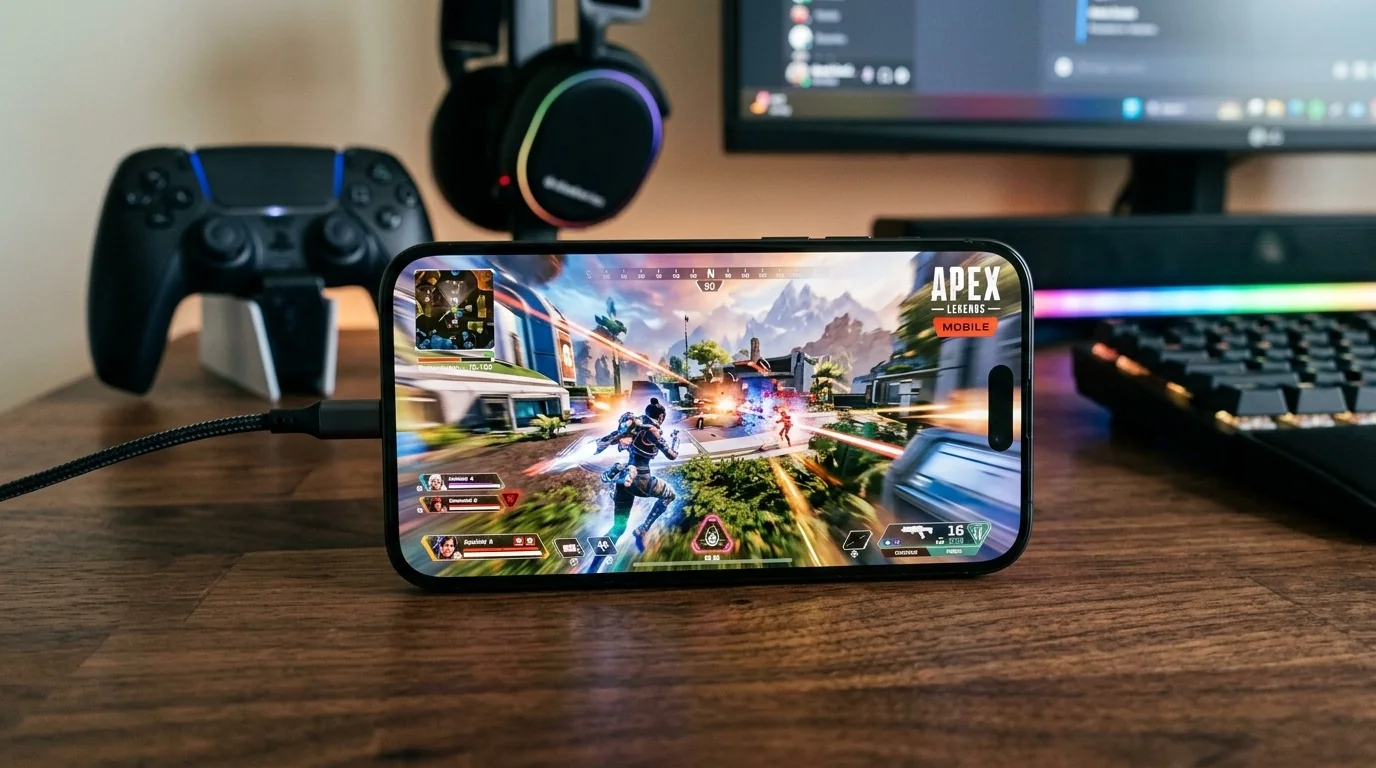
Key Takeaways
- Game Mode is Automatic: Introduced in iOS 18, Game Mode launches automatically when you open a game, but background settings can still limit its potential.
- Heat is the Enemy: Thermal throttling is the primary cause of sudden frame drops and screen dimming during extended play.
- Power Settings Matter: Low Power Mode severely limits GPU performance and disables ProMotion 120Hz displays.
- Peripherals Benefit: Game Mode doubles Bluetooth polling rates, significantly reducing audio and controller input latency.
How iOS Game Mode Works Under the Hood
Introduced as a core feature in modern iOS updates, Game Mode operates silently in the background. When you launch a verified game, a brief banner notification confirms that Game Mode is active. The system immediately adjusts how iOS allocates its hardware resources to ensure the game receives top billing.
Specifically, Game Mode optimizes two critical areas:
- CPU and GPU Prioritization: iOS temporarily pauses or minimizes background tasks, system syncs, and daemon activities. This ensures that the game engine has consistent access to the performance cores of the A-series or M-series chip.
- Latency Reduction: The system doubles the Bluetooth polling rate. This provides a dramatic reduction in input lag for wireless controllers (such as Xbox or PlayStation controllers) and minimizes audio delay for AirPods and compatible wireless audio devices.
However, Game Mode cannot overcome physical limitations like heat buildup or manual battery restrictions. To get the absolute highest frame rates, you must optimize the surrounding ecosystem.
Step-by-Step System Tuning for Peak FPS
To ensure Game Mode performs at its absolute peak, follow this system optimization checklist before starting a competitive gaming session.
1. Disable Low Power Mode
Low Power Mode is designed to preserve battery life by throttling the CPU and GPU and capping the screen refresh rate at 60Hz. If you play with Low Power Mode active, your phone will not utilize its ProMotion display (120Hz) and will suffer from stuttering in graphically demanding scenes. Always turn off Low Power Mode via Settings > Battery before launching a game.
2. Manage Thermal Limits and Heat Dissipation
The iPhone does not have internal cooling fans. It relies on its aluminum or titanium frame and glass back to dissipate heat. When the internal temperature rises past a specific threshold, iOS automatically throttles the processor to protect internal components, resulting in a sudden drop in frame rates (often from 60 FPS down to a choppy 30 FPS) and a dimmed screen.
- Remove Protective Cases: Thick silicone, leather, or plastic cases act as thermal insulators, trapping heat inside the phone. Remove your case during long gaming sessions.
- Avoid Charging While Playing: Charging the battery generates substantial heat. If you must play while plugged in, use a lower-wattage charger (5W to 12W) rather than a fast charger to minimize heat generation, or use a MagSafe cooling fan.
- Play in a Cool Environment: Avoid gaming in direct sunlight or warm rooms. Even a slight breeze from an indoor fan can help the chassis cool down.
3. Limit Background Refresh and Push Notifications
While Game Mode reduces background activity, highly active apps (like social media platforms constantly pulling location data or large email clients syncing inboxes) can still cause micro-stutters. Go to Settings > General > Background App Refresh and turn it off entirely, or limit it strictly to essential apps.
Performance Comparison: Standard vs. Optimized Setup
The following table illustrates how different system states affect overall gaming performance, based on real-world testing of demanding 3D titles like Genshin Impact and Resident Evil Village on modern iPhone hardware.
| System Configuration | Average Frame Rate | Thermal Throttling Risk | Audio/Input Latency |
|---|---|---|---|
| Low Power Mode Enabled | Capped at 30-60 FPS (Stutters) | Low | High (Standard Bluetooth) |
| Standard Mode (Case on, Charging) | 45-60 FPS (Frequent drops) | Very High (Within 10 mins) | Moderate |
| Game Mode Active (No optimization) | 60-120 FPS (Initial peak) | Moderate (Throttles after 20 mins) | Low (Optimized Bluetooth) |
| Game Mode Active + Optimized Cooling | Stable 60/120 FPS (Sustained) | Very Low | Low (Optimized Bluetooth) |
Real-World Testing Scenarios
To see how these optimizations function in practice, let us examine two common gaming scenarios and how proper system configuration alters the outcome.
Scenario A: The Competitive Battle Royale (e.g., PUBG Mobile, Warzone)
In fast-paced shooters, a split-second frame drop can mean the difference between winning or losing a gunfight. A player running an unoptimized iPhone with a thick protective case while fast-charging will notice smooth gameplay for the first five minutes. However, as the device rapidly heats up, the system throttles the GPU, dropping the frame rate from 90 FPS to 45 FPS right as they enter a populated final circle.
The Fix: The player removes the case, unplugging the charger. They activate a Focus Mode that silences incoming calls and notifications. With the phone running strictly on battery power in a cool room, Game Mode successfully maintains a locked, fluid frame rate for the duration of the match.
Scenario B: The Immersive RPG (e.g., Genshin Impact, Wuthering Waves)
Action RPGs feature heavy particle effects and vast open-world environments that push the iPhone's GPU to its limits. Running these games at maximum settings with 120 FPS enabled will cause even the newest iPhones to throttle within fifteen minutes.
The Fix: Instead of maxing out all visual sliders, the player sets the target frame rate to 60 FPS in the game's settings menu, drops the motion blur to low, and sets shadows to medium. This reduction in baseline rendering stress allows the iPhone to run comfortably below its thermal throttling threshold, resulting in a perfectly consistent 60 FPS experience without sudden performance cliffs.
Your Frame Rate Decision Framework
When configuring your games, use this logical framework to decide which settings to prioritize:
- Choose 120 FPS / ProMotion: Only for competitive multiplayer games with simpler graphics (e.g., Brawl Stars, Wild Rift) where input response time is critical and thermal load is low.
- Choose 60 FPS: For demanding 3D games. This is the optimal sweet spot for visual fluidity and thermal sustainability on mobile devices.
- Choose 30 FPS: Only when you are traveling without access to a charger and need to maximize battery life above all else.
Frequently Asked Questions
Can I manually force Game Mode on for non-game apps?
No. iOS automatically detects what is classified as a game in the App Store database and triggers Game Mode accordingly. You cannot manually force it on for apps like video editors or web browsers.
Why does my screen dim while gaming even when Auto-Brightness is off?
This is a built-in safety feature of iOS. When the iPhone's internal temperature gets too high, the system automatically dims the display to reduce power consumption and generate less heat. The only way to prevent this is to keep the phone cool using the steps outlined in our thermal management section.
Does Game Mode drain more battery?
Game Mode itself does not inherently drain more battery; it simply redirects existing system resources to your game. However, because it allows your game to run at its maximum potential frame rate for longer periods without throttling, the sustained hardware utilization will naturally consume battery faster than an unoptimized, throttled state.
Do third-party game booster apps actually work on iOS?
No. Due to iOS sandboxing security rules, third-party apps cannot alter system performance, allocate RAM, or prioritize CPU/GPU cycles. Avoid apps that claim to "boost" your FPS, as they are often filled with ads and offer no performance benefits. Rely entirely on Apple's native Game Mode and manual system settings.
