
Want the immersive, expansive field of view of a 21:9 or 32:9 ultrawide monitor without spending hundreds of dollars on new hardware? By configuring custom resolutions through your graphics card driver, you can force your standard 16:9 display to render games in ultrawide with clean, cinematic letterboxing. This guide walks you through the safe setup, optimization steps, and troubleshooting techniques to get ultrawide gaming working on your current widescreen monitor.
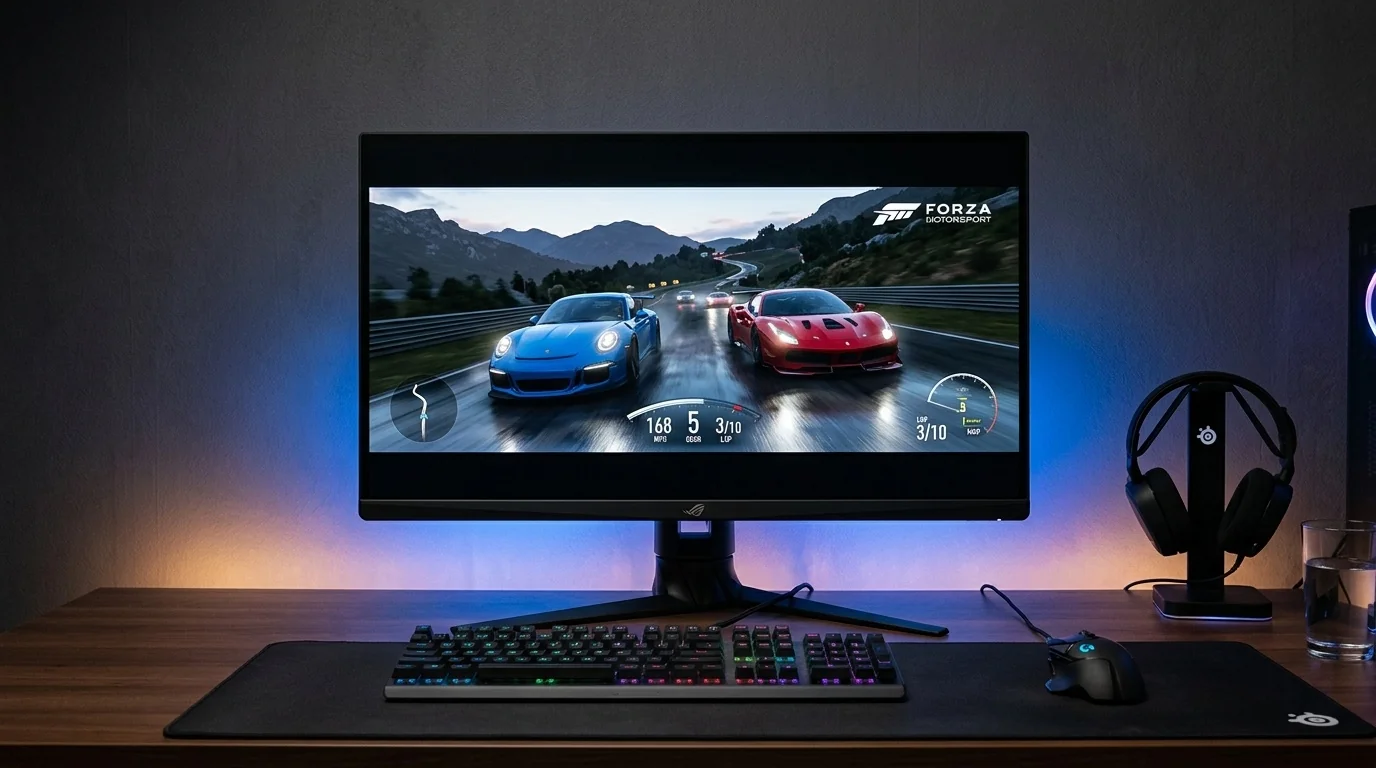
- Expanded Field of View: Forcing a 21:9 or 32:9 resolution increases your horizontal peripheral vision in supported games.
- No Hardware Risk: Creating custom resolutions within your GPU's native software is entirely safe and easily reversible.
- Letterboxing is Required: To avoid image stretching, you must configure GPU scaling to keep the correct aspect ratio, resulting in black bars at the top and bottom.
- Performance Benefits: Reducing your vertical resolution (e.g., from 1920x1080 to 1920x810) reduces the overall pixel count, often resulting in higher frame rates.
Why Emulate Ultrawide on a Standard 16:9 Display?
Standard monitors use a 16:9 aspect ratio, which is excellent for general media consumption and productivity. However, gaming on a 21:9 (ultrawide) or 32:9 (super-ultrawide) aspect ratio offers distinct advantages. By rendering more of the game world horizontally, you gain a competitive edge in tactical shooters and racing simulators, alongside a more cinematic experience in open-world role-playing games.
When you force an ultrawide resolution on a 16:9 screen, the graphics card renders the wider field of view (FOV) and places black bars at the top and bottom of your screen (letterboxing). This maintains perfect pixel mapping without stretching or distorting the image. It is also an excellent, zero-cost way to test if you actually enjoy the ultrawide format before investing in an expensive physical ultrawide monitor.
Calculating Your Custom Ultrawide Resolutions
To keep your image sharp, you should maintain your monitor's native horizontal width while reducing the vertical height. The table below lists the exact custom resolutions you should create based on your monitor's native resolution.
| Native Resolution (16:9) | Target 21:9 Resolution | Target 32:9 Resolution | Pixel Reduction (Performance Gain) |
|---|---|---|---|
| 1920 x 1080 (1080p) | 1920 x 810 | 1920 x 540 | ~25% fewer pixels (21:9) |
| 2560 x 1440 (1440p) | 2560 x 1080 | 2560 x 720 | ~25% fewer pixels (21:9) |
| 3840 x 2160 (4K) | 3840 x 1620 | 3840 x 1080 | ~25% fewer pixels (21:9) |
Step-by-Step Guide for NVIDIA Users
If you use an NVIDIA GeForce graphics card, you can set up custom resolutions directly through the NVIDIA Control Panel. Follow these steps:
- Right-click on your desktop and select NVIDIA Control Panel.
- Under the "Display" category on the left sidebar, click on Adjust desktop size and position.
- Set "Select a scaling mode" to Aspect Ratio or No Scaling. Under "Perform scaling on:", select GPU. Check the box for "Override the scaling mode set by games and programs." Click Apply.
- Now, click on Change resolution in the left sidebar.
- Click the Customize... button below the resolution list.
- Check the box that says "Enable resolutions not exposed by the display" and click Create Custom Resolution...
- Enter your desired horizontal and vertical pixels (for example, 2560 horizontal and 1080 vertical for a 1440p monitor). Leave the refresh rate at your monitor's native setting.
- Click Test. Your screen will flicker. If you see black bars at the top and bottom and the image is sharp, click Yes to save the resolution.
Step-by-Step Guide for AMD Radeon Users
AMD users can achieve the same result using the AMD Software: Adrenalin Edition application. The process is straightforward:
- Right-click your desktop and open AMD Software: Adrenalin Edition.
- Click the gear icon (Settings) in the top-right corner, then navigate to the Display tab.
- Enable GPU Scaling. Set the "Scaling Mode" dropdown to Preserve Aspect Ratio.
- Scroll down to the Custom Resolutions section on the right side and click Create New.
- In the "Horizontal Resolution (Px)" and "Vertical Resolution (Px)" fields, enter your target resolution (e.g., 3840 x 1620 for a 4K monitor). Do not alter the timing parameters unless you are an advanced user.
- Click Create in the top-right. Your screen will briefly cycle. The new resolution is now registered with Windows.
How to Configure and Play Your Games
Once you have created the custom resolution in your GPU control panel, you need to apply it. You have two choices: apply it globally across Windows, or apply it only inside your specific games.
Method A: Inside the Game Settings (Recommended)
For most modern games, you do not need to change your Windows desktop resolution. Keep Windows at its native 16:9 resolution, launch your game, open the video/graphics settings, change the display mode to Exclusive Fullscreen (or sometimes Borderless Windowed), and select your newly created custom resolution from the list. The game will render with black bars automatically.
Method B: Changing the Windows Desktop Resolution First
Some games do not easily detect custom resolutions when running on a native 16:9 desktop. If your custom resolution does not show up in the game's settings menu, try this:
- Right-click your desktop and select Display settings.
- Change your "Display resolution" to your custom ultrawide resolution. Your desktop will now have black bars at the top and bottom.
- Launch your game. It should now default to the active desktop resolution.
Real-World Scenarios
Scenario 1: The Competitive Sim Racer
An assetto corsa player uses a standard 27-inch 1440p (2560x1440) monitor. By adding a custom resolution of 2560x1080, they gain a wider horizontal view of the track, allowing them to see side mirrors and apexes clearly without needing a triple-monitor setup or a costly 34-inch ultrawide display. The black bars are easily ignored during intense racing.
Scenario 2: The Cinematic RPG Enthusiast
A gamer playing Red Dead Redemption 2 on a 4K (3840x2160) television wants a highly cinematic, widescreen movie feel. They configure a custom 3840x1620 resolution. Because the vertical resolution is reduced, their mid-range graphics card experiences a 20% boost in frame rates, allowing them to turn up other graphical settings like volumetric clouds and shadows while maintaining smooth performance.
Common Mistakes and How to Avoid Them
- Selecting "Scale image to full panel size": This is the most common error. If your graphics driver is set to stretch the image, text will look blurry and objects will appear wider than they should. Always double-check that your GPU scaling is set to "Preserve Aspect Ratio" or "No Scaling".
- Using Display Scaling instead of GPU Scaling: Many physical monitors do not know how to handle non-standard resolutions and will automatically stretch them. Forcing the scaling to happen on the GPU level ensures Windows handles the letterboxing before sending the signal to the monitor.
- Overclocking Refresh Rates Accidentally: When creating a custom resolution, stick to your monitor's native refresh rate (e.g., 60Hz, 120Hz, or 144Hz). Do not try to increase the refresh rate while lowering the resolution unless you are familiar with monitor overclocking, as it can cause signal loss.
Frequently Asked Questions
Will using a custom resolution damage my monitor?
No. Lowering your vertical resolution does not harm your monitor. It simply tells your graphics card to send black pixels to the top and bottom areas of the screen. It is completely safe.
Do all games support custom ultrawide resolutions?
Most modern games released after 2015 support 21:9 aspect ratios natively. However, some competitive games (like Valorant) intentionally block ultrawide resolutions to keep the playing field level, forcing a 16:9 crop with black bars on the sides instead.
Why does my game look blurry at the custom resolution?
Blurriness happens if the game is stretching the resolution to fit the screen or if you are using an incorrect aspect ratio. Ensure you use the exact resolutions listed in our translation table and verify that GPU scaling is enabled and set to "Aspect Ratio".
Can I use this method on a laptop?
Yes, but laptops with hybrid graphics (Intel + NVIDIA Optimus or AMD + NVIDIA) require you to set the custom resolution inside the Intel Graphics Command Center or AMD Software, as the integrated GPU usually controls the laptop's internal display routing.
link : How to Use Ultra-Wide Screen Resolutions on Standard Monitors for Games

No comments: