
Screen tearing ruins immersive gaming by splitting your display's output, while input lag makes fast-paced actions feel sluggish and unresponsive. Finding the perfect balance between V-Sync, G-Sync, and frame rate limiters is the key to achieving buttery-smooth gameplay without sacrificing responsiveness. Here is how to configure your graphics settings for the ultimate tear-free experience.
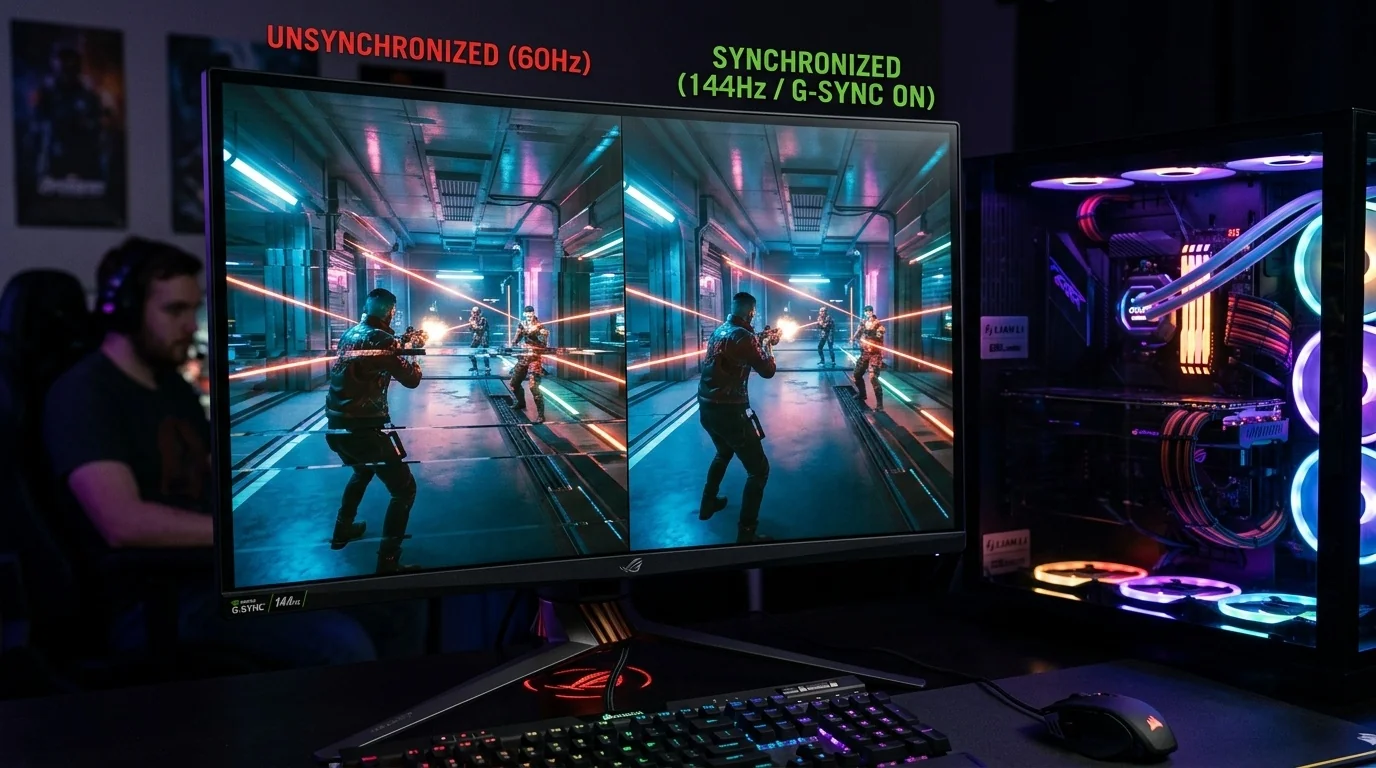
- G-Sync dynamically matches your monitor's refresh rate to your GPU's frame rate, eliminating tearing within its refresh range.
- Standard V-Sync should be enabled in your GPU control panel (not in-game) alongside G-Sync to handle frame time variances.
- Cap your frame rate 3 FPS below your monitor's maximum refresh rate to prevent G-Sync from disabling and reverting to traditional V-Sync.
- In-game V-Sync must always be turned off when using driver-level G-Sync and V-Sync combinations to avoid severe input latency.
Understanding the Culprits: Screen Tearing vs. Input Lag
To fix these visual anomalies, we must first understand why they happen. Screen tearing occurs when your graphics card sends frames to your monitor at a rate that does not match the monitor's fixed refresh cycle. If your GPU renders 90 frames per second (FPS) but your monitor only refreshes 60 times per second (60Hz), the monitor will display parts of multiple frames at the same time, resulting in a horizontal split across the screen.
Historically, the solution was V-Sync (Vertical Synchronization). V-Sync forces the GPU to wait for the monitor to finish its refresh cycle before sending a new frame. While this completely eliminates tearing, it introduces severe input lag because frames are held back in a buffer. If your GPU cannot maintain a frame rate equal to your monitor's refresh rate, V-Sync can also cause sudden, jarring drops in performance.
The Golden Trio: G-Sync, V-Sync, and Frame Limiters
Variable Refresh Rate (VRR) technologies like Nvidia G-Sync and AMD FreeSync revolutionized PC gaming by allowing the monitor to adjust its refresh rate dynamically to match the GPU's output. However, G-Sync alone is not a magic bullet.
When your frame rate exceeds your monitor's maximum refresh rate (for example, 144 FPS on a 144Hz monitor), G-Sync automatically deactivates. When this happens, your system either reverts to traditional V-Sync (introducing input lag) or disables synchronization entirely (introducing screen tearing). To prevent this, you must implement the optimal configuration: G-Sync + V-Sync (Driver Level) + Frame Rate Cap.
Why the 3 FPS Cap Matters
Frame rate limiters are not perfectly static; they operate on frame time averages and can occasionally spike. By capping your frame rate exactly 3 FPS below your monitor's maximum refresh rate (e.g., 141 FPS on a 144Hz screen, or 237 FPS on a 240Hz screen), you create a safety buffer. This ensures your GPU never hits the V-Sync ceiling, keeping G-Sync active 100% of the time while completely avoiding V-Sync-induced input lag.
| Configuration | Screen Tearing | Input Lag Impact | Best Used For |
|---|---|---|---|
| No Sync (V-Sync Off) | Severe | Minimal / None | Competitive esports where visual tearing is ignored for raw speed |
| Traditional V-Sync Only | None | High (Buffer delay) | Non-VRR monitors playing slow-paced, cinematic games |
| G-Sync Only (No Cap) | Tears at maximum FPS | Low (except at max FPS limit) | Uncapped setups where frame rates stay well below monitor Hz |
| G-Sync + V-Sync + 3 FPS Cap | None | Extremely Low | All-around PC gaming (The Optimal Standard) |
Step-by-Step Configuration Guide
To configure your system for the best visual clarity and lowest latency, follow these steps in order:
For Nvidia Users (G-Sync / G-Sync Compatible)
- Enable G-Sync: Open the Nvidia Control Panel, navigate to Set up G-SYNC, check "Enable G-SYNC, G-SYNC Compatible", and select "Enable for windowed and full screen mode" to ensure compatibility across different display modes.
- Enable Driver-Level V-Sync: Go to Manage 3D Settings, scroll down to Vertical sync, and set it to On. (Do not worry, this will not cause traditional V-Sync lag because of our next steps).
- Set a Frame Rate Cap: In the same Manage 3D Settings menu, find Max Frame Rate, turn it On, and set the value to exactly 3 FPS below your monitor's refresh rate (e.g., 141 for a 144Hz monitor).
- Disable In-Game V-Sync: Launch your game of choice, go to the video settings, and turn V-Sync OFF. Double-buffering in-game V-Sync settings conflict with driver-level settings and cause massive latency.
For AMD Users (FreeSync)
- Enable FreeSync: Open the AMD Software: Adrenalin Edition, go to Gaming > Display, and toggle AMD FreeSync to Enabled.
- Enable Enhanced Sync: Under the Graphics tab, you can enable Radeon Enhanced Sync, which acts similarly to Nvidia's driver-level V-Sync by minimizing tearing without locking frame rates.
- Set Radeon Chill (Frame Cap): To cap your frame rate, enable Radeon Chill and set the Max FPS to 3 FPS below your monitor's refresh rate.
- Disable In-Game V-Sync: As with Nvidia setups, always turn off V-Sync within your in-game settings menu.
Real-World Scenarios in Practice
To see how these adjustments play out in real-world environments, let's look at two common gaming scenarios.
Scenario 1: The Competitive Esports Player
If you play fast-paced competitive shooters like Valorant, Apex Legends, or Counter-Strike 2, every millisecond of input lag matters. For these players, the absolute lowest input lag is achieved by turning off all forms of synchronization entirely, allowing the GPU to run uncapped at 300+ FPS.
However, if the resulting screen tearing is too distracting, the modern compromise is using G-Sync + Nvidia Reflex. Reflex bypasses the need for manual frame caps and keeps the system within the G-Sync range with virtually identical latency to an uncapped setup, offering a competitive edge without the visual distraction of screen tearing.
Scenario 2: The Cinematic RPG Enthusiast
If you are playing visually stunning, single-player titles like Cyberpunk 2077 or Alan Wake 2, immersion is your primary goal. Your frame rate will likely fluctuate between 50 and 90 FPS depending on the complexity of the scene.
In this case, the G-Sync + V-Sync + Frame Cap combination is flawless. Since your frame rate stays within your monitor's VRR range, G-Sync dynamically adjusts your monitor's refresh rate to match your fluctuating FPS, ensuring the game looks incredibly smooth and remains completely free of screen tearing.
Trade-offs, Edge Cases, and Common Mistakes
While the recommended setup works perfectly for 95% of games, there are a few edge cases and common mistakes to keep in mind:
- Windowed vs. Fullscreen Mode: Some games do not support exclusive fullscreen mode anymore. If you play in Borderless Windowed mode, Windows Desktop Window Manager (DWM) forces its own V-Sync, which can introduce minor latency. Always select "Exclusive Fullscreen" in your game settings when available.
- Inconsistent Frame Caps: External software limiters like Rivatuner Statistics Server (RTSS) offer incredibly stable frame times but can add up to 1 frame of input delay. In-game frame limiters have the lowest latency but can be less stable. Use in-game limiters first, and revert to driver-level caps if the in-game limiter is unavailable.
- The "G-Sync Flicker" Issue: On some VA and OLED panels, you may notice a subtle brightness flicker in loading screens or when frame rates drop drastically. This is a hardware limitation of VRR gamma curves. If the flicker is too distracting in a specific game, you may need to disable G-Sync for that specific title via your GPU control panel.
Decision Framework: Which Setup is Right for You?
To make it easy, use this simple checklist to determine your ideal display setup:
- Choose G-Sync + V-Sync (Driver) + Cap (-3 FPS) if: You want a set-it-and-forget-it configuration that offers a perfect, tear-free experience across both single-player and casual multiplayer games.
- Choose No Sync (Uncapped FPS) if: You play esports games competitively, possess a high-refresh-rate monitor (240Hz+), and prioritize the absolute lowest input latency over visual presentation.
- Choose Fast Sync / Enhanced Sync if: You do not have a G-Sync/FreeSync monitor but still want to reduce screen tearing at high frame rates without the heavy input lag penalty of standard V-Sync.
Frequently Asked Questions
Does G-Sync work over HDMI or only DisplayPort?
G-Sync requires a DisplayPort connection on older monitors. However, newer HDMI 2.1 displays (such as modern OLED TVs) support G-Sync Compatible VRR over HDMI. Always use a certified high-speed cable to ensure signal stability.
What is the difference between G-Sync Compatible and Native G-Sync?
Native G-Sync monitors contain a dedicated hardware module inside the display that handles variable refresh rates and offers advanced features like variable overdrive. G-Sync Compatible monitors do not have this hardware module; instead, they utilize the open VESA Adaptive-Sync standard to achieve a similar effect over software.
Should I use V-Sync if I do not have a VRR monitor?
If you do not have a G-Sync or FreeSync monitor, traditional V-Sync is your only option to eliminate screen tearing. However, you will have to accept the trade-off of increased input lag. For fast-paced shooters, it is usually better to leave V-Sync off, whereas for slow-paced adventure games, V-Sync is highly recommended.
Will capping my FPS reduce my GPU temperature?
Yes. Capping your frame rate prevents your graphics card from working at 100% capacity to render unnecessary frames (such as rendering 300 FPS in a simple game menu). This reduces power consumption, lowers GPU temperatures, and keeps your PC running quieter.
link : How to Tweak PC V-Sync and G-Sync to Eliminate Screen Tearing

No comments: