
Achieving peak performance in Counter-Strike 2 is not just about raw hardware power; it is about configuring your settings to expose enemies hiding in shadows while maintaining stable, high frame rates. In a tactical shooter where milliseconds dictate the outcome of a duel, default graphics presets can actively hinder your competitive edge. This guide breaks down the exact graphical adjustments required to maximize visual clarity, minimize input latency, and secure a distinct tactical advantage on the server.
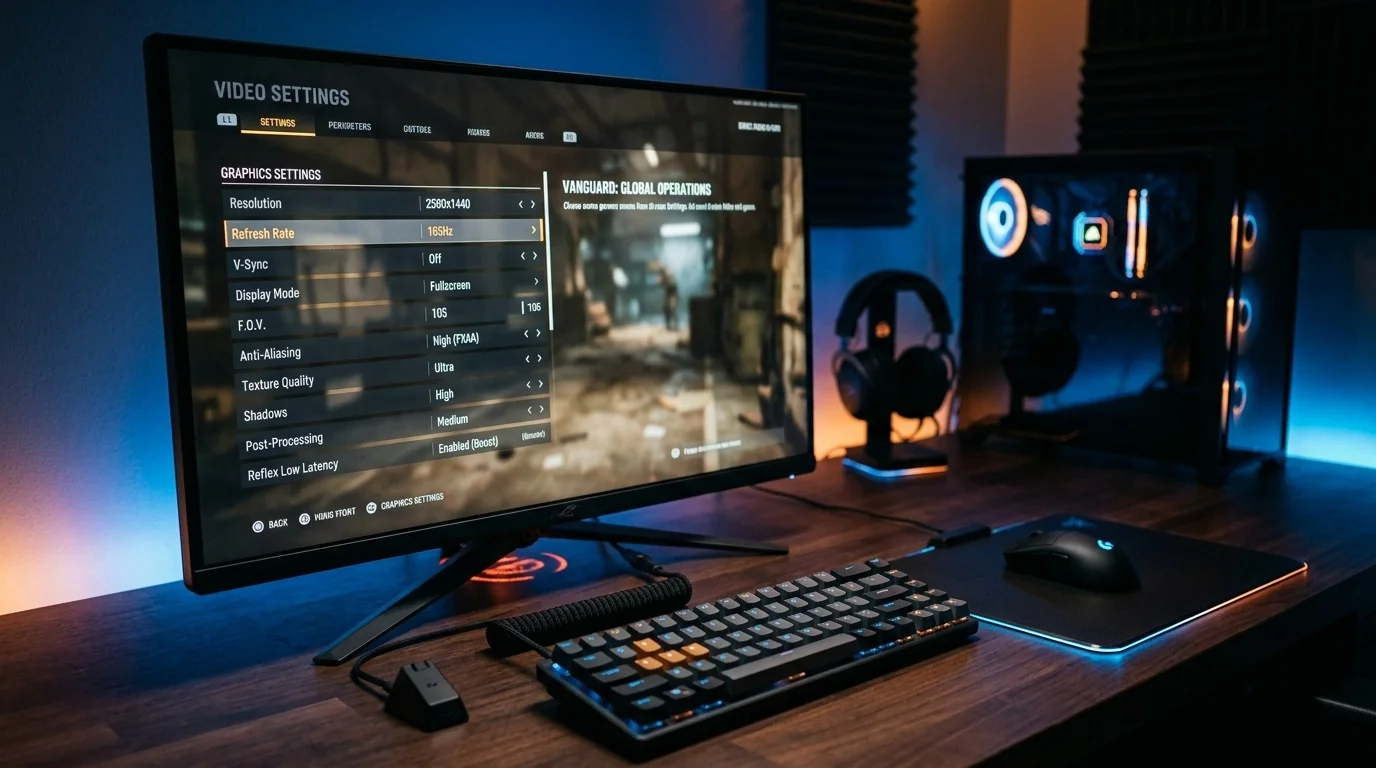
Key Takeaways
- Prioritize Shadows: Keep Global Shadow Quality on Medium or High to ensure enemy shadows render around corners.
- Minimize Input Lag: Enable NVIDIA Reflex to reduce system latency, avoiding high-overhead visual filters.
- Boost Player Visibility: Always enable "Boost Player Contrast" to make enemy models pop against complex background textures.
- Resolution Trade-offs: Choose between the wider horizontal FOV of 16:9 native and the larger target models of 4:3 stretched based on your playstyle.
Resolution and Aspect Ratio: The Competitive Debate
Before diving into individual graphics switches, you must establish your resolution and aspect ratio. This is the single most impactful decision regarding how the game looks and feels. Unlike casual titles, CS2 players often deliberately lower their resolution to gain a mechanical edge.
The 4:3 Stretched Aspect Ratio
Many professional players opt for a 4:3 aspect ratio (such as 1280x960) stretched to fill a 16:9 monitor. This configuration stretches the horizontal axis of the game world. Consequently, enemy player models appear roughly 33% wider on your screen, making them easier to track and hit. However, this comes with a distinct trade-off: your horizontal field of view (FOV) is reduced from 106 degrees to 90 degrees, leaving you vulnerable to flank angles that would otherwise be visible on a native setup.
The 16:9 Native Aspect Ratio
Playing at native resolution (typically 1920x1080 or 2560x1440) offers maximum clarity, crisp pixel alignment, and the widest possible field of view. While targets appear smaller and move faster across your screen compared to stretched setups, tracking peripheral movements is significantly easier.
The Competitive Settings Blueprint
Counter-Strike 2 utilizes the Source 2 engine, which relies much more heavily on the GPU than its predecessor, CS:GO. To maintain high frames-per-second (FPS) and low frame times, use the following optimized configurations:
| Setting Name | Recommended Option | Competitive Advantage / Impact |
|---|---|---|
| Boost Player Contrast | Enabled | Adds a subtle outline to character models, making them highly visible in dark areas. |
| Model / Texture Detail | Medium | Balances clear weapon skins and model clarity without overloading GPU VRAM. |
| Shader Detail | Low | Reduces distracting glare and shiny surfaces, keeping focus on targets. |
| Particle Detail | Low | Minimizes FPS drops when standing near active smoke grenades or Molotovs. |
| Global Shadow Quality | High / Medium | Crucial. High shadows render enemy shadows from further away, revealing positions before they peek. |
| Ambient Occlusion | Disabled / Medium | Disabling maximizes FPS; setting to Medium slightly improves depth perception. |
| FidelityFX Super Resolution (FSR) | Disabled (Highest Quality) | FSR introduces severe pixel shimmering and blurriness, making long-range headshots difficult. |
| NVIDIA Reflex Low Latency | Enabled / Enabled + Boost | Reduces system-to-screen input delay. Use "Boost" if your GPU utilization is near 99%. |
Two Real-World Scenarios: How Settings Dictate Rounds
To understand why these settings matter, let us look at how they perform in actual competitive scenarios.
Scenario A: The Mirage Underpass Peek
Imagine you are holding the B-short position on Mirage. An enemy player is slowly crawling up from Underpass. If your Global Shadow Quality is set to Low, the dynamic shadow of the enemy model will not render on the wall until they are physically in your line of sight.
With Shadow Quality set to High, the game engine calculates the directional sunlight casting through the underpass. You will see the enemy's shadow stretch across the floor and wall a full half-second before their physical model peeks. This gives you ample time to pre-fire, securing an easy kill solely due to your graphical configuration.
Scenario B: The Ancient Cave Duel
Ancient is notorious for its dark, mossy corners and heavy foliage, which can make green CT models blend seamlessly into the environment. A player running default settings without Boost Player Contrast peeks into the dark temple cave. They fail to register a stationary enemy crouching in the shadows, resulting in an instant death.
Conversely, with Boost Player Contrast Enabled, the engine applies a character-pass shader that brightens the enemy model and increases edge sharpness. Even in the pitch-black corners of Ancient, the enemy stands out clearly against the stone background, allowing for a clean, reaction-based headshot.
Balancing Hardware Bottlenecks
While maximizing FPS is the primary goal, frame time consistency is what actually makes the game feel smooth. If your FPS fluctuates wildly between 140 and 300, your mouse movements will feel inconsistent.
If you have an older CPU combined with a modern GPU, lowering graphic settings further will not yield more frames; you are CPU-bound. In this case, keeping settings like Model Detail and Shadows on Medium can make the game look cleaner without hurting performance. Conversely, if your GPU is struggling (at 99% usage in task manager), dropping Multisampling Anti-Aliasing (MSAA) from 4x to 2x or CMAA2 can instantly recover 10-15% of your frame rate.
Frequently Asked Questions
Should I use V-Sync in Counter-Strike 2?
No. Vertical Sync (V-Sync) eliminates screen tearing by forcing your GPU to sync with your monitor's refresh rate, but it introduces massive input lag. For competitive shooters, always keep V-Sync disabled.
Does lowering resolution actually make hitboxes larger?
Visually, yes. On a 4:3 stretched resolution, player models and their corresponding hitboxes appear wider on your screen. However, their actual movement speed across your monitor also appears faster, meaning you still need the same physical mouse precision to hit them.
What does NVIDIA Reflex Low Latency do in CS2?
NVIDIA Reflex synchronizes the CPU's game-simulation loop with the GPU's rendering pipeline. This minimizes the time between clicking your mouse button and seeing the gun fire on screen, which is vital for holding tight angles.
Why does my game feel choppy even with high FPS?
This is often caused by poor 1% low frame rates or micro-stutters. Ensure your monitor's refresh rate is set to its maximum value (e.g., 144Hz, 240Hz, or 360Hz) in Windows Display Settings, enable G-Sync/FreeSync along with a frame rate cap just below your refresh rate, and close heavy background applications like web browsers.
link : How to Tune Graphics Settings in Counter-Strike 2 for Competitive Advantage

No comments: