
When heavy PC games stutter, drop frames, or crash to the desktop with "out of memory" errors, players often blame their graphics cards or processors. However, the culprit is frequently an improperly configured virtual memory system or pagefile. Optimizing this Windows feature ensures your system handles asset-heavy games smoothly, even when physical RAM is pushed to its absolute limits.
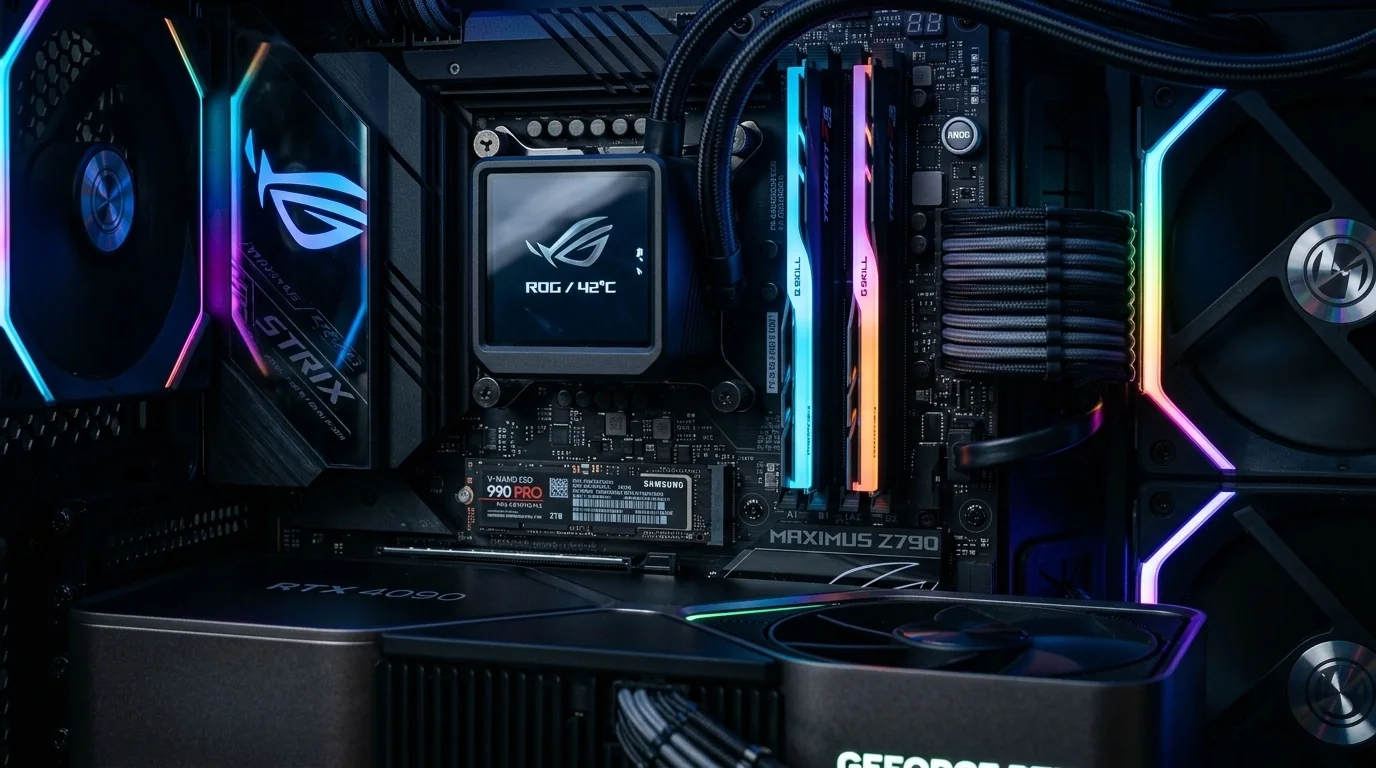
- Never disable the pagefile entirely, even if you have 32GB or 64GB of physical RAM, as many modern game engines require it to function properly.
- Always store your pagefile on your fastest solid-state drive (NVMe or SATA SSD) and completely disable it on slow mechanical hard drives (HDDs).
- Setting a manual, static pagefile size eliminates the micro-stutters caused by Windows dynamically resizing the file during intense gameplay.
- Keep the pagefile on a single fast system drive rather than splitting it across multiple storage drives to prevent performance bottlenecks.
Understanding Virtual Memory and the Pagefile in Gaming
Virtual memory is a memory management capability of your operating system that uses hardware storage to pretend it has extra physical RAM. When your system's physical Random Access Memory (RAM) fills up, Windows temporarily moves less active data from the RAM to a hidden file on your storage drive called pagefile.sys (the pagefile).
Modern open-world games, flight simulators, and heavily modded titles stream gigabytes of assets, high-resolution textures, and shader caches in real-time. If your physical RAM and your pagefile are improperly configured, the system cannot allocate this data quickly enough. This leads to sudden frame drops, micro-stutters, or hard crashes directly to your desktop without an error message.
The Trade-Offs: System-Managed vs. Manual Pagefile
By default, Windows manages the pagefile size automatically. While this is generally sufficient for office tasks and light browsing, it can introduce issues during gaming.
When a heavy game demands more memory than currently allocated, Windows must dynamically expand the size of the pagefile on your drive. This expansion process causes a brief but noticeable freeze or micro-stutter in your game. By setting a static, manual pagefile size, you allocate a fixed block of space on your SSD. Windows never has to resize the file on the fly, resulting in much smoother frame delivery.
Step-by-Step Guide to Optimizing Your Pagefile
Follow these steps to manually configure your virtual memory settings in Windows 10 or Windows 11:
- Press the Windows Key + R on your keyboard to open the Run dialog box.
- Type
sysdm.cpland press Enter to open the System Properties window. - Navigate to the Advanced tab and click on the Settings button under the Performance section.
- In the Performance Options window, switch to the Advanced tab.
- Click the Change... button under the Virtual memory section.
- Uncheck the box that says Automatically manage paging file size for all drives.
- Select your fastest SSD (usually your C: drive) from the list.
- Click the Custom size radio button.
- Enter your calculated Initial size and Maximum size in megabytes (MB). (Refer to the table below for calculations).
- Click the Set button, then click OK.
- Restart your computer for the changes to take effect.
Recommended Pagefile Sizes Based on Physical RAM
To calculate the correct values, use the industry-standard rule of thumb: set the Initial Size to 1.5 times your physical RAM, and the Maximum Size to 3 times your physical RAM. However, if you have 32GB or more of RAM, you can use a 1:1 ratio to save storage space while maintaining stability.
Note: 1 GB is equal to 1024 MB.
| Physical RAM | Initial Size (MB) | Maximum Size (MB) | Drive Recommendation |
|---|---|---|---|
| 8 GB | 12288 (12 GB) | 24576 (24 GB) | Fastest SSD Only |
| 16 GB | 24576 (24 GB) | 49152 (48 GB) | Fastest SSD Only |
| 32 GB | 16384 (16 GB) | 32768 (32 GB) | Fastest SSD Only |
| 64 GB | 16384 (16 GB) | 32768 (32 GB) | Fastest SSD Only |
Real-World Gaming Scenarios
Scenario 1: The Modded Flight Simulator
An avid flight simulation gamer with 16GB of RAM noticed severe stuttering and frequent desktop crashes when flying over highly detailed photogrammetry cities. The physical RAM was constantly at 98% capacity. By manually setting a static pagefile of 24GB (24576 MB) on their NVMe M.2 SSD, the stuttering vanished. The system successfully offloaded background tasks to the SSD pagefile, leaving the physical RAM free to handle real-time flight physics and asset rendering.
Scenario 2: The Dual-Drive Budget Setup
A player with a budget gaming rig containing a fast 500GB boot SSD and a slow 2TB external mechanical hard drive experienced massive frametime spikes in modern open-world action games. Investigation revealed that Windows had automatically placed a secondary pagefile on the slow external HDD. Moving the pagefile settings exclusively to the SSD and selecting "No paging file" for the slow mechanical drive instantly stabilized the game's performance.
Common Mistakes to Avoid
- Disabling the Pagefile: Some online guides falsely claim that disabling the pagefile entirely improves gaming performance if you have fast RAM. This is incorrect. Many games and system processes will immediately crash or refuse to launch without an active pagefile.
- Using Mechanical Hard Drives: Mechanical HDDs are far too slow to handle modern virtual memory demands. If the pagefile is located on an HDD, your game will experience severe, multi-second freezes whenever it accesses virtual memory.
- Leaving Too Little Storage Space: If you set a large manual pagefile, make sure your SSD has at least 15% to 20% of its total capacity free. Saturated SSDs run significantly slower, which degrades virtual memory performance.
Frequently Asked Questions
Does a large pagefile wear out my SSD faster?
Modern SSDs have highly durable write endurance ratings (TBW). While virtual memory does involve read and write cycles, the impact on the lifespan of a modern consumer SSD is negligible under normal gaming conditions.
Should I put a pagefile on every drive if I have multiple SSDs?
No. You should place a single pagefile on your fastest internal storage drive (ideally a PCIe NVMe M.2 SSD). Splitting the pagefile across multiple drives or placing it on slower SATA drives can confuse the Windows memory manager and reduce performance.
Can I put my pagefile on an external USB drive?
It is highly discouraged. USB connections have higher latency and lower bandwidth than internal PCIe or SATA interfaces. If the connection drops even for a millisecond, your system will immediately blue-screen (BSOD).
If I have 64GB of RAM, do I still need a pagefile?
Yes. Even with massive amounts of physical RAM, Windows and many legacy software applications require a pagefile to write crash dumps and manage low-priority background processes. Keep at least a small, fixed pagefile of 16GB active on your primary drive.
link : How to Optimize Virtual Memory and Pagefile for Heavy PC Games

No comments: