

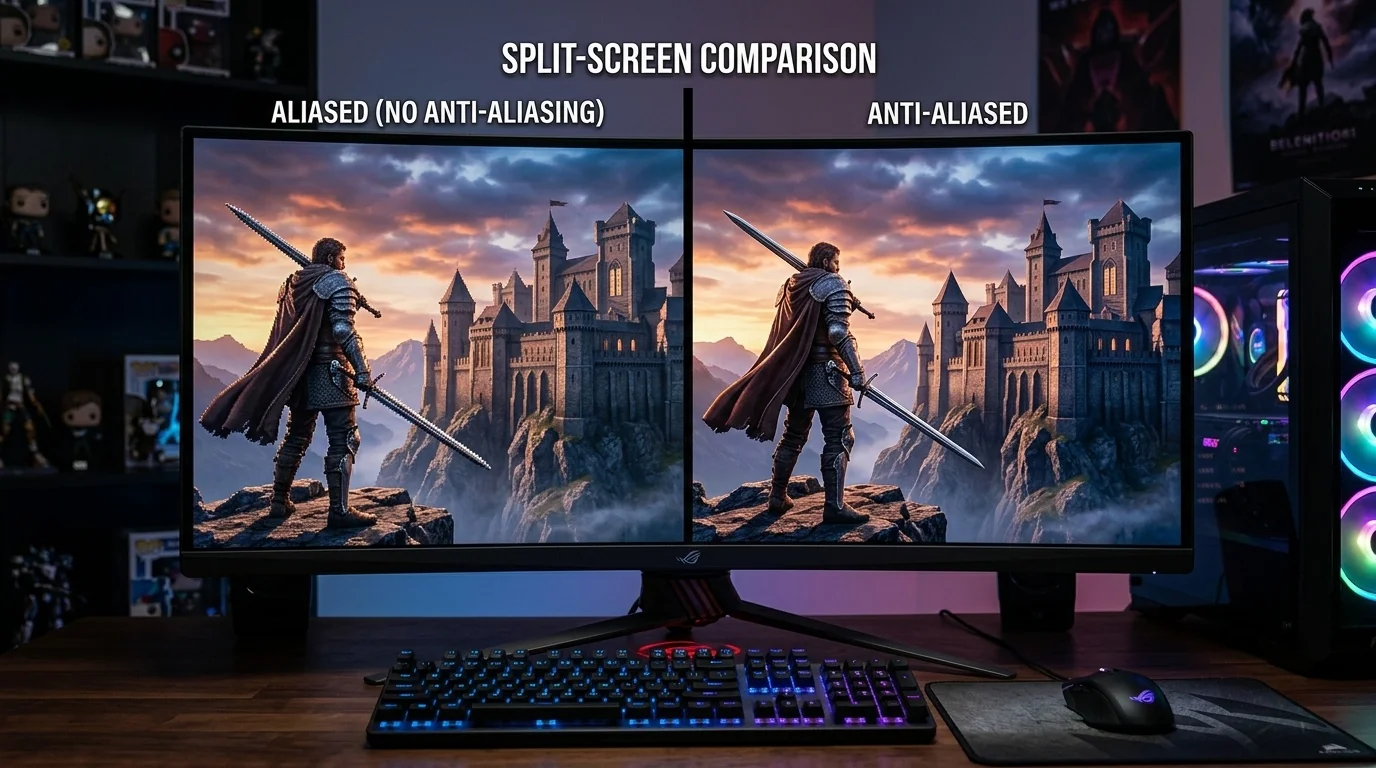
Jagged edges, often called "jaggies," can quickly break immersion in your favorite PC games, but cranking anti-aliasing (AA) to the maximum can immediately tank your frame rate. Finding the sweet spot between visual clarity and smooth performance requires understanding how different AA technologies interact with your graphics card. This guide breaks down how to optimize your in-game anti-aliasing settings to achieve crisp visuals while maintaining a high, stable frame rate.
Key Takeaways
- Spatial AA (like MSAA) offers excellent raw image clarity but demands massive GPU performance.
- Post-Process AA (FXAA/SMAA) costs almost zero FPS but can introduce unwanted blurriness across the screen.
- Temporal AA (TAA) eliminates shimmering in motion but causes ghosting; combine it with sharpening filters to recover lost detail.
- Modern Upscalers (DLSS, FSR, XeSS) are the ultimate solution, providing superior anti-aliasing while actually increasing your FPS.
Understanding the Anti-Aliasing Spectrum
Aliasing occurs because computer monitors display images using a grid of square pixels. When rendering diagonal lines or curved geometry, this grid creates a stair-step effect. Anti-aliasing blends the colors of adjacent pixels to trick your eyes into seeing smooth curves.
However, not all anti-aliasing methods are created equal. They generally fall into three distinct categories, each with its own performance cost and visual trade-offs:
- Spatial Anti-Aliasing: Techniques like Supersampling (SSAA) and Multisampling (MSAA) render the geometry at a higher resolution and downsample it. This provides the sharpest image but requires immense GPU processing power.
- Post-Processing Anti-Aliasing: Techniques like Fast Approximate Anti-Aliasing (FXAA) and Subpixel Morphological Anti-Aliasing (SMAA) apply a blur filter to the edges after the frame is rendered. This is incredibly fast but can make the entire image look soft.
- Temporal Anti-Aliasing (TAA): This method uses information from past frames to smooth out edges in the current frame. It is highly effective at stopping "shimmering" when you move, but it can create a noticeable trail or "ghosting" effect behind fast-moving objects.
Comparing Anti-Aliasing Methods and Performance Impact
To help you decide which setting to toggle in your game's graphics menu, here is a breakdown of how the most common anti-aliasing techniques perform in real-world scenarios:
| AA Type | Performance Cost | Visual Quality | Best Used For |
|---|---|---|---|
| MSAA (2x/4x) | Very High | Excellent (Sharp) | Older games, high-end GPUs |
| FXAA | Extremely Low | Poor (Blurry) | Low-end hardware, budget laptops |
| SMAA | Low | Good (Slight blur) | Mid-range PCs wanting sharp textures |
| TAA | Moderate | Very Good (Soft in motion) | Modern open-world games, foliage |
| DLSS / FSR / XeSS | Negative (Boosts FPS) | Excellent (Reconstructed) | Any modern GPU supporting upscaling |
Scenario 1: Optimizing a Competitive Shooter
In fast-paced multiplayer games like Valorant, Apex Legends, or Counter-Strike 2, frame rate and input latency are far more important than cinematic visuals. Every millisecond matters, and heavy anti-aliasing can introduce input lag or obscure targets hiding in the distance.
The Solution: If you are playing at 1080p, use SMAA or MSAA 2x if your GPU can handle it without dropping frames. Avoid FXAA, as it blurs distant player models, making them harder to spot. If you play at 1440p or 4K resolution, the pixel density is already high enough that you can safely turn anti-aliasing completely off to maximize your competitive edge and gain a 5% to 10% FPS boost.
Scenario 2: Optimizing an Immersive RPG
In visually rich, slower-paced games like Cyberpunk 2077 or The Witcher 3, aliasing is incredibly distracting. Thin power lines, swaying tree leaves, and shiny metallic surfaces will shimmer constantly as you walk, destroying the immersion.
The Solution: Turn on TAA or use an upscaling tool like DLSS or FSR set to Quality. TAA is highly efficient at cleaning up shimmering foliage. However, because TAA can introduce a slight blur when you pan the camera, you should pair it with an in-game sharpening slider (usually found in the graphics or display settings) set to around 30% to 50%. This restores the lost texture detail without reintroducing the jagged edges.
How to Choose: A Step-by-Step Decision Framework
If you are staring at a game's graphics menu and aren't sure what to change, follow this systematic approach to optimize your settings:
- Check for Reconstruction / Upscaling: Look for DLSS, FSR, or XeSS. If available, turn this on first and set it to "Quality" or "Balanced". Turn off any standard AA settings, as the upscaler handles anti-aliasing automatically.
- Evaluate Your Resolution: If you are playing at 4K, set AA to its lowest setting (like FXAA or SMAA) or turn it off. The high pixel density naturally masks jaggies. If you are at 1080p, you will need stronger AA to keep the image clean.
- Assess Your GPU Headroom: If your frame rate is below your monitor's refresh rate, disable MSAA immediately. Switch to SMAA or TAA to reclaim up to 15% of your performance.
- Combat the Blur: If you must use TAA or FXAA and the game looks too soft, open your graphics card control panel (Nvidia Control Panel or AMD Software) and enable global image sharpening to crisp up the textures.
Driver-Level Tweaks for Maximum Performance
Sometimes, in-game anti-aliasing options are poorly optimized. You can bypass or enhance these settings directly through your graphics card's driver software. For Nvidia users, opening the Nvidia Control Panel and navigating to "Manage 3D Settings" allows you to enable Fast Approximate Antialiasing (FXAA) globally, or use MFAA (Multi-Frame Sampled AA), which provides the quality of 4x MSAA at the performance cost of only 2x MSAA.
AMD users can leverage Radeon Image Sharpening (RIS) in the AMD Software interface. Enabling this feature allows you to use performant, slightly blurry in-game AA settings (like TAA) while using the hardware-level sharpening algorithm to bring back crisp, high-fidelity textures with zero impact on your frame rate.
Frequently Asked Questions
Does anti-aliasing lower FPS?
Yes, most traditional forms of anti-aliasing (like MSAA and SSAA) require the GPU to calculate extra color values for pixels, which lowers your frame rate. However, modern post-processing methods (FXAA, SMAA) have a negligible impact on performance.
What is the difference between MSAA and TAA?
MSAA focuses purely on geometry within a single frame, keeping the image incredibly sharp but ignoring moving elements. TAA analyzes multiple frames over time to smooth out edges, which is much better for moving objects and foliage but can cause a soft, blurry look when in motion.
Should I turn off anti-aliasing at 4K resolution?
In most cases, yes. The pixel density of a 4K monitor is so high that jagged edges are barely visible from a normal viewing distance. Disabling anti-aliasing at 4K can give you a significant performance boost without any noticeable loss in image quality.
Why does TAA make my game look blurry, and how do I fix it?
TAA blends pixels from past frames to smooth out edges, which naturally softens the overall image. You can easily fix this by enabling an image sharpening filter, either through your game's settings menu or via your GPU's driver control panel.
