
PS5 HEN NTFS Drive Game Management
Key Takeaways
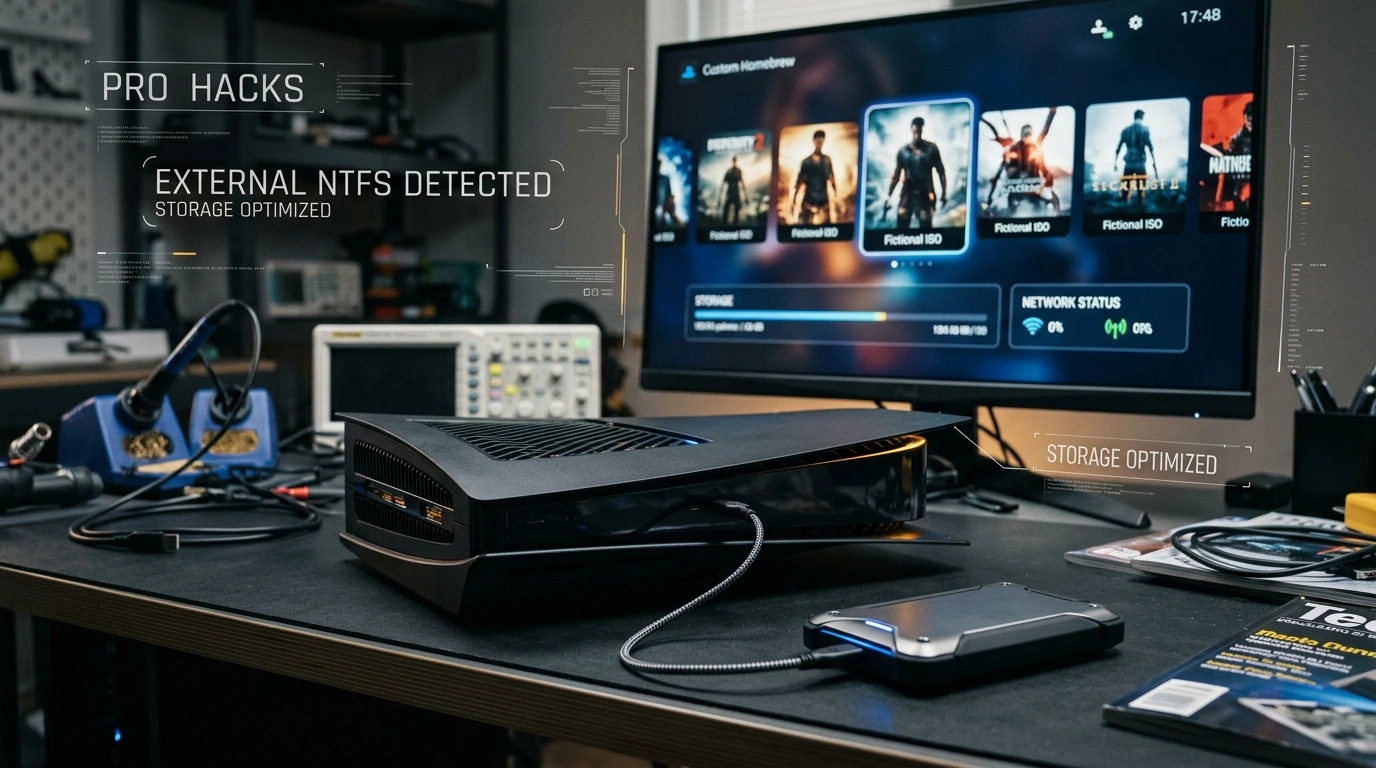
- PS5 consoles running Homebrew Enabler (HEN) can support NTFS external drives for game ISO storage.
- NTFS formatting is preferred over FAT32 or exFAT for large game ISOs due to file size limitations.
- Performance from an external HDD will be significantly slower than the PS5's internal SSD, impacting loading times.
- Careful drive preparation, folder structure, and compatible software are essential for successful game loading.
Enabling NTFS on a Modified PS5
The standard PlayStation 5 firmware primarily supports FAT32 and exFAT file systems for external storage, which come with significant limitations, notably a 4GB maximum file size for FAT32. This restriction makes storing large game ISOs, which often exceed tens of gigabytes, impractical. The activation of a Homebrew Enabler (HEN) on a PS5 fundamentally alters the console's capabilities, allowing it to interface with file systems not natively supported, including NTFS.
Specialized homebrew applications and kernel-level patches, developed by the community, provide the necessary drivers and file system access for NTFS drives. These tools effectively bridge the gap between the PS5's operating system and the NTFS format, enabling the console to read and execute game data directly from such drives. This technical bridge is what makes the entire process feasible for users seeking expanded storage for their modified consoles.
Preparing Your External Drive for PS5 HEN
Successfully running games from an NTFS drive on a modified PS5 requires meticulous preparation. The process involves formatting the drive correctly, organizing your game ISOs, and ensuring your HEN setup is properly configured to recognize the external storage.
Formatting the Drive
- Backup Data: Always back up any important data on your external HDD before formatting, as the process will erase all contents.
- Format to NTFS: Use a Windows PC to format your external hard drive to the NTFS file system. Right-click the drive in 'This PC,' select 'Format,' choose 'NTFS' from the 'File system' dropdown, and perform a quick format.
- Verify Capacity: Ensure the drive is recognized by your PC with its full capacity and formatted as NTFS.
Organizing Game ISOs
While specific homebrew loaders may have slightly different requirements, a common practice involves creating a dedicated folder on the root of your NTFS drive. For instance, a folder named PS5GAMES or ISO is often used. Place your game ISO files directly into this folder. It is important to avoid deeply nested folder structures, as some homebrew applications might struggle to locate files.
Performance Realities and Bottlenecks
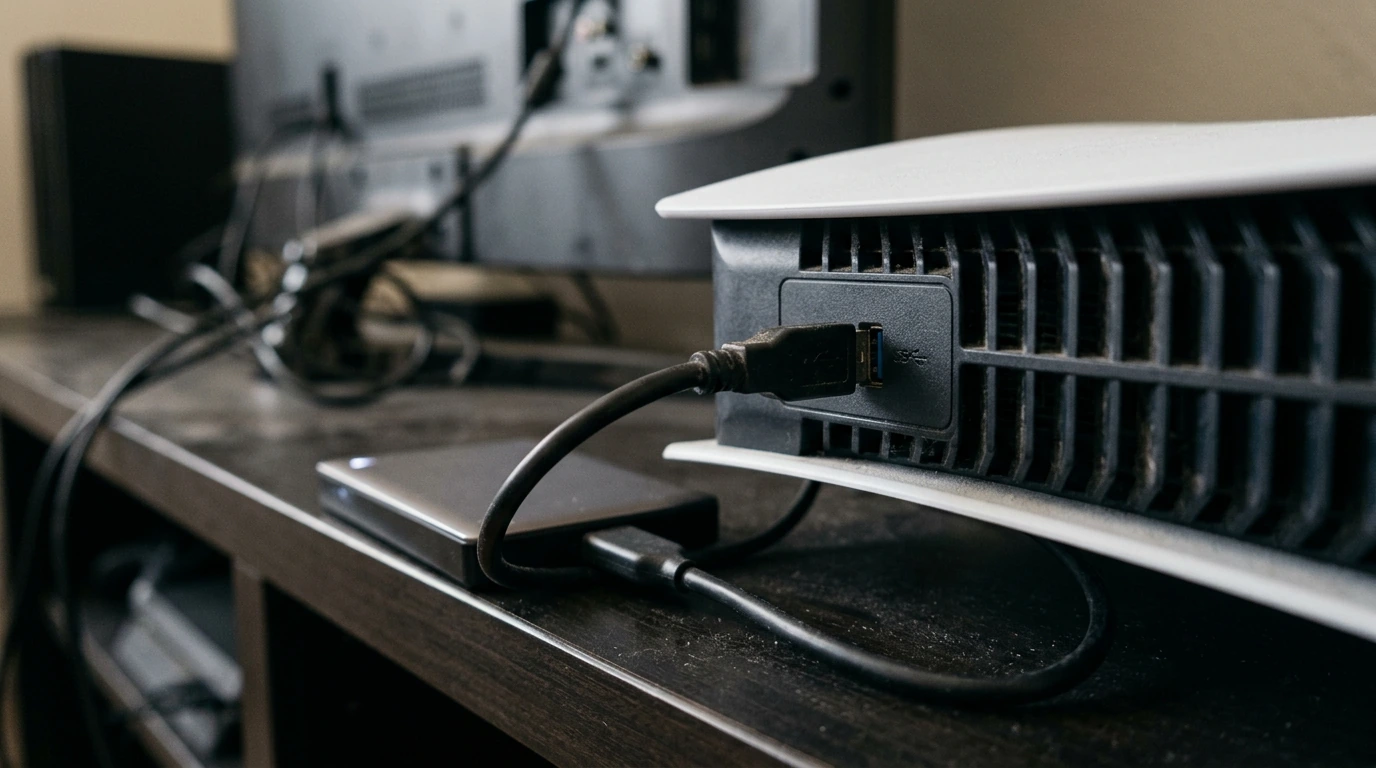
While using an external NTFS HDD for game ISOs on a modified PS5 offers significant storage capacity, it introduces performance trade-offs compared to the console's internal NVMe SSD. The primary bottlenecks are the rotational nature of HDDs and the USB interface speed.
| Storage Type | Typical Read Speed (Approx.) | Interface | Primary Use Case (Modified PS5) |
|---|---|---|---|
| PS5 Internal NVMe SSD | 5,500 MB/s (raw) | PCIe Gen4 x4 | System OS, Native PS5 Games |
| External USB 3.2 Gen 2 SSD | Up to 1,000 MB/s | USB 3.2 Gen 2 (10 Gbps) | Faster external storage for games |
| External USB 3.0 HDD | Up to 150 MB/s | USB 3.0 (5 Gbps) | Archival, Large ISO storage (slower access) |
As the table illustrates, a traditional external HDD, even when connected via a USB 3.0 port, operates at a fraction of the speed of the PS5's internal SSD. This difference translates directly into longer game loading times, potentially slower asset streaming within games, and occasionally, minor stuttering in graphically intensive titles that rely on rapid data access.
Users should manage their expectations regarding performance. While an external HDD is excellent for archiving a vast library of games, for titles where fast loading is critical, transferring them to the internal SSD (if feasible with the homebrew tools) might offer a superior experience.
Common Pitfalls and Troubleshooting
Navigating unofficial console modifications comes with its own set of challenges. When using an NTFS HDD with a PS5 HEN, several issues might arise:
- Drive Not Recognized: Ensure the HEN payload is active and the specific homebrew application you are using supports NTFS. Check USB cable integrity and try different USB ports on the console.
- Game Not Launching: Verify the ISO file integrity. Corrupted files will not launch. Double-check the folder structure on your external drive; some loaders are particular about file paths.
- Slow Performance/Stuttering: This is often inherent to HDD limitations. Ensure your USB connection is USB 3.0 (blue port) for optimal, albeit still limited, speed. Avoid running other demanding background processes on the PS5 if possible.
- Data Corruption: Improperly disconnecting the drive or power loss during data transfer can corrupt files. Always ensure the console is powered off or the drive is safely unmounted through the homebrew interface before removal.
Pro Tip: Data Integrity is Key
When dealing with modified console firmware and external storage, the risk of data corruption increases. Always ensure your game ISOs are verified and consider using a UPS (Uninterruptible Power Supply) for your PS5 to prevent sudden power loss, which can be particularly damaging to data on external drives.
The Future of PS5 Homebrew Storage
As the homebrew community continues to evolve, we can anticipate further refinements in external storage solutions for modified PS5 consoles. Developers are continuously working on improving file system compatibility, optimizing data transfer protocols, and enhancing the stability of game loaders. The trend suggests a move towards more seamless integration, potentially including better support for external NVMe SSDs via USB enclosures, which would significantly boost performance over traditional HDDs.
The long-term vision for many in the homebrew space involves achieving near-native performance from external media, minimizing the gap between official and unofficial storage methods. While HDDs offer a cost-effective way to store vast game libraries today, future advancements will likely prioritize speed and reliability, bringing the external storage experience closer to the PS5's internal capabilities.


Post a Comment for "PS5 HEN NTFS Drive Game Management"