

Your Android phone's battery should not plummet while it sits idle in your pocket or on your desk. When background apps silently consume resources, they degrade both daily battery life and the long-term health of your device's hardware. Fortunately, Android provides robust, built-in tools to identify these silent power drains and put a stop to them without losing critical notifications.
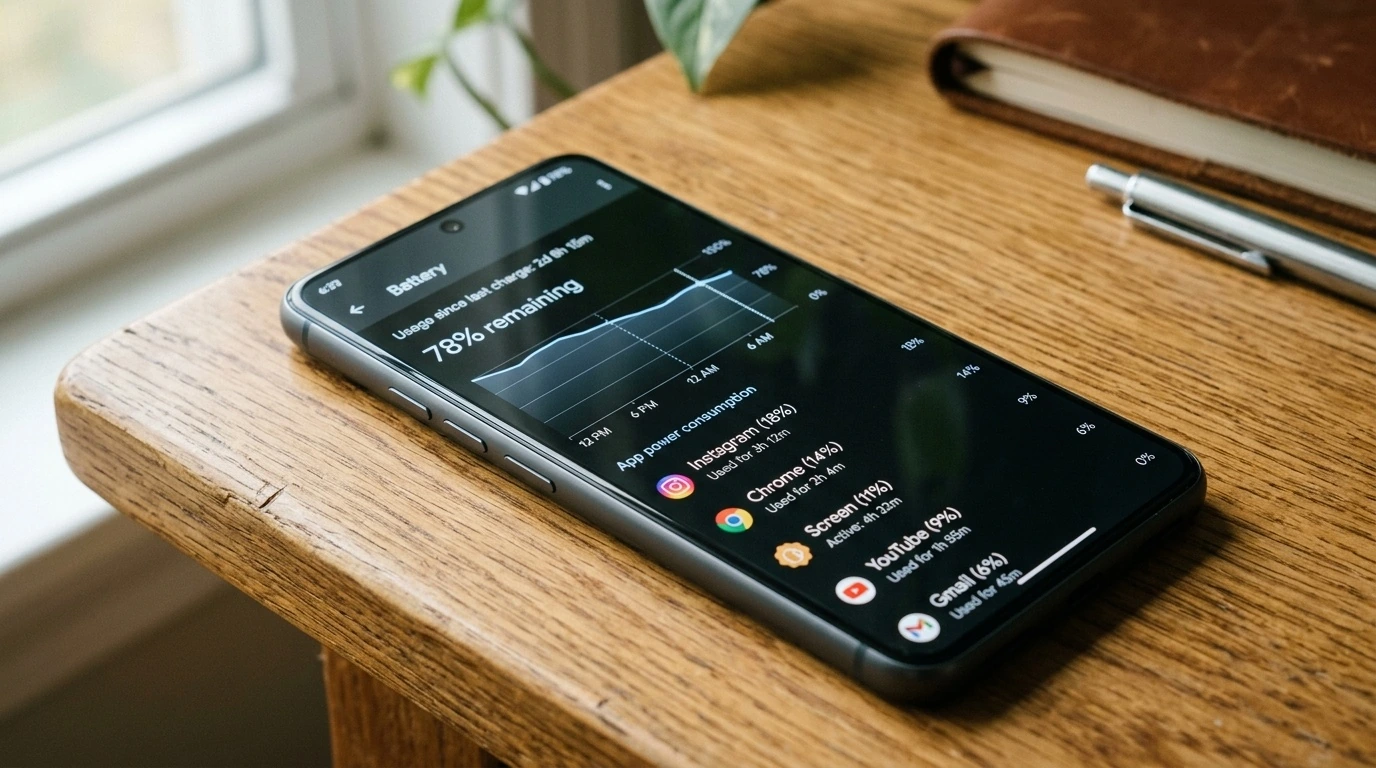
- Audit Regularly: Use Android's built-in Battery Usage menu to find rogue apps running in the background.
- Apply Restrictions: Switch high-drain, non-essential apps from "Optimized" to "Restricted" battery status.
- Limit Mobile Data: Disable background mobile data for apps that do not need real-time syncing.
- Avoid Task Killers: Third-party RAM cleaners and task killers actually increase battery drain by forcing constant app restarts.
Step 1: Identify the Battery Vampires
Before changing any settings, you need to know which applications are responsible for the drain. Android tracks battery consumption per app, separating active screen-on usage from background processing.
To find this information, open your device's Settings app, navigate to Battery, and select Battery Usage (on some devices, this may be under Battery > View detailed usage). Here, you will see a list of applications ranked by their percentage of power consumption since the last full charge.
Pay close attention to apps that show high percentage usage but have very low "Screen time." For example, if a social media app shows 15% battery usage but only 5 minutes of active screen time, it is actively running background processes, syncing data, or tracking location when it should be dormant.
Step 2: Adjust App Battery Profiles
Android categorizes app battery usage into three distinct states. Adjusting these states is the most effective native way to curb background activity.
- Unrestricted: Allows the app to run in the background without any performance or battery limits. This is ideal for smartwatches, fitness trackers, or password managers that must run continuously.
- Optimized (Default): Android automatically manages the app's background activity based on how frequently you use it.
- Restricted: Strictly limits background activity. The app will not run in the background, will not sync data silently, and may not deliver notifications until you open it manually.
To apply these restrictions, go to Settings > Apps > See all apps. Tap on the offending app, select Battery (or App battery usage), and choose Restricted.
Understanding Battery Optimization Profiles
The table below outlines how these profiles affect app behavior, notification delivery, and overall battery saving potential.
| Battery Profile | Background Activity | Notification Speed | Battery Saving Impact |
|---|---|---|---|
| Unrestricted | Continuous, unlimited background tasks | Instant (Real-time) | None (High Drain) |
| Optimized | Managed dynamically by system algorithms | Standard / Slightly delayed | Moderate |
| Restricted | Blocked entirely while screen is off | Highly delayed / None until opened | Maximum |
Step 3: Disable Background Mobile Data
Many apps use your cellular connection in the background to pre-load advertisements, fetch media, or send telemetry data back to their servers. This constant network pinging keeps your phone's internal modem awake, which is highly power-intensive.
You can cut off background internet access for specific apps without affecting their functionality when they are open:
- Open Settings and tap on Apps.
- Select the app you want to modify.
- Tap on Mobile data & Wi-Fi.
- Toggle off Background data.
This prevents the app from using cellular data in the background, which simultaneously preserves your monthly data cap and extends your battery life.
Step 4: Real-World Optimization Scenarios
To see how these adjustments work in practice, let us look at two common real-world scenarios where background apps degrade user experience.
Scenario A: The Rogue Social Media App
The Problem: A user notices their phone loses 12% battery overnight while sitting on the nightstand. The battery diagnostics tool reveals that a popular video-sharing app used 4 hours of background CPU time despite not being opened once during the night.
The Solution: The user navigates to the app's settings, changes the battery profile to Restricted, and toggles off Background data. The next night, the idle drain drops to a normal 2%, and the app still functions perfectly when launched the next morning.
Scenario B: The Over-Active Weather App
The Problem: A weather app constantly tracks the device's location to provide real-time local forecasts, polling the GPS chip every few minutes and draining the battery rapidly during commutes.
The Solution: Instead of restricting the entire app, the user goes to Settings > Privacy > Permission manager > Location, selects the weather app, and changes the permission from "Allow all the time" to "Allow only while using the app." This stops the background GPS polling entirely while keeping the app useful when opened.
The Danger of Third-Party "Task Killers"
A common mistake among Android users is downloading third-party task killers, RAM cleaners, or battery booster apps. These applications promise to save battery by constantly closing background apps.
However, Android is designed to keep cached apps in its system RAM for rapid launching. When a third-party utility forcibly closes an app, Android's system architecture automatically attempts to restart it. This constant cycle of forced closure and automatic restart consumes significantly more CPU cycles and battery power than if the apps were simply left dormant in the cache. Rely exclusively on Android's native settings to manage background behavior.
FAQ
Will restricting an app delete my data or account?
No. Restricting background activity only pauses the app's ability to run tasks while you are not using it. Your login credentials, saved preferences, and offline data remain entirely safe.
Why am I still getting notifications from a restricted app?
Some highly optimized apps use Google Cloud Messaging (GCM) or Firebase Cloud Messaging (FCM) to push notifications. These high-priority system pushes can sometimes bypass local app restrictions. If you want absolutely no notifications, you should block notifications entirely in the app's settings.
What is "Adaptive Battery" and should I keep it enabled?
Yes, you should keep it enabled. Adaptive Battery is a native Android feature that uses machine learning to understand your usage patterns over time. It automatically limits power to apps you rarely use, saving battery without requiring manual configuration.
Can I restrict Google Play Services?
It is highly recommended that you do not restrict Google Play Services. This is a core system framework that handles location services, security updates, and push notifications for almost all apps on your device. Restricting it can cause system instability and app crashes.
link : How to Stop Android Apps from Secretly Draining Battery in the Background