

It is the middle of a high-stakes mobile match when your iPhone suddenly stutters, the chassis turns burning hot, and the screen dims to an unreadable level despite the brightness slider being maxed out. This frustrating double-whammy is not a hardware defect; it is iOS's built-in thermal defense mechanism acting to protect your battery and processor from permanent heat damage. Fortunately, you can prevent this performance throttling with a few strategic system adjustments and smart environmental tweaks.
Key Takeaways
- Thermal Throttling is Defensive: Screen dimming occurs when the internal temperature of the iPhone crosses a safety threshold to protect the OLED panel and battery.
- Avoid Charging While Gaming: Power delivery generates substantial heat, which, combined with gaming workloads, guarantees rapid thermal throttling.
- Optimize Game Settings: Dropping frame rate targets from 120 FPS or 60 FPS to a stable 30 FPS, or lowering shadows, dramatically reduces GPU heat generation.
- Use Active Cooling: External MagSafe or clip-on semiconductor coolers are the most effective way to maintain peak brightness during long competitive sessions.
Why Your iPhone Overheats and Dims During Gaming
To solve the issue, it helps to understand why it happens. Your iPhone does not have an internal fan. It relies entirely on passive cooling, transferring heat from the system-on-a-chip (SoC) through the phone's frame and glass back into the surrounding air.
When running demanding games like Genshin Impact, PUBG Mobile, or Call of Duty: Mobile, the processor works at maximum capacity. This heavy computation generates significant thermal energy. When the internal temperature rises above a specific threshold, iOS triggers a series of safety measures to prevent hardware degradation:
- Processor Throttling: The CPU and GPU clock speeds are lowered, causing frame drops and stuttering.
- Screen Dimming: The display brightness is capped to reduce power draw and heat from the OLED panel.
- Charging Slowdown: If plugged in, charging speeds drop dramatically or stop entirely.
Practical Settings Adjustments to Cool Your iPhone
Software optimization is your first line of defense. By reducing the processing load, you directly lower the amount of heat generated by the device.
1. Adjust In-Game Graphics Settings
Running games at maximum settings is visually impressive, but it is the fastest way to trigger thermal throttling. Open your game's settings menu and make the following adjustments:
- Frame Rate: If you are playing at 120 FPS or 60 FPS and experiencing dimming, lock the frame rate to 60 FPS or 30 FPS. High frame rates tax the GPU heavily.
- Resolution: Lower the render resolution from "High" or "Ultra" to "Medium."
- Shadows and Effects: Turn off dynamic shadows, motion blur, and anti-aliasing. These features require immense processing power but offer diminishing returns on a small screen.
2. Manage iOS System Settings
Background system processes can add unnecessary thermal load while you play. Streamline your iOS environment with these steps:
- Disable Background App Refresh: Go to Settings > General > Background App Refresh and turn it off, or restrict it to Wi-Fi only. This prevents background apps from waking up the CPU while you play.
- Turn Off Auto-Brightness and True Tone: Go to Settings > Display & Brightness. While Auto-Brightness is generally helpful, manual control ensures the screen does not fluctuate wildly, and turning off True Tone reduces real-time sensor processing.
- Enable Low Power Mode (With Caution): Low Power Mode caps the processor's maximum performance. While this will lower your frame rate, it also prevents the phone from heating up in the first place, offering a smoother, albeit slower, gaming experience.
Environmental and Hardware Solutions
Sometimes, software tweaks are not enough, especially during hot summer months or in poorly ventilated rooms. In these situations, physical modifications to your gaming setup are required.
Remove Your Phone Case
Most protective cases, especially those made of thick silicone, leather, or heavy-duty plastic, act as thermal blankets. They trap the heat radiating from the back of the iPhone, forcing it back into the internal components. Simply removing your case before starting a gaming session can lower operating temperatures by several degrees.
Avoid Gaming While Charging
Charging your phone generates significant heat, particularly when using fast-charging USB-C bricks or MagSafe wireless chargers. Combining the heat of charging with the heat of gaming is the most common cause of rapid screen dimming. If you must charge while playing, use a low-wattage (5W) charger, which generates far less heat than an 18W or 20W fast charger.
Invest in an Active Cooling Fan
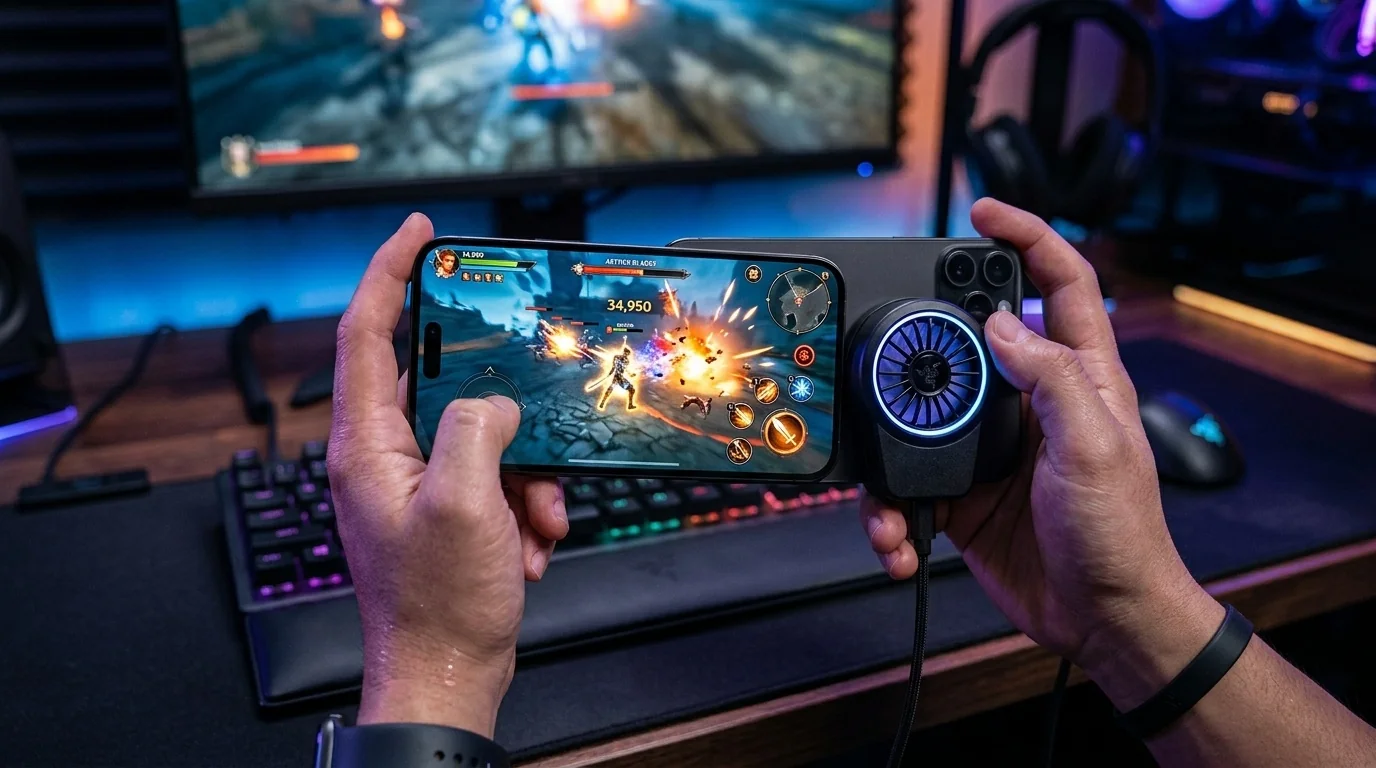
For serious mobile gamers, active cooling is a necessity. Semiconductor phone coolers clip onto the back of the device (often using MagSafe) and use a thermoelectric Peltier cooling tile combined with a fan to actively draw heat away from the iPhone's chassis. These accessories can keep the back of the phone ice-cold, completely eliminating thermal throttling and screen dimming.
Real-World Gaming Scenarios
Scenario A: The Competitive Battle Royale Player
Sarah plays PUBG Mobile competitively on her iPhone. During matches, she cannot afford frame drops or a dim screen. To optimize her setup, she removes her thick protective case and clips on a MagSafe semiconductor cooling fan before launching the game. She keeps her in-game graphics on "Smooth" but sets the frame rate to "Extreme" (60 FPS). Because the active cooler handles the heat dissipation, her screen stays at maximum brightness for hours without throttling.
Scenario B: The Casual RPG Gamer on a Commute
David plays Genshin Impact during his train commute home. He does not want to carry bulky cooling accessories. To prevent his screen from dimming, he lowers his in-game graphics settings to "Medium," caps the frame rate at 30 FPS, and turns off Background App Refresh. Because the train is air-conditioned, these minor software adjustments are enough to keep the iPhone's temperature stable without sacrificing too much visual quality.
Thermal Management Strategy Comparison
The table below compares the effectiveness, cost, and trade-offs of various cooling strategies:
| Strategy | Cooling Impact | Cost | Primary Trade-off |
|---|---|---|---|
| Removing Phone Case | Moderate | Free | Zero drop protection during play |
| Lowering FPS (60 to 30) | High | Free | Less fluid animations and gameplay |
| Avoiding Charging While Playing | Very High | Free | Limited by remaining battery life |
| Active Semiconductor Cooler | Extreme | $20 - $50 | Added bulk, requires external power source |
Decision Framework: How to Balance Performance and Heat
To find the perfect balance between game performance and device temperature, ask yourself the following questions before your next gaming session:
- Are you playing indoors in an air-conditioned room? If yes, you can likely run games at 60 FPS with medium graphics settings without a case. If no, immediately lock your game to 30 FPS or use an active cooler.
- Is your battery below 30%? If you must charge while playing, lower your graphics settings to the absolute minimum to offset the massive heat generated by the battery charging process.
- Are you playing a competitive game where frame rate is vital? Prioritize frame rate (60 FPS) but lower all other visual settings (shadows, reflections, anti-aliasing) to "Low" or "Off" to keep the GPU load manageable.
Frequently Asked Questions
Why does my iPhone screen dim even when Auto-Brightness is turned off?
This is a hardware protection feature managed by iOS, not your display settings. When the internal temperature of the phone gets too high, the system automatically lowers the maximum display brightness to protect the OLED screen from burn-in and to reduce overall heat generation.
Is it safe to play games on my iPhone while it is hot?
While the iPhone has built-in safety mechanisms (like dimming and throttling) to prevent immediate damage, running your phone at high temperatures for extended periods will accelerate battery degradation, permanently reducing your battery's maximum capacity over time.
Do gaming cases actually help cool down the iPhone?
Some "cooling" cases feature breathable mesh or graphene layers designed to dissipate heat. While they are slightly better than standard silicone cases, they are still far less effective than removing the case entirely or using an active fan cooler.
Does Low Power Mode affect gaming performance?
Yes, Low Power Mode limits CPU and GPU performance, which will likely lower your frame rate and cause minor stuttering in demanding games. However, it is an excellent tool for casual games because it significantly reduces heat generation and battery drain.
