

Running out of iPhone storage always seems to happen at the worst possible moment, such as when you are trying to capture a rare video or download an urgent application. Instead of blindly deleting your favorite photos, a systematic approach can reclaim tens of gigabytes without losing your precious memories. This guide details exactly how to audit, organize, and optimize your iOS storage for maximum efficiency.
Key Takeaways
- Target System Data: Safely clear cached files and streaming downloads to reduce invisible storage bloat.
- Offload vs. Delete: Use the offload feature to remove unused apps while keeping your personal data intact.
- Optimize Photos: Store high-resolution originals in iCloud while keeping smaller, device-friendly versions on your phone.
- Automate Housekeeping: Set messages to auto-delete after 30 days or a year to stop media attachments from building up.
Step 1: Auditing Your iPhone Storage
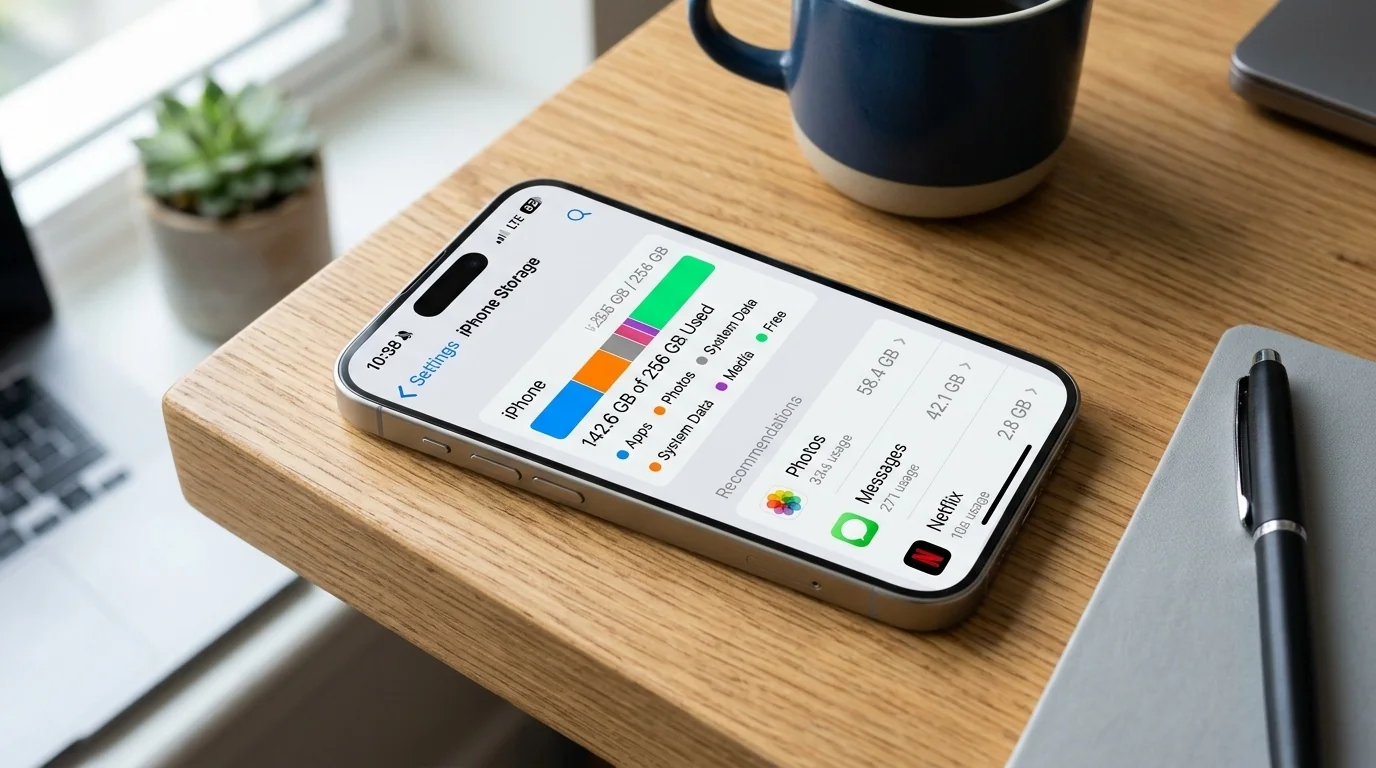
Before deleting anything, you need to know what is actually occupying your storage. Navigate to Settings > General > iPhone Storage. At the top of the screen, you will see a color-coded bar chart showing how much space is used by Apps, Photos, Media, Mail, System Data, and other categories.
iOS will display a list of personalized recommendations, such as enabling iCloud Photos or reviewing large attachments. Below these recommendations, you will find a list of all your installed apps, sorted by the amount of space they occupy. This list is your roadmap for clearing space.
Scenario 1: The Hidden Message Bloat
Consider Sarah, who had a 128 GB iPhone that was completely full. She assumed her photos were the issue and spent hours deleting pictures, only to free up a meager 2 GB. When she finally checked her iPhone Storage settings, she discovered that her Messages app was using 34 GB. Years of receiving high-definition videos, memes, and PDFs in family group chats had quietly consumed over a quarter of her phone's capacity. By target-clearing large attachments in Messages, she reclaimed 30 GB in minutes without losing a single photo.
Step 2: The Actionable Blueprint to Reclaim Space
Once you know where your space is going, use these targeted strategies to clean up your device systematically.
1. Optimize Photos and Videos
Photos and videos are typically the largest storage consumers. Instead of deleting them, you can store them in iCloud while retaining a smaller, optimized version on your iPhone.
- Go to Settings > Photos.
- Ensure iCloud Photos is turned on.
- Select Optimize iPhone Storage.
When your iPhone runs low on space, full-resolution photos and videos are automatically replaced with smaller, device-sized versions. The full-resolution originals remain safe in iCloud and will download instantly whenever you open them with an active internet connection.
2. Offload Unused Apps
Deleting an app removes both the application and its internal data. Offloading, however, deletes the app itself but leaves all your documents, settings, and personal data intact. The app icon remains on your home screen with a small cloud icon next to it.
- Manual Offloading: Tap any app in your storage list and select "Offload App." This is perfect for large travel apps or seasonal tools you only need occasionally.
- Automatic Offloading: Go to Settings > App Store and toggle on Offload Unused Apps. iOS will automatically offload rarely used apps when your storage gets low.
3. Clear Browser and App Caches
Web browsers and social media apps store temporary files to speed up loading times. Over time, these caches can grow to several gigabytes.
- Safari: Go to Settings > Safari, scroll down, and tap Clear History and Website Data.
- Chrome: Open Chrome, tap the three dots, select Clear Browsing Data, select Cache, and confirm.
- Social Media: Apps like TikTok, Instagram, and Facebook accumulate massive caches. The most effective way to clear these is to delete the app entirely and reinstall it from the App Store.
Comparing Storage-Clearing Strategies
Not all storage-saving actions are created equal. Use this table to prioritize your efforts based on effort and potential storage yield:
| Action | Estimated Space Saved | Trade-offs / Consequences | Effort Level |
|---|---|---|---|
| Enable "Optimize Storage" for Photos | 10 GB - 100+ GB | Requires internet connection to view full-res photos; requires paid iCloud plan if library is large. | Low |
| Offload Unused Apps | 5 GB - 20 GB | Requires redownloading the app before you can use it again. | Low |
| Delete Large Message Attachments | 2 GB - 30 GB | Permanently deletes sent/received videos and files unless saved elsewhere. | Medium |
| Clear Safari & App Caches | 1 GB - 5 GB | Will sign you out of some websites; temporary files will rebuild over time. | Low |
Managing the Dreaded "System Data" Bloat
At the bottom of the iPhone Storage screen, you will see a category called "System Data" (formerly "Other"). This contains diagnostic logs, Siri voices, system caches, and active streaming downloads from apps like Spotify, Netflix, or Disney+.
If your System Data is larger than 10 to 15 GB, it has likely bloated due to cached streaming media or outdated system logs. Here is how to clean it up:
Scenario 2: The Streaming Cache Trap
Mark noticed his "System Data" was taking up 28 GB of space. He rarely saved local files, but he listened to hours of podcasts and downloaded offline playlists on Spotify. Even after deleting old podcast episodes, the storage didn't return. Mark opened Spotify's in-app settings, navigated to Storage, and tapped "Clear Cache." This instantly reduced his System Data by 12 GB without deleting his saved playlists, which simply stream online now instead of taking up physical space.
Long-Term Habits for a Clutter-Free iPhone
To avoid repeating this cleanup process every few months, implement these simple maintenance habits:
- Auto-Delete Messages: Go to Settings > Messages > Keep Messages, and change the setting from "Forever" to "30 Days" or "1 Year."
- Limit Video Recording Resolution: High-quality video eats storage incredibly fast. Go to Settings > Camera > Record Video, and switch from 4K at 60 fps to 1080p at 60 fps unless you genuinely need cinematic quality.
- Review Downloads Folders: Open the built-in Files app, tap "On My iPhone," and check the "Downloads" folder. Clean out old PDFs, zip files, and work documents that you no longer need on your mobile device.
Frequently Asked Questions
What is the difference between iPhone storage and iCloud storage?
iPhone storage is the physical, built-in flash memory capacity of your device (e.g., 128 GB or 256 GB) and cannot be upgraded. iCloud storage is cloud-based subscription storage (ranging from 5 GB free to several terabytes) used to back up your device and sync photos, files, and app data across your Apple ecosystem.
Will offloading an app delete my game progress or account logins?
No. Offloading only deletes the core application files. Your custom settings, game progress, saved documents, and login credentials remain safe on your device. When you redownload the app, you can pick up exactly where you left off.
Why does my "System Data" keep growing after I delete files?
System Data fluctuates constantly because iOS uses it to store temporary cache files, system logs, and streaming data. If it remains unusually high, try restarting your iPhone, which triggers a basic system cleanup. If that fails, backing up your iPhone to iCloud, factory resetting the device, and restoring it from the backup will completely clear out corrupted cache files.
Can I use an external USB-C flash drive to expand my iPhone storage?
Yes, if you have an iPhone with a USB-C port (iPhone 15 series or newer) or a Lightning-to-USB adapter for older models. You can plug in a compatible external drive and use the built-in Files app to transfer large videos, documents, and photos off your phone to free up space instantly.
