

Achieving a consistent 90 frames per second (FPS) in PUBG Mobile is the ultimate competitive advantage, offering fluid animations and reduced input latency that can decide the outcome of close-quarters gunfights. However, balancing high frame rates with thermal throttling and battery drain requires a strategic approach to in-game and system-level configurations. This guide breaks down exactly how to unlock and maintain a stable 90 FPS on compatible iOS and Android devices.
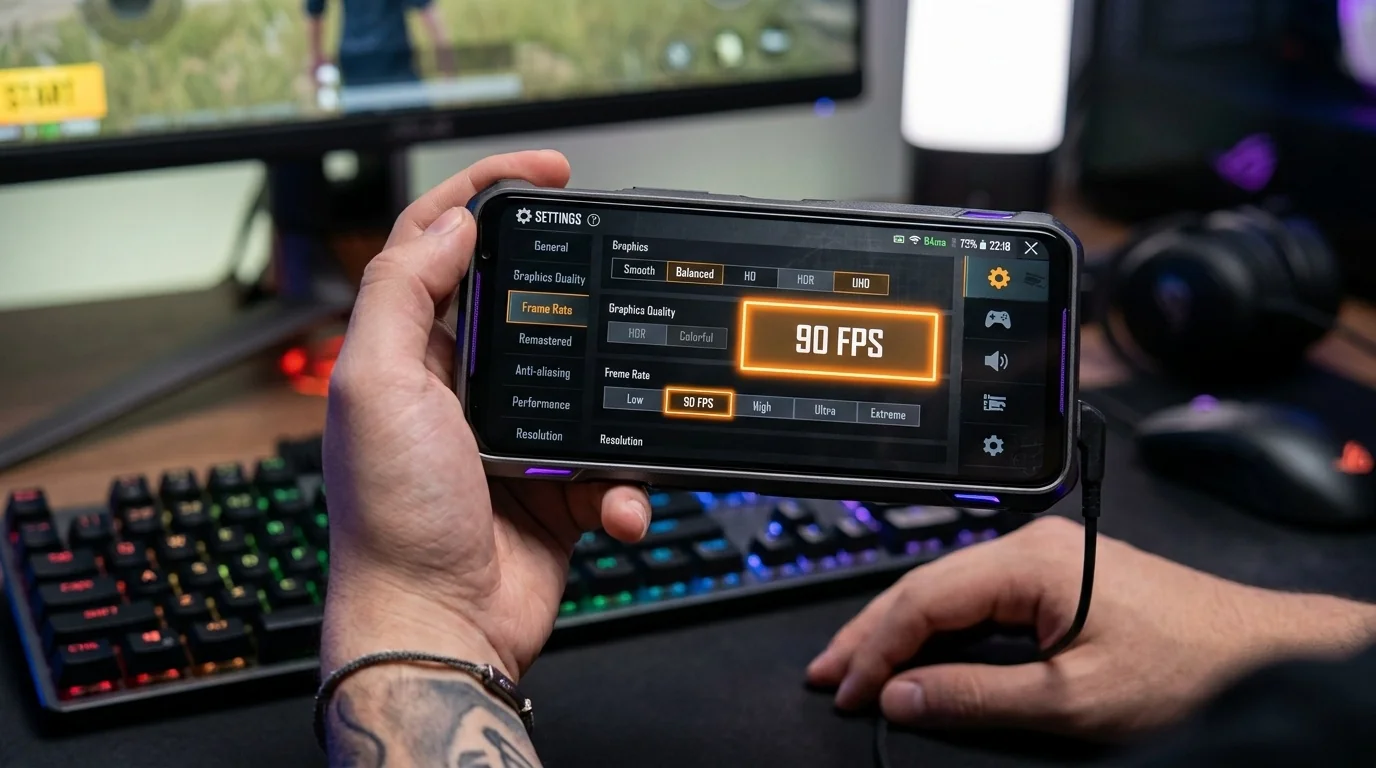
- Hardware First: You must have a device with a 90Hz, 120Hz, or 144Hz display and a compatible high-end chipset to run 90 FPS.
- The "Smooth" Rule: In-game graphics must be set to "Smooth" to unlock and sustain the 90 FPS frame rate option.
- Thermal Management: Heat is the primary cause of sudden frame drops; external cooling is highly recommended for long gaming sessions.
- Avoid Third-Party Tools: Using unauthorized GFX tools or config file modifications can result in permanent account bans.
Hardware Prerequisites for 90 FPS
Before adjusting any software settings, you must ensure your hardware is capable of rendering and displaying 90 frames per second. Even if your processor is powerful enough, a standard 60Hz display cannot physically show more than 60 frames per second.
- Display Refresh Rate: Your smartphone or tablet must support a refresh rate of 90Hz, 120Hz, or higher. Check your system display settings to ensure this is enabled globally.
- Processor Requirements: High-end chipsets like the Qualcomm Snapdragon 8 Gen series, MediaTek Dimensity 9000 series, or Apple A15 Bionic and newer are generally required to sustain 90 FPS under heavy combat loads.
Optimal In-Game Graphics Settings
To achieve the highest frame rate possible, you must prioritize performance over visual fidelity. Use the following configuration in the PUBG Mobile settings menu under the "Graphics & Audio" tab:
- Graphics: Set to Smooth. Choosing Balanced, HD, or HDR will immediately lock your maximum frame rate below 90 FPS on most devices to prevent overheating.
- Frame Rate: Select 90 FPS. If this option is missing, your device is either unsupported by the current game optimization patch or your screen refresh rate is set to 60Hz in your phone's system settings.
- Style: Set to Colorful or Classic. "Colorful" increases contrast, making it easier to spot enemies hiding in grass or shadows without impacting performance.
- Anti-Aliasing: Set to Close (Disabled) or 2x. While 2x smooths out jagged edges, it taxes the GPU. Disabling it completely provides the most stable frame delivery.
- Shadows: Set to Disable. Real-time shadows consume significant processing power and offer no competitive advantage.
- Auto-Adjust Graphics: Set to Disable. If enabled, this setting will automatically lower your frame rate when your device heats up, causing sudden, jarring stuttering during intense gunfights.
System-Level Optimizations
In-game settings are only half the battle. Your operating system's background tasks can throttle performance. Implement these platform-specific tweaks to maximize resource allocation for PUBG Mobile.
For Android Devices
- Enable Force Peak Refresh Rate: Go to Settings > Developer Options > and enable "Force Peak Refresh Rate" (or "Force 120Hz"). This prevents the system from dynamically dropping the screen refresh rate to 60Hz while gaming.
- Configure Game Driver: Inside Developer Options, locate "Game Driver Preferences," find PUBG Mobile, and switch it from "Default" to "Game Driver."
- Disable Battery Saver: Ensure that system battery saving modes are turned off. Add PUBG Mobile to your manufacturer's built-in game booster app (e.g., Samsung Game Booster, Xiaomi Game Turbo) to prioritize CPU/GPU allocation.
For iOS Devices (iPhone & iPad)
- Turn Off Low Power Mode: Low Power Mode limits CPU performance and caps the display refresh rate to 60Hz. Keep this disabled while playing.
- Disable Background App Refresh: Navigate to Settings > General > Background App Refresh and turn it off to prevent background apps from consuming CPU cycles.
- Use Guided Access: Enabling Guided Access (Settings > Accessibility > Guided Access) locks your device to the active app, preventing accidental swipe-outs and disabling system notifications that can cause micro-stutters.
Performance Comparison
The table below highlights the trade-offs between different graphics configurations in PUBG Mobile, illustrating why the Smooth + 90 FPS setup is preferred for competitive play.
| Setting Preset | Target FPS | Thermal Impact | Battery Drain | Competitive Advantage |
|---|---|---|---|---|
| Smooth + 90 FPS | 90 FPS | Moderate to High | High | Maximum |
| Smooth + Extreme | 60 FPS | Low | Moderate | Moderate |
| HDR + Extreme | 60 FPS | Very High | Very High | Low (Visual-focused) |
Real-World Performance Scenarios
Scenario A: The Competitive Tablet Player
An iPad Pro user wants to maintain a flawless 90 FPS during competitive scrims where multiple smoke grenades are deployed in the final playzones. By choosing Smooth + 90 FPS, disabling Anti-Aliasing, and setting the screen brightness to 100%, the GPU load remains low enough to prevent thermal throttling. Even during intense rendering sequences with 20+ active players in a small zone, the frame rate stays steady at 85–90 FPS, ensuring smooth aiming and fast target acquisition.
Scenario B: The Mid-Range Android Gamer
A player using a mid-range Android phone with a 120Hz display experiences severe stuttering after 15 minutes of gameplay. The system-level temperature rises, forcing the CPU to throttle. By applying the optimization steps—disabling Auto-Adjust Graphics, using a cheap clip-on semiconductor phone cooler, and turning on Force Peak Refresh Rate—the device maintains a stable 90 FPS profile throughout long gaming sessions without dropping frames during close-range gunfights.
Trade-offs and Common Mistakes
While playing at 90 FPS offers unparalleled fluidity, it does come with trade-offs that players must manage.
- Accelerated Battery Degradation: Running games at 90 FPS draws significantly more power than 60 FPS, causing your battery to deplete faster and generate more heat. Over time, this accelerated heat cycle can degrade overall battery health.
- The GFX Tool Trap: Many players turn to third-party GFX tools to unlock 90 FPS on unsupported low-end devices. Doing this modifies the game’s internal configuration files. PUBG Mobile's anti-cheat system actively detects these modifications, resulting in immediate 10-day or 10-year account bans. Only use official in-game settings to change your frame rate.
- Thermal Throttling: Without proper ventilation, most phones will begin to throttle performance after 20 minutes of 90 FPS gameplay. Playing in a cool environment or using an external cooling fan is the most effective way to combat this issue.
Frequently Asked Questions
1. Why can't I see the 90 FPS option in my PUBG Mobile settings?
This occurs if your device's processor is not officially whitelisted by PUBG Mobile to run 90 FPS, or if your device's screen refresh rate is set to 60Hz in your system display settings. Double-check your system settings to ensure your screen is running at 90Hz or 120Hz.
2. Does playing at 90 FPS drain the battery faster?
Yes. Processing 90 frames per second requires roughly 50% more rendering work from your phone's GPU and CPU compared to standard 60 FPS, resulting in faster battery depletion and increased heat output.
3. Is it safe to use GFX tools to unlock 90 FPS on a budget phone?
No. Using any third-party software, config file editors, or GFX tools to force 90 FPS violates PUBG Mobile's Terms of Service. It will eventually trigger the anti-cheat system and lead to a permanent ban.
4. How do I stop my phone from lagging or dropping frames after playing for a while?
This is caused by thermal throttling. To prevent it, play in a cool room, remove your phone's protective case, lower your screen brightness, and consider investing in an external mobile cooling fan.
