

Many mobile gamers believe that boosting frame rates or saving battery life requires sacrificing a crisp, clear image. By understanding which specific settings consume processing power and which ones preserve visual sharpness, you can optimize your gameplay for both competitive edge and visual appeal. This guide explains how to fine-tune your mobile game settings to achieve the perfect balance of fluid performance and pixel-perfect clarity.
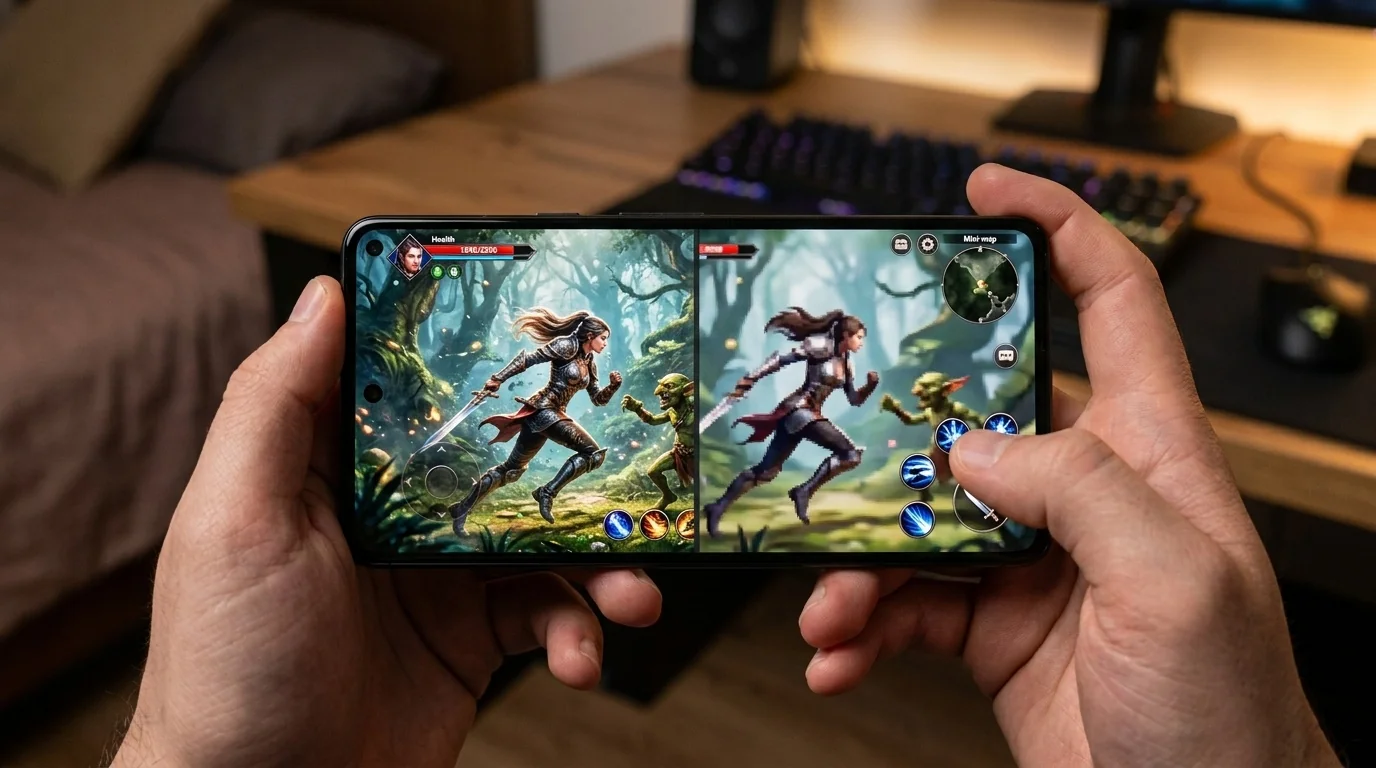
Key Takeaways
- Render Scale (Resolution) is the single most critical factor for maintaining visual clarity; keep it as high as possible.
- Shadows, post-processing, and motion blur can be lowered or disabled entirely with almost no loss in image sharpness.
- Texture Quality depends on your device's RAM; if your phone has at least 6GB of RAM, you can usually keep textures high.
- Dynamic Resolution should be disabled to prevent sudden, jarring drops in image quality during intense gameplay.
The Core Conflict: Performance vs. Visual Sharpness
When mobile games lag, the instinctive reaction is to change the overall graphics preset from "High" to "Low." While this instantly improves frame rates, it often applies a blanket reduction to every setting, rendering the game muddy, pixelated, and difficult to play competitively.
To preserve clarity, you must distinguish between geometry/texture detail (which keeps edges sharp and surfaces detailed) and environmental effects (which add realistic lighting, shadows, and atmospheric depth). The goal is to strip away the demanding environmental effects while preserving the structural resolution of the game world.
Step-by-Step Optimization Guide
Instead of using global presets, navigate to the custom graphics menu of your game and adjust these settings individually.
1. Prioritize Render Scale (Resolution)
Render scale determines the actual resolution at which the game engine renders 3D objects. If your screen is 1080p and your render scale is set to 100%, the game renders at native 1080p. Dropping this to 70% or "Low" makes everything look pixelated and blurry, making it incredibly difficult to spot distant enemies or read UI elements. Always keep this set to High, 100%, or Native. Save performance elsewhere.
2. Disable Motion Blur and Post-Processing
Motion blur is designed to make lower frame rates look smoother by blurring the screen during camera movement. However, it actively destroys visual clarity. Disabling motion blur instantly sharpens your view when turning. Similarly, post-processing effects like bloom, depth of field, and lens flare consume heavy GPU cycles while adding a soft, cinematic haze that reduces competitive visibility.
3. Optimize Anti-Aliasing (AA)
Anti-aliasing smooths out jagged edges (jaggies) on 3D objects. On mobile screens, which have high pixel densities (PPI), aggressive anti-aliasing is rarely necessary.
- Temporal Anti-Aliasing (TAA): Often causes a "ghosting" or blurry effect when in motion. Turn this off or switch to a lighter alternative.
- Multisample Anti-Aliasing (MSAA) / Fast Approximate Anti-Aliasing (FXAA): FXAA is highly performant but can look slightly soft. MSAA is incredibly sharp but demanding. If your screen has a high PPI, turning anti-aliasing completely Off can actually result in the sharpest, most pristine image, albeit with minor jagged edges.
4. Lower Shadows and Particle Effects
Real-time shadows and complex particle effects (like smoke, fire, and explosions) are incredibly taxing on mobile GPUs. Lowering shadow quality to "Low" or "Disabled" removes complex calculations without affecting the sharpness of the characters or environment. Set particle effects to "Low" to prevent severe frame drops during chaotic battles.
5. Match Texture Quality to Your Device's RAM
Texture quality determines the resolution of the skins, ground surfaces, and wall details. Unlike shadows, low textures look noticeably muddy. Fortunately, texture quality relies heavily on your device's system memory (VRAM/RAM) rather than GPU processing speed.
Graphics Settings Comparison Table
This table outlines the performance cost versus the visual clarity impact of key mobile graphics settings, helping you decide what to cut first.
| Setting Name | Performance Cost | Clarity Impact | Recommended Action |
|---|---|---|---|
| Render Scale / Resolution | Very High | Extremely High | Keep at High / 100% |
| Shadow Quality | High | Very Low | Set to Low or Off |
| Texture Quality | Medium (RAM dependent) | High | Set to Medium or High |
| Motion Blur | Low | High (causes blur) | Turn Off entirely |
| Anti-Aliasing | Medium | Medium (softens image) | Turn Off or use FXAA |
Real-World Optimization Scenarios
To see these principles in action, let's look at how to configure settings for two distinct genres of mobile gaming.
Scenario A: The Competitive Battle Royale (e.g., PUBG Mobile, Call of Duty: Warzone Mobile)
In fast-paced shooters, spotting an enemy at a distance is the difference between winning and losing. If your graphics are too low, distant enemies look like a pixelated blob.
- The Strategy: Set frame rate to the absolute maximum allowed (e.g., Ultra or 90 FPS). Set Graphics Quality to "Smooth" or "Low" but manually ensure that render resolution is high. Turn off shadows entirely so enemies standing in dark corners are easier to spot. Turn off anti-aliasing to keep edges sharp, making movement detection easier.
Scenario B: The Open-World RPG (e.g., Genshin Impact, Honkai: Star Rail)
These games rely heavily on aesthetic beauty, but they are notoriously demanding and cause rapid thermal throttling on most phones.
- The Strategy: Lock your frame rate to 45 or 60 FPS (avoiding the volatile 120 FPS target). Keep Render Resolution at Medium or High. Turn down "Visual Effects" and "SFX Quality" to Low to prevent lag during combat. Set crowd density to Low. This maintains a beautiful, sharp main character and environment without turning your phone into a hand-warmer.
Common Mistakes to Avoid
When tweaking your settings, watch out for these common optimization traps:
- Leaving "Auto-Adjust Graphics" turned on: Many games feature a setting that automatically lowers your resolution mid-game if the frame rate dips. This results in sudden, jarring pixelation. Disable this feature and manage your settings manually.
- Using Third-Party "GFX Tools": Many apps claim to unlock higher FPS or graphics settings on Android. Using these can violate game terms of service and lead to permanent account bans, especially in competitive titles. Always use in-game settings or official manufacturer game space apps.
- Ignoring Thermal Throttling: If your game runs beautifully for 10 minutes and then suddenly starts lagging, your phone is overheating. Lowering shadows and background processes will reduce heat buildup, sustaining high performance for longer sessions.
Frequently Asked Questions
Does lowering graphics settings save battery life?
Yes, significantly. Lowering demanding settings like shadow quality, post-processing, and frame rate caps reduces the workload on your device's CPU and GPU, which directly lowers battery consumption and heat generation.
Why does my game look blurry even on "High" graphics?
This is usually caused by Temporal Anti-Aliasing (TAA) or a dynamic resolution setting. TAA blends frames together to smooth edges, which introduces a soft blur. Check your settings menu to disable Anti-Aliasing or turn off dynamic resolution scaling.
Should I use my phone's built-in "Game Mode" or "Game Booster"?
Yes. Built-in game boosters (like Samsung Game Booster or iOS Game Mode) optimize system-level resources by limiting background app activity, dedicating more RAM and CPU cycles to your game, and managing thermal limits more efficiently.
What is the difference between frame rate and refresh rate?
Refresh rate (measured in Hz) is a hardware specification indicating how many times per second your phone's screen can redraw an image. Frame rate (FPS) is how many frames your game engine actually outputs. To see the benefit of a 120Hz screen, your game must be configured to output 120 FPS.
