

When an emergency strikes, fumbling with your passcode or searching for the dialer can cost precious seconds. Apple's built-in Emergency SOS features allow you to discretely contact local emergency services and notify your designated contacts with minimal physical effort. Configuring these settings before you need them is one of the most critical safety measures you can take on your mobile device.
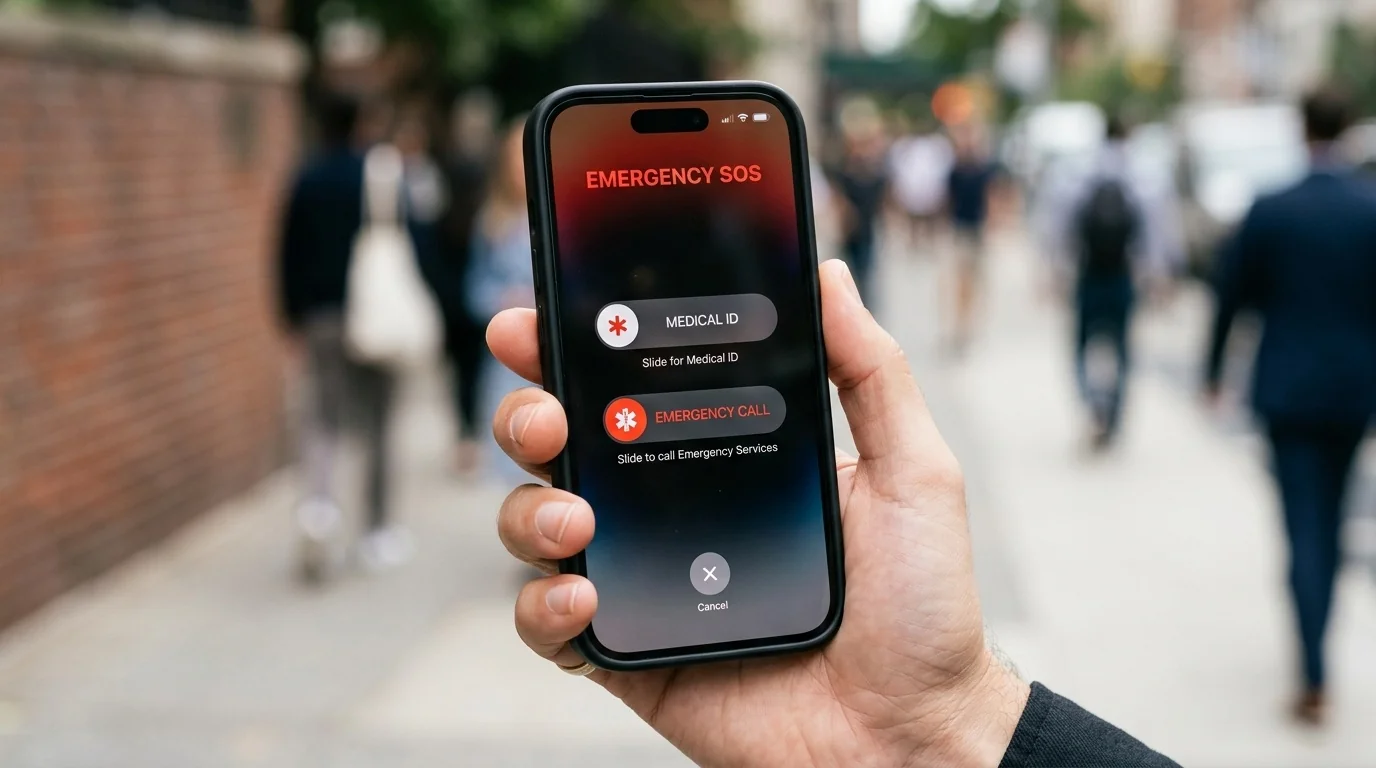
- Two Trigger Methods: You can activate Emergency SOS by holding the side and volume buttons, or by rapidly pressing the side button five times.
- Location Sharing: When triggered, your iPhone automatically sends your current location to your emergency contacts and updates them if you move.
- Medical ID: Setting up your Medical ID allows first responders to access your allergies, blood type, and emergency contacts from your lock screen.
- Satellite Connectivity: iPhone 14 and newer models can connect to emergency services via satellite when cellular and Wi-Fi networks are unavailable.
How to Trigger Emergency SOS on Your iPhone
Depending on your iPhone model and personal preferences, there are two primary physical gestures used to call for help. Understanding how these work prevents accidental activation while ensuring you can call for help without looking at your screen.
Method 1: Press and Hold (Side + Volume Button)
On iPhone 8 and newer models, you press and hold the side button and one of the volume buttons simultaneously. A countdown slider will appear on the screen. If you continue holding these buttons down, the countdown sounds an alert, and your phone automatically dials local emergency services.
Method 2: Rapid Five-Press
This method is highly useful if you need to call for help discretely. By rapidly pressing the side (or power) button five times, your phone begins a countdown and then dials emergency services. This option can be toggled on or off in your settings menu.
Step-by-Step: Enabling and Customizing Emergency SOS Settings
To configure how your iPhone behaves during an emergency, follow these steps:
- Open the Settings app on your iPhone.
- Scroll down and tap Emergency SOS.
- Toggle on Call with Hold and Release if you want to use the side and volume button method.
- Toggle on Call with 5 Button Presses to enable the discrete rapid-press method.
- Enable or disable Call Quietly. When enabled, this silences warning alarms and flashes during the countdown, which is useful in situations where you do not want to draw attention to yourself.
Setting Up Medical ID and Emergency Contacts
Emergency SOS becomes significantly more effective when paired with a fully configured Medical ID. When you make an emergency call, your iPhone can automatically share your Medical ID with first responders (where supported) and notify your designated emergency contacts with a text message containing your coordinates.
How to Configure Your Medical ID:
- Open the Health app and tap your profile picture in the top right corner.
- Tap Medical ID, then tap Edit.
- Enter your critical health information, such as allergies, medications, and blood type.
- Scroll down to the Emergency Contacts section and tap add emergency contact. Select a contact from your address book and specify their relationship to you.
- Ensure Show When Locked is toggled on. This allows paramedics to see your medical details without needing your passcode.
- Tap Done to save your changes.
Comparing Emergency SOS Activation Methods
Choosing the right settings depends on your lifestyle, physical coordination, and safety concerns. The table below outlines the trade-offs of each method:
| Trigger Method | Best For | Accidental Risk | Discretion Level |
|---|---|---|---|
| Hold and Release | General use, preventing false alarms | Very Low | Low (Requires visible interaction) |
| 5-Press Method | Rapid, eyes-free activation | Moderate (Can trigger in tight pockets) | High (Can be done entirely in a pocket) |
| Crash Detection | Severe vehicular accidents | Low (Occasional false triggers on rollercoasters) | Automatic (No user input required) |
Emergency SOS via Satellite
If you own an iPhone 14 or newer, your device can connect to emergency services via satellite when you are completely off the grid with no cellular or Wi-Fi coverage. This feature uses a specialized antenna system that requires you to point your phone directly at a passing satellite.
To use this feature, attempt to dial your local emergency number (such as 911 or 999) first. If the call fails due to lack of signal, a green Emergency Text via Satellite button will appear on the screen. Tap this button to initiate a text-based questionnaire that packages your location, altitude, iPhone battery level, and Medical ID details into a compressed message sent directly to emergency dispatchers.
Real-World Safety Scenarios
Scenario 1: Solo Hiking in a National Park
While hiking alone in an area with zero cellular service, you slip and injure your ankle. Because you have an iPhone 15, you cannot make a standard call. You trigger Emergency SOS via Satellite. The interface guides you to point your phone at the sky to establish a connection. Within minutes, search and rescue teams receive your exact GPS coordinates, altitude, and a summary of your physical condition, allowing them to dispatch help directly to your location.
Scenario 2: Walking Home Safely at Night
You find yourself walking down an unlit street and feel unsafe. With your phone in your jacket pocket, you keep your hand on the device. Because you enabled "Call Quietly" and the "5-Press Method" beforehand, you can rapidly press the power button five times to queue an emergency call. The phone does not make loud siren noises or flash, allowing you to establish a line with emergency dispatchers or alert your emergency contacts without alerting anyone nearby.
Common Mistakes and How to Avoid Them
- Ignoring the Countdown Sound: By default, Emergency SOS plays a very loud, piercing siren during the countdown. If you accidentally trigger the feature, this sound will give you a few seconds to cancel the call. Do not disable this sound unless you specifically need silent activation for personal safety reasons.
- Outdated Emergency Contacts: If your emergency contacts change their phone numbers, your iPhone will attempt to text their old numbers. Review your Medical ID settings at least once a year to keep this data accurate.
- Forgetting International Number Translation: When traveling abroad, your iPhone automatically adapts to local emergency numbers. For example, if you are from the US and travel to the UK, triggering Emergency SOS will dial 999 instead of 911. You do not need to manually change your settings when crossing borders.
Frequently Asked Questions
Does Emergency SOS work if my iPhone is locked?
Yes. Emergency SOS is specifically designed to bypass your lock screen. You do not need to enter your passcode or use Face ID/Touch ID to trigger the call or display your Medical ID to first responders.
What happens if I accidentally trigger Emergency SOS?
If the countdown starts accidentally, quickly release the buttons or tap the "Stop" button on your screen. If the call has already connected to emergency services, do not hang up immediately. Stay on the line and calmly explain to the dispatcher that it was an accidental dial so they do not dispatch emergency personnel to your location.
Is there a fee for using Emergency SOS via Satellite?
Apple includes Emergency SOS via Satellite for free for a limited period starting from the activation date of your compatible iPhone. Check Apple's official support page for the most current terms regarding satellite subscription fees in your region.
Will my emergency contacts be notified if I cancel the call?
No. Your emergency contacts are only notified after a successful emergency call has been placed and completed. If you cancel the countdown before the call connects, no messages will be sent.
