

Mobile gaming demands peak hardware performance, but background system tasks and thermal throttling often lead to frustrating frame drops during intense matches. Activating your Android device's native Game Booster features can instantly reclaim system resources, prioritize network bandwidth, and stabilize your frame rates. This guide walks you through enabling and optimizing these built-in performance modes across all major Android brands.
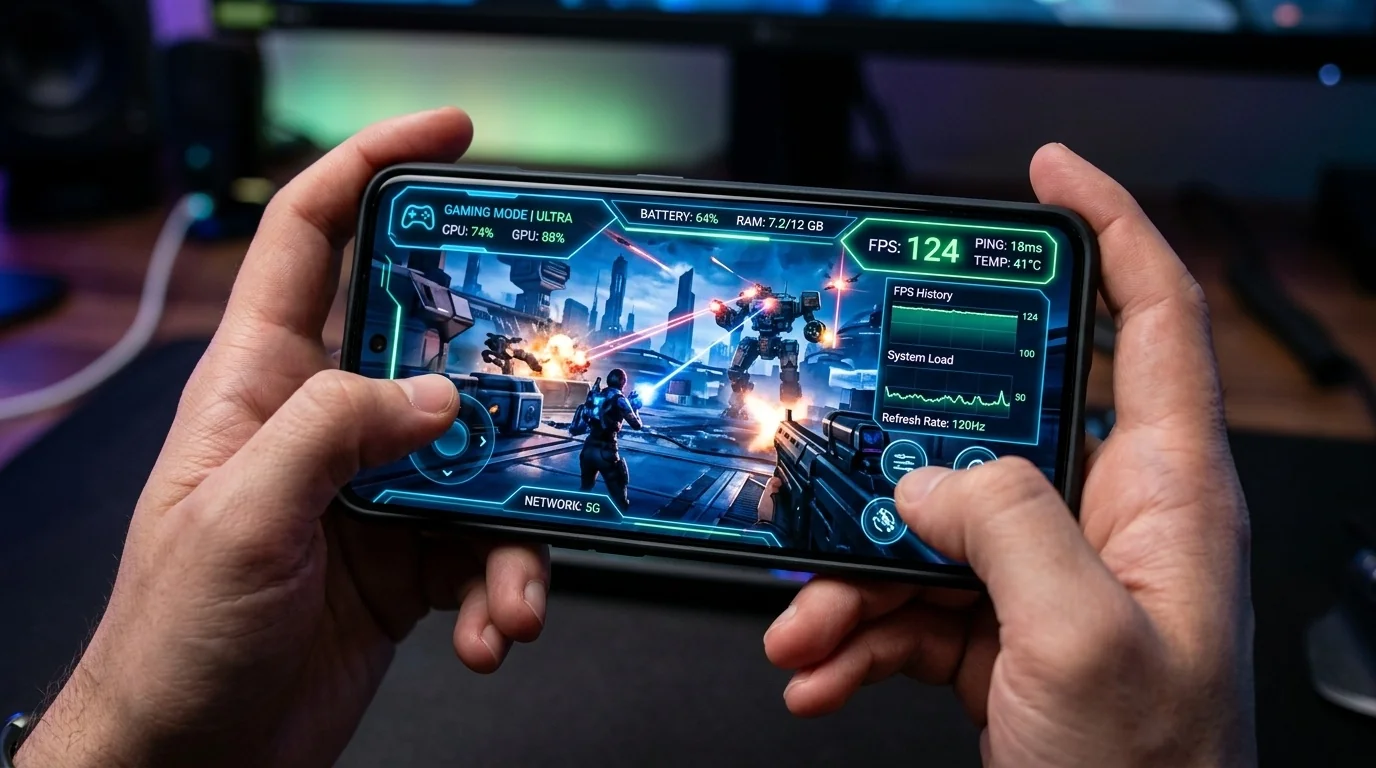
- Resource Allocation: Built-in game boosters temporarily redirect CPU, GPU, and RAM priority directly to your active game.
- Brand-Specific Tools: Samsung, Xiaomi, OnePlus, and Google Pixel feature proprietary gaming dashboards hidden in their settings.
- Network Prioritization: Enabling gaming modes reduces background data usage, lowering your in-game ping (latency).
- Developer Options: Advanced users can leverage system-level tweaks like Graphics Driver Preferences for further optimization.
Understanding Android Game Boosters: How Do They Work?
Unlike sketchy third-party "RAM cleaner" apps that often do more harm than good, native Android game boosters operate at the system level. When you launch a game through these official utilities, the operating system shifts its operational parameters in several distinct ways:
- Memory Management: Background processes are aggressively cached or paused to free up physical RAM for the game engine.
- Thermal Threshold Adjustments: The system balances processor clock speeds to prevent rapid overheating, which causes sudden, severe frame drops (thermal throttling).
- Do Not Disturb (DND) Integration: Notifications, heads-up banners, and incoming calls are silenced or minimized into unobtrusive overlays so you do not lose control of your character mid-game.
- Touch Sensitivity Tuning: Some manufacturers increase the touch-sampling rate of the screen, reducing input lag between your finger tap and the in-game action.
How to Enable Game Booster on Popular Android Brands
Because Android is customized by different manufacturers, the steps to access and configure these gaming modes vary by brand. Below are the precise steps for the most popular devices on the market.
1. Samsung Galaxy Devices (Game Booster & Game Plugins)
Samsung offers one of the most robust gaming suites, split between the standard Game Booster and the advanced Game Plugins available in the Galaxy Store.
- Open the Gaming Hub app (formerly Game Launcher) on your Samsung device.
- Tap the three-dot menu icon in the top-right corner and select Game Booster.
- Set your Game Performance profile to Performance (rather than Standard or Battery Saver).
- To unlock deeper customization, download Game Plugins from the Galaxy Store, enable the Perf Z plugin to monitor real-time FPS, and use Game Booster Plus to set custom resolution scales per game.
2. Xiaomi, Redmi, and POCO (Game Turbo)
Xiaomi's HyperOS and MIUI feature Game Turbo, which provides hardware-accelerated rendering and memory clearing.
- Open the pre-installed Security app on your device.
- Scroll down to the Common Features section and tap Game Turbo.
- Tap the Settings gear icon in the top-right corner and ensure Game Turbo is toggled on.
- Under Performance Mode, enable Bandwidth Priority (reduces ping) and Optimized Touch Controls for faster response times.
3. OnePlus, Oppo, and Realme (Games / HyperBoost)
These brands utilize the unified ColorOS/OxygenOS engine, which includes a dedicated Games app with HyperBoost technology.
- Launch the Games app on your device.
- Swipe up from the bottom drawer to view global settings, or tap the three dots in the top corner.
- Set your performance profile to Pro Gamer Mode. This unlocks maximum CPU and GPU frequencies.
- Toggle on Quick Startup, which keeps your most-played games pre-loaded in the system memory.
4. Google Pixel Devices (Game Dashboard)
Google provides a clean, stock-like gaming utility directly integrated into the Android core.
- Go to Settings > Apps > Game Settings.
- Toggle on the Game Dashboard switch.
- Launch any game. You will see a translucent bubble icon on the edge of your screen; tap it to open the dashboard.
- Select Performance mode to maximize the frame rate at the cost of slightly higher battery consumption.
Manual Performance Tweaks in Android Developer Options
If your budget or older Android device does not feature a proprietary, manufacturer-built game booster, you can manually force performance optimizations through the hidden Developer Options menu.
How to Access Developer Options:
- Go to Settings > About Phone.
- Tap the Build Number seven times consecutively until a prompt says, "You are now a developer."
- Go back to the main Settings menu, search for Developer Options, and open it.
Settings to Adjust for Better Gaming:
- Graphics Driver Preferences: Locate this setting, find your specific game in the list, and change its preference from "Default" to "System Graphics Driver." This bypasses standard application layers for more direct hardware rendering.
- Force 4x MSAA: Enabling this forces the phone to use multi-sample anti-aliasing in OpenGL ES 2.0 games. While this improves image quality and smooths jagged edges, it is highly demanding on the GPU and should only be used on mid-to-high-end chipsets.
- Logger Buffer Sizes: Reducing this to 64K or turning it off entirely can slightly reduce audio and input latency on older processors.
Comparing Optimization Methods
To help you decide which optimization route to take, the table below outlines the trade-offs of using native software tools, manual developer configurations, and physical hardware habits.
| Optimization Method | Primary Benefit | Battery Impact | Risk Level |
|---|---|---|---|
| Native Game Booster | Automated RAM clearing, DND control, network priority | Moderate (Scales with settings) | Zero (Safe/Official) |
| Developer Options (MSAA, Drivers) | Forced hardware rendering, smoother visuals | High drain | Low (Can cause minor app crashes) |
| Third-Party Booster Apps | Aggressive background app termination | Variable (Often runs heavy background ads) | Medium (Security/Adware risks) |
| Physical Thermal Management | Prevents severe, long-term thermal throttling | Improves efficiency | Zero (Highly recommended) |
Real-World Optimization Scenarios
To see how these adjustments apply in everyday usage, let's analyze two common scenarios that mobile gamers encounter.
Scenario A: The Competitive Shooter Player
The Problem: A user playing PUBG Mobile or Call of Duty: Warzone Mobile experiences sudden framerate drops during gunfights, accompanied by delayed touch responses.
The Solution: The player opens their native Game Booster and changes the settings profile from "Balanced" to "Performance Mode." Next, they navigate to touch settings within the booster dashboard to maximize the touch-sampling rate. Finally, they enable network priority mode, which routes all incoming data packets to the game first, dropping background sync activities. The result is a stable 60 FPS with immediate touch response during high-action sequences.
Scenario B: The Casual Gamer on a Budget Device
The Problem: A user playing Subway Surfers or Brawl Stars on an older, budget-tier Android device notices micro-stuttering every few seconds, even though the game is not graphically demanding.
The Solution: Since the device lacks a native, advanced game launcher, the user enables Developer Options. They locate Graphics Driver Preferences and manually change the game's driver setting from "Default" to "System Graphics Driver." Additionally, they set "Window animation scale" and "Transition animation scale" to 0.5x to free up lightweight processing overhead. The micro-stuttering disappears completely because the operating system is bypassing legacy rendering pipelines.
Common Mistakes to Avoid
While optimization software is highly effective, users often make critical errors that counteract the benefits of a game booster:
- Using Phone Cases During Intense Sessions: Heavy plastic or rubber cases trap heat. If your phone cannot dissipate heat, the system will throttle the processor, completely neutralizing any software booster you have active.
- Running Boosters While Charging: Charging a lithium-ion battery generates substantial heat. Playing demanding 3D games while fast-charging is the fastest way to trigger extreme thermal throttling and degrade your battery's long-term health.
- Installing Multiple Booster Apps: Having more than one system booster active creates resource conflicts as both utilities attempt to manage system RAM and CPU priorities simultaneously, leading to system instability.
Frequently Asked Questions
Generally, no. Most third-party booster apps simply force-close background applications—a task Android already manages efficiently. Many of these apps contain heavy advertisements that actually consume more system resources and battery power in the background than they save.
Yes. When you set a game booster to "Performance" or "Pro Gamer" mode, it allows the CPU and GPU to run at higher clock speeds for longer durations, which naturally consumes more battery power than standard operating modes.
If lag persists, it is likely caused by either physical thermal throttling (the phone is too hot) or network latency (high ping). Try playing near your Wi-Fi router, removing your phone case, or lowering the in-game graphic settings (such as shadow quality and resolution) inside the game's menu.
Yes, changing settings like "System Graphics Driver" or "Force 4x MSAA" is safe. If you experience any system instability or app crashes, you can simply toggle those specific settings off or turn off the master Developer Options switch to restore default parameters.
