

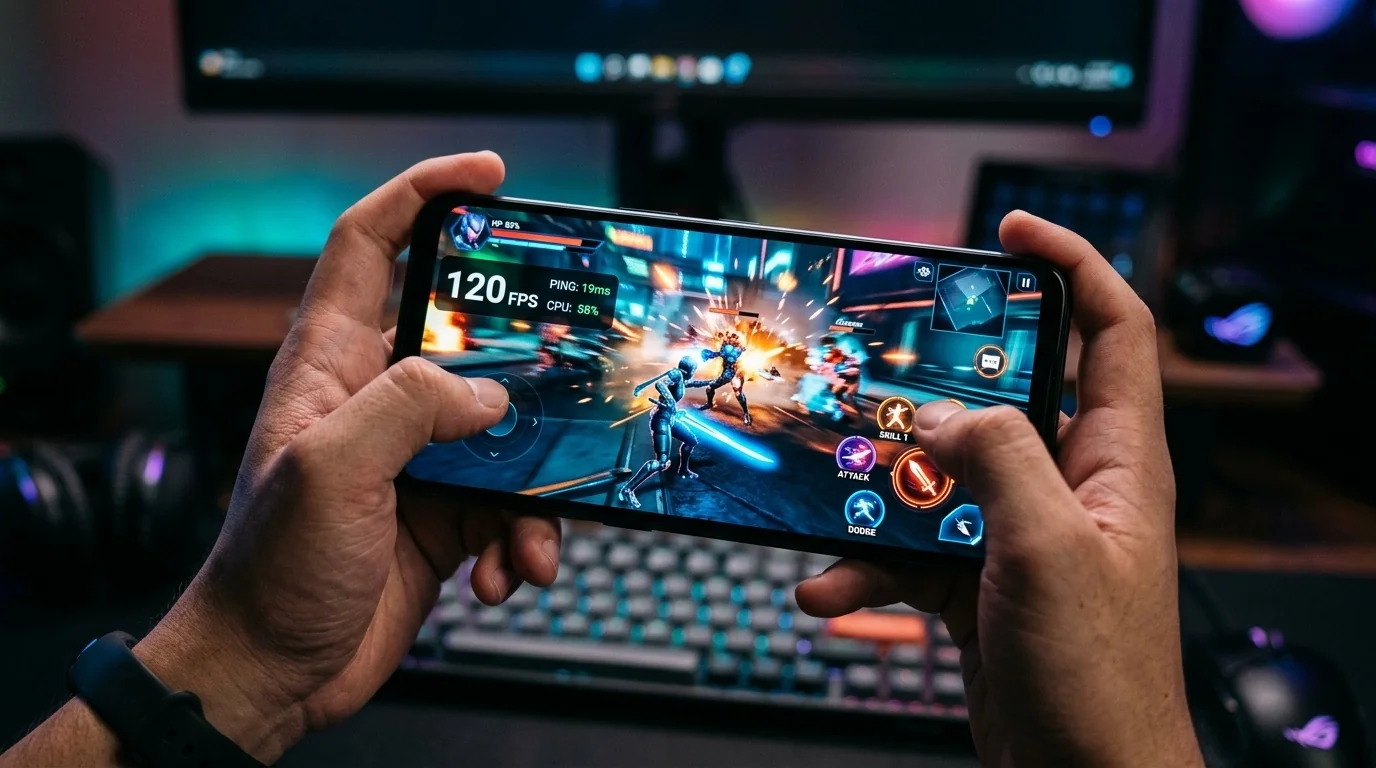
High-refresh-rate gaming on Android completely transforms mobile play, making animations fluid, transitions seamless, and reducing input lag. However, many users find their premium 120Hz displays frustratingly locked at 60Hz when launching their favorite games. This guide explains how to bypass system restrictions, configure your system settings, and force 120Hz rendering for a competitive edge.
Key Takeaways
- Hardware Check First: Ensure your phone actually supports a 120Hz refresh rate and that it is enabled in your primary display settings.
- Developer Options: You can use hidden developer settings to force peak refresh rates and monitor real-time frame rates.
- OEM Optimizations: Dedicated game launchers (like Samsung Game Booster or Xiaomi Game Turbo) frequently override default refresh rate caps.
- In-Game Settings: Even with system-level 120Hz enabled, you must manually select 'Ultra' or 'Extreme' frame rate options inside the game menu.
Why Android Games Don't Automatically Run at 120Hz
Many Android smartphones feature displays capable of 120Hz, 144Hz, or even higher. However, when you launch a game, the system often defaults back to 60Hz. This discrepancy happens due to three primary factors:
- Thermal Management: Rendering games at 120 frames per second (FPS) taxes the GPU heavily, generating significant heat. To prevent thermal throttling, Android dynamically lowers the refresh rate.
- Battery Conservation: High refresh rates drain battery life significantly faster. System-level battery savers automatically cap refresh rates at 60Hz.
- Developer Optimization Caps: Some game developers intentionally lock their titles at 60 FPS or 30 FPS to ensure a consistent experience across all hardware tiers, preventing performance bugs or physics engine glitches.
Step-by-Step Guide to Enabling 120Hz for Android Games
To unlock the full potential of your high-refresh-rate display, follow these configuration steps sequence by sequence.
Step 1: Enable High Refresh Rate in System Settings
Before optimizing for games, ensure your device is globally configured to run at 120Hz.
- Open your device Settings.
- Navigate to Display or Display & Brightness.
- Tap on Screen Refresh Rate, Motion Smoothness, or Display Smoothness.
- Select High, Maximum, or 120Hz. (Avoid "Standard" or "60Hz").
Step 2: Force Peak Refresh Rate in Developer Options
By default, Android uses dynamic refresh rates (LTPO technology) to scale down to lower frequencies when the screen content is static. This switching can sometimes lag when launching games. You can force the system to stay at its maximum refresh rate.
- Go to Settings > About Phone > Software Information.
- Tap Build Number seven times until a prompt says "You are now a developer."
- Go back to the main Settings menu and select Developer Options.
- Scroll down and toggle on Force Peak Refresh Rate (this forces the display to stay at 120Hz).
- Enable Show Refresh Rate to display a real-time counter on your screen to verify if the changes are working.
Step 3: Configure Manufacturer Game Boosters
Most hardware manufacturers include custom software suites designed to optimize gaming performance. These tools often have the final say on screen refresh rates during gameplay.
| Brand | Game Tool Name | How to Enable 120Hz |
|---|---|---|
| Samsung | Game Booster / Game Plugins | Install 'Game Plugins' from Galaxy Store. Open 'Game Booster Plus', select your game, and choose 'Max FPS' mode. |
| Xiaomi / Poco | Game Turbo | Open Game Turbo, swipe the side panel in-game, select 'Performance Mode', and ensure display settings are set to high performance. |
| OnePlus / Oppo | Games (HyperBoost) | Launch the Games app, select 'Pro Gamer Mode', and set the touch response and refresh rate to high. |
| ASUS ROG | Armoury Crate | Open Armoury Crate, go to Console, set system refresh rate to 120Hz/144Hz, and configure custom game profiles. |
Step 4: Configure In-Game Settings
Even if your system is configured correctly, the game itself must be instructed to render at high frame rates. Open your game's settings menu and look for terms like:
- Frame Rate: Set to "Ultra", "Extreme", "Max", or "90fps/120fps".
- Graphics Quality: If your phone struggles, lower the graphics quality (e.g., from "High" to "Medium") to give the GPU headroom to hit 120 FPS.
- V-Sync: Disable this if it is capping your frame rate to match a generic 60Hz profile.
Real-World Scenarios
To see how these concepts function in practice, let's examine two distinct hardware setups.
Scenario A: The Competitive Player on a Samsung Galaxy S-Series
An individual playing Call of Duty: Mobile on a Samsung Galaxy device notices that despite having a 120Hz dynamic AMOLED screen, the game feels sluggish. To resolve this:
- They navigate to Samsung's Game Booster settings and disable "Auto Manage Performance," which dynamically lowers frame rates to keep the device cool.
- They download the official Game Plugins app from the Galaxy Store and enable Game Booster Plus.
- Inside Game Booster Plus, they set the profile for their game to Max FPS.
- Inside the game settings, they change the Frame Rate option to Ultra. The real-time FPS counter now registers a stable 120Hz output.
Scenario B: The Casual Gamer on a Mid-Range Xiaomi Phone
A user playing Subway Surfers or Brawl Stars on a mid-range Xiaomi phone with a 120Hz IPS display finds the game locked at 60Hz. Because mid-range processors often have aggressive battery-saving profiles, they must take a different approach:
- They open Android's Developer Options and toggle on Force Peak Refresh Rate.
- They go to Settings > Apps > Manage Apps, search for Battery & Performance, and clear all data. This temporarily resets Xiaomi's aggressive system-level throttling profile.
- Upon relaunching the game through Game Turbo, the display locks to a fluid 120Hz.
Trade-offs, Edge Cases, and Common Mistakes
While playing games at 120Hz is visually superior, there are several trade-offs and edge cases you must consider before permanently changing your settings:
- Rapid Battery Depletion: Running games at 120Hz can increase battery consumption by 30% to 50% compared to standard 60Hz gaming. Keep a charger or power bank handy for extended sessions.
- Thermal Throttling: If your device lacks advanced cooling (like vapor chambers found in dedicated gaming phones), it will heat up quickly. Once the internal temperature reaches a specific threshold, the Android operating system will force the refresh rate back down to 60Hz to protect the hardware.
- Incompatible Games: Not all games support 120Hz. Titles like Genshin Impact are capped at 60 FPS on Android regardless of your system settings, meaning forcing 120Hz will only waste battery without improving performance.
Decision Framework: Is 120Hz Right For Your Game?
To decide whether you should go through the trouble of forcing 120Hz, use this quick diagnostic framework:
- Is it a fast-paced game? For shooters (PUBG Mobile, Apex Legends), racing games (Asphalt 9), or fast platformers, the reduced input latency of 120Hz offers a genuine gameplay advantage. For turn-based RPGs or puzzle games, 60Hz is more than sufficient and saves battery.
- Does your processor support it? Flagship processors (e.g., Snapdragon 8 Gen series or MediaTek Dimensity 9000 series) can easily maintain 120 FPS. Mid-range chips may support 120Hz displays for UI navigation, but lack the raw GPU power to render modern 3D games at 120 FPS. If your game stutters or drops frames at 120Hz, lowering it to a stable 90Hz or 60Hz will provide a smoother experience.
Frequently Asked Questions
Q1: Can I run 120Hz games on a 90Hz screen?
No. Your refresh rate is physically limited by the hardware capabilities of your phone's display panel. A 90Hz screen can only display a maximum of 90 frames per second.
Q2: Why does my phone feel hot when playing games at 120Hz?
Rendering double the number of frames per second requires your GPU and CPU to work twice as hard. This increased workload generates substantial heat. Consider gaming in a cool environment or using an external phone cooler attachment.
Q3: Does forcing 120Hz damage my phone's screen or battery?
No, it will not damage your hardware. However, it will cause your battery to degrade slightly faster over its lifespan due to more frequent charging cycles and higher heat exposure.
Q4: What games natively support 120Hz on Android?
Many popular games natively support 120Hz, including Minecraft, Brawl Stars, Alto's Adventure, Dead Trigger 2, and Real Racing 3. Always check the in-game settings menu to enable high frame rates.
