
How to Clear Cache and Other System Junk on iPhone Instantly
Is your iPhone running sluggishly or constantly warning you that storage is almost full? Unlike Android, iOS does not feature a single, universal "Clear Cache" button, leaving many users frustrated by a mysterious buildup of hidden app junk and bloated "System Data." Fortunately, you can reclaim gigabytes of space instantly using a few targeted, built-in iOS strategies that require no extra software.
Key Takeaways
- Safari is a primary culprit: Clearing your browser history and website data instantly frees up hundreds of megabytes.
- Offloading vs. Deleting: Offloading apps removes the app itself but preserves your documents and settings, making it ideal for temporary space-saving.
- Target in-app caches: High-bandwidth apps like TikTok, Spotify, and Telegram have built-in cache clearing tools that do not affect your login status.
- Avoid third-party "cleaners": Due to iOS sandboxing security, third-party cleaning apps cannot access system cache and are often deceptive or useless.
Why iPhone Cache Accumulates (and What "System Data" Actually Is)
Your iPhone relies on cache files to load frequently visited websites, stream media smoothly, and open apps faster. Over time, these temporary files pile up. Instead of helping your phone run faster, a severely congested storage drive slows down the operating system because iOS needs free space to manage virtual memory.
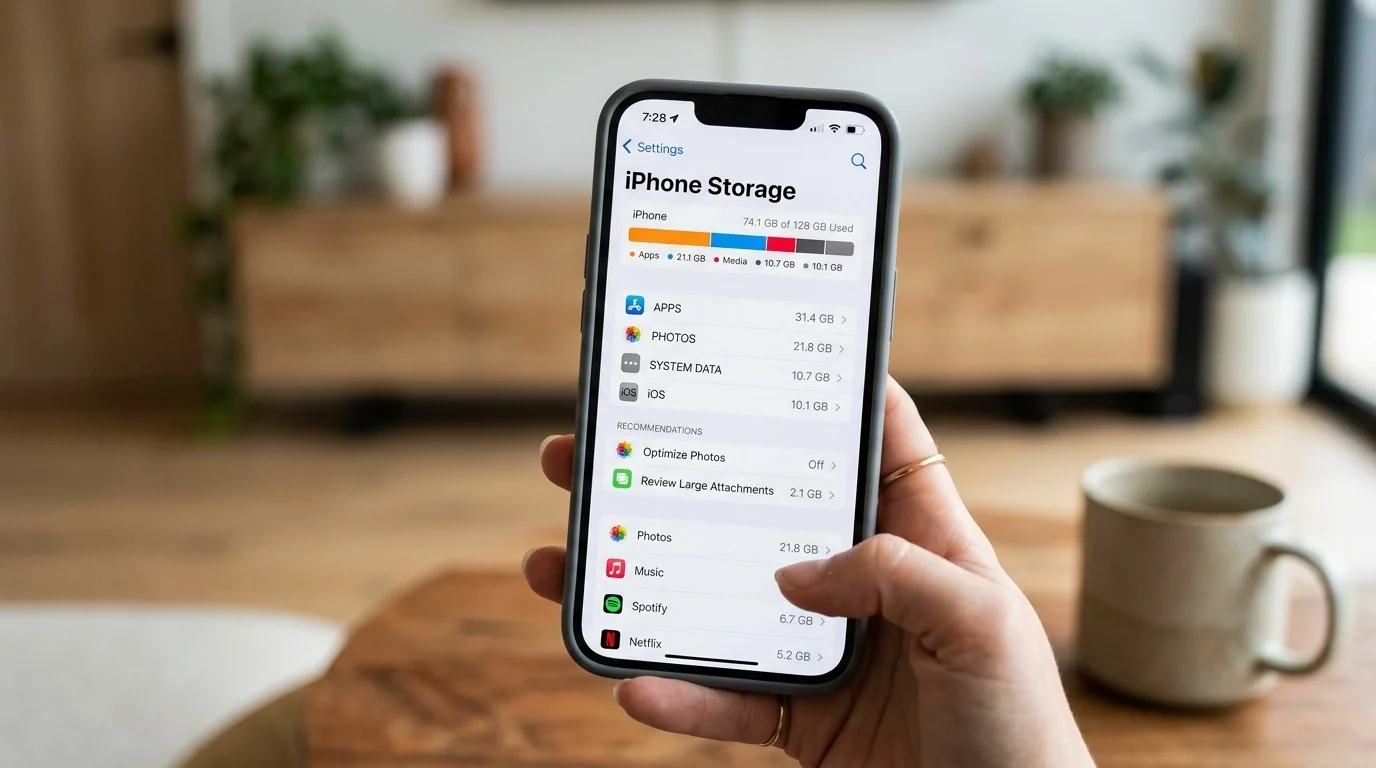
When you check your storage breakdown (via Settings > General > iPhone Storage), you will notice a gray category at the bottom labeled System Data (formerly called "Other"). This includes system logs, Siri voices, local keychain data, offline translation databases, and active streaming caches. If this category exceeds 10 GB to 15 GB, your system is likely holding onto corrupt or outdated temporary files.
Step-by-Step Methods to Clear iPhone Cache Instantly
1. Purge Safari Browsing History and Data
Safari stores images, scripts, and cookies to speed up web browsing, but this data can quickly grow to several gigabytes if left unchecked.
- Open the Settings app on your iPhone.
- Scroll down and select Safari.
- Scroll down and tap Clear History and Website Data.
- Choose your preferred time frame (select All History for a complete purge).
- Toggle on Close All Tabs if you want a fresh start, then tap the red Clear History button.
2. Target Heavy Third-Party Apps (The "Offload" Strategy)
If you have apps you rarely use but cannot afford to lose the data within them, iOS offers a unique feature called "Offloading." This deletes the app's core program files while keeping your personal data safe on the device. When you reinstall the app, you pick up right where you left off.
- Go to Settings > General > iPhone Storage.
- Scroll down to view the list of apps sorted by size.
- Tap on an app that is taking up significant space (e.g., a large game or utility).
- Tap Offload App and confirm your choice.
3. Clear In-App Caches Directly
Many popular social media and streaming apps cache large amounts of video and audio content. Because iOS does not allow you to clear these from the main settings menu, you must open the individual apps to find their cache-clearing tools.
- TikTok: Go to your Profile > Settings and Privacy > Free up space > Tap Clear next to Cache.
- Spotify: Go to Settings > Storage > Tap Clear Cache. This keeps your downloaded songs but removes temporary streaming files.
- Telegram: Go to Settings > Data and Storage > Storage Usage > Tap Clear Entire Cache.
How to Shrink the Bloated "System Data" Category
If your System Data storage is unusually high, standard app-clearing methods won't work. Use these two advanced strategies to force iOS to purge its internal system logs.
The Force Restart Method
A simple restart does not always clear the deep system cache, but a force restart forces the iOS kernel to run diagnostic checks and discard temporary log files that are no longer needed.
- Press and quickly release the Volume Up button.
- Press and quickly release the Volume Down button.
- Press and hold the Side (Power) button.
- Keep holding the button even when the power-off slider appears. Release it only when you see the Apple logo.
The Ultimate Solution: Backup and Restore via Finder/iTunes
If your System Data is still taking up 20 GB or more, the most effective solution is a complete backup and restore. This process rebuilds your iOS file system from scratch, leaving behind corrupt logs and orphaned cache files.
- Connect your iPhone to a Mac (using Finder) or a Windows PC (using iTunes/Apple Devices app).
- Create an Encrypted Backup to ensure all your passwords, health data, and Wi-Fi networks are saved.
- Once the backup is complete, go to your iPhone and navigate to Settings > General > Transfer or Reset iPhone.
- Tap Erase All Content and Settings.
- Once the iPhone restarts to the setup screen, reconnect it to your computer and select Restore from Backup.
Comparing iPhone Cleanup Methods
Different methods yield different results depending on what is consuming your storage. Use this table to decide which action to take first:
| Method | Target Junk Type | Expected Savings | Risk of Data Loss |
|---|---|---|---|
| Safari Cache Clear | Web cookies, offline page assets | 200 MB - 2 GB | None (Clears logins) |
| App Offloading | Unused application binaries | 1 GB - 10 GB+ | None |
| In-App Cache Clearing | Social media video & audio preloads | 500 MB - 5 GB | None |
| Force Restart | Active memory logs, temp system files | 100 MB - 1 GB | None |
| Backup & Restore | Orphaned database logs, corrupt files | 5 GB - 30 GB+ | Low (If backed up) |
Real-World Troubleshooting Scenarios
Scenario A: The Social Media Enthusiast
The Problem: Sarah uses TikTok, Instagram, and YouTube daily on her 128GB iPhone. She notices her storage is completely full, even though she does not save many photos or videos to her local camera roll.
The Solution: Instead of deleting her apps, Sarah should navigate to the settings of each social app. By clearing the TikTok cache directly in the app and offloading Instagram, she can instantly free up over 8 GB of cached video files without losing her account credentials or saved drafts.
Scenario B: The "System Data" Ghost Glitch
The Problem: David has deleted almost all his apps, photos, and music, yet his iPhone still shows "Storage Almost Full." His "System Data" category is taking up an astronomical 45 GB of space.
The Solution: This is a classic file system indexing glitch. David must perform an encrypted backup via his computer, factory reset the phone, and restore the backup. This processes purges the broken cache database and shrinks his System Data back to a normal 6 GB, saving his device from a forced upgrade.
Common Mistakes to Avoid
- Do not download "RAM Booster" or "Cleaner" apps: Apple's iOS ecosystem is sandboxed, meaning apps cannot interact with or delete files belonging to other apps or the system. These third-party tools are usually vehicle for ads or subscriptions.
- Do not constantly swipe apps closed: Many users believe that force-closing apps in the app switcher cleans up cache. In reality, this forces your iPhone to reload the app entirely from scratch the next time you open it, which drains more battery power and CPU cycles.
- Do not delete messages blindly: Instead of deleting entire conversations, go to Settings > General > iPhone Storage > Messages to review and delete only the largest video and photo attachments.
Frequently Asked Questions
Q: Does clearing the cache delete my passwords or photos?
A: No. Clearing browser or app caches will not delete your photos, videos, contacts, or saved passwords. It only removes temporary files like web images and preloaded media. However, clearing Safari history will sign you out of some websites.
Q: How often should I clear my iPhone cache?
A: There is no need to do this on a set schedule. You should only clear your cache if your iPhone is running low on physical storage space or if a specific app is acting glitchy or loading slowly.
Q: Why is my "System Data" storage so high?
A: System Data fluctuates constantly. It holds system logs, caches from streaming video/music apps, and active update files. If it remains high for days, a force restart or a full backup and restore is required to reset it.
Q: Does offloading an app delete my saved progress?
A: No. Offloading removes the storage footprint of the app itself while keeping your documents, settings, and personal data fully intact. Once you tap the app icon to reinstall it, all your data is instantly restored.
Post a Comment for "How to Clear Cache and Other System Junk on iPhone Instantly"