
Building a new PC presents a critical initial hurdle: selecting the correct processor (CPU) and motherboard pairing. An incompatible or mismatched choice can lead to significant performance bottlenecks, instability, or even system failure, rendering other component investments moot. This guide provides a precise framework for making informed decisions, ensuring your custom build operates at peak efficiency and stability from the outset.
KEY TAKEAWAYS
- ✓CPU socket type must precisely match the motherboard's socket.
- ✓Motherboard chipset dictates CPU compatibility, PCIe lanes, and feature set.
- ✓VRM quality is critical for stable power delivery, especially for high-TDP CPUs and overclocking.
- ✓Consider future upgrade paths (RAM, storage, CPU) when selecting your board.
Required Prerequisites & Tools Checklist
Before commencing, ensure you have:
- Basic PC Component Understanding: Familiarity with CPU generations, RAM types (DDR5), and storage interfaces (NVMe).
- Anti-Static Wrist Strap/Mat: Essential for preventing electrostatic discharge (ESD) damage to sensitive components.
- Precision Screwdriver Set: Specifically Phillips head for motherboard mounting and component installation.
- Thermal Paste: If your chosen CPU cooler does not come with pre-applied thermal interface material.
- Motherboard Manual: Always consult for specific header locations and installation nuances.
Chronological Step-by-Step Procedural Guide
Step 1: Determine Your Primary Use Case and Budget
Your computing needs fundamentally dictate the CPU and motherboard pairing. A system primarily for competitive gaming prioritizes high single-core clock speeds and PCIe lane availability for GPUs. Conversely, a workstation for 3D rendering or video editing benefits immensely from higher core counts and robust memory support.
- Gaming: Focus on CPUs with strong single-core performance (e.g., Intel Core i7/i9 'K' series, AMD Ryzen 7/9 'X3D' series). Budget for a motherboard with adequate VRM for potential overclocking and sufficient PCIe 5.0 lanes for a high-end GPU.
- Professional Productivity/Content Creation: Prioritize CPUs with high core/thread counts (e.g., Intel Core i9, AMD Ryzen 9/Threadripper). Motherboards should offer extensive RAM capacity (128GB+), multiple M.2 NVMe slots, and robust power delivery.
- General Use/Office: Mid-range CPUs (e.g., Intel Core i5, AMD Ryzen 5) paired with a budget-friendly motherboard (e.g., Intel B760, AMD B650) provide excellent value and performance.
Field Observation: Overspending on a high-end motherboard for a mid-range CPU offers diminishing returns. A B650 board with a Ryzen 7 7700X, for instance, typically provides 95% of the performance of an X670E board for general gaming, while saving a substantial $150-$250.
Step 2: Select Your Processor (CPU) Architecture
As of 2026, the market is primarily dominated by Intel's 14th/15th Gen (e.g., Raptor Lake Refresh/Arrow Lake) and AMD's Zen 5 architecture. Both offer compelling performance, but their ecosystem (socket type, chipset) is mutually exclusive.
Intel (LGA 1700/1851): Generally offers strong single-core performance, often leading in specific gaming titles. Requires an LGA socket motherboard (e.g., Z790, B760, or newer 800-series chipsets for LGA 1851). Intel's platform has historically been more stable with memory overclocking, though this gap is narrowing.
AMD (AM5): Known for excellent multi-core performance and competitive gaming prowess, particularly with their 3D V-Cache variants. Requires an AM5 socket motherboard (e.g., X670E, B650). AMD's AM5 platform offers a longer upgrade path, promising support for future CPU generations on the same socket.
Comparison: Key CPU Platform Metrics (2026 Mid-Range/High-End)
| Feature | Intel (e.g., Core i7-15700K) | AMD (e.g., Ryzen 7 8800X) |
|---|---|---|
| Socket Type | LGA 1851 | AM5 |
| Typical Core/Thread Count | 8P+16E / 32T | 12C / 24T |
| Max Boost Clock (Approx.) | 5.8 GHz | 5.6 GHz |
| TDP (Base / Max) | 125W / 253W+ | 105W / 170W |
| Memory Support | DDR5 up to 8000+ MHz (OC) | DDR5 up to 8000+ MHz (OC) |
| PCIe Version | PCIe 5.0 | PCIe 5.0 |
Step 3: Match the Motherboard Socket and Chipset
This is non-negotiable. An Intel CPU requires an Intel socket motherboard, and an AMD CPU requires an AMD socket motherboard. Furthermore, the specific CPU generation dictates the compatible chipset.

- Socket Type: Intel uses Land Grid Array (LGA), where pins are on the motherboard. AMD currently uses Pin Grid Array (PGA) for older generations (AM4) and LGA for newer (AM5). Ensure the socket type (e.g., LGA 1700, AM5) matches your chosen CPU.
- Chipset: The chipset acts as the communication hub for the motherboard, dictating CPU compatibility, available PCIe lanes, USB ports, and SATA connections.
- Intel: For LGA 1700, Z790 offers full overclocking and maximum PCIe/USB connectivity. B760 provides a balanced feature set without CPU overclocking. H610 is entry-level. For newer LGA 1851, expect 800-series chipsets (e.g., Z890, B860).
- AMD: For AM5, X670E/X670 offer extensive PCIe 5.0 support and robust features. B650E/B650 provide a strong balance, with B650E guaranteeing PCIe 5.0 for both GPU and NVMe. A620 is entry-level.
PRO CALLOUT NOTE: CRITICAL WARNING!
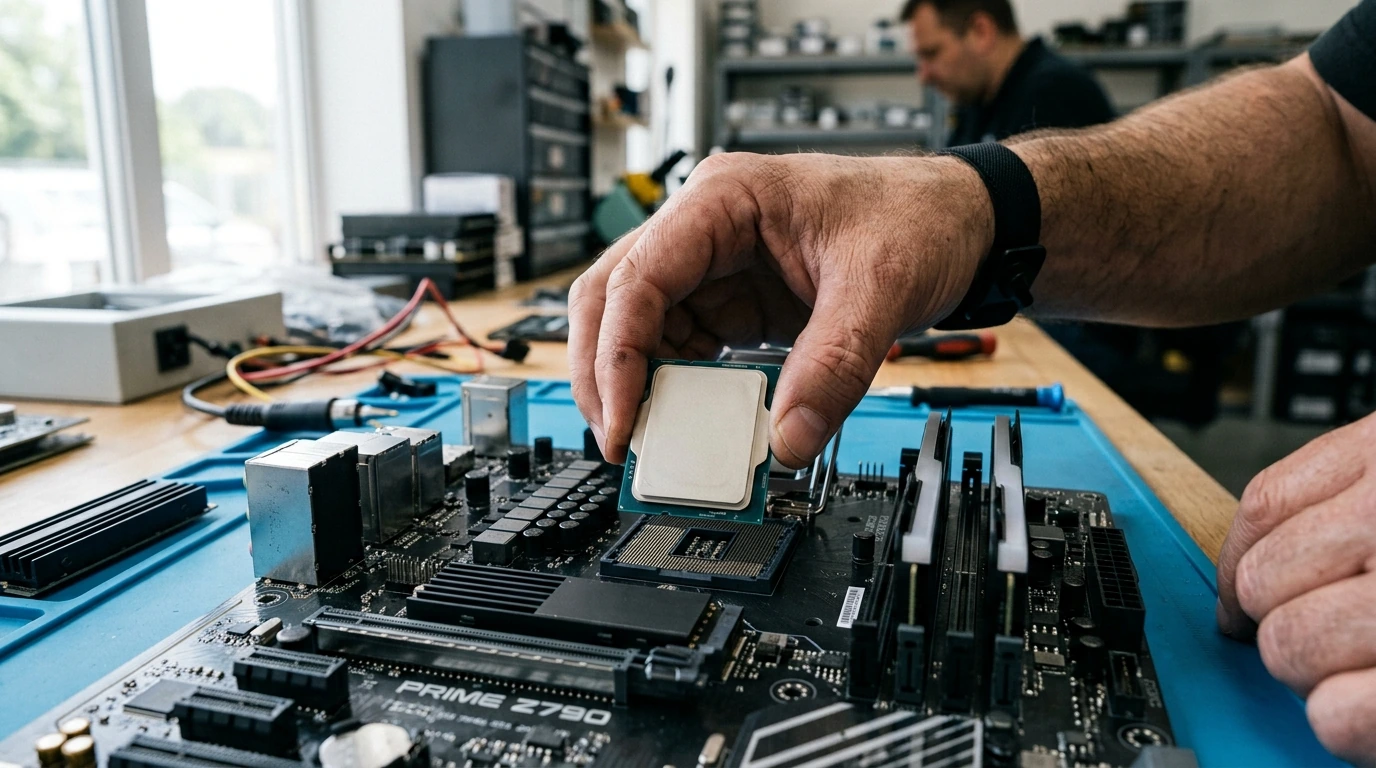
Attempting to force an incompatible CPU into a socket, or even a compatible CPU with improper alignment, will cause irreparable damage to both the CPU pins (PGA) or motherboard socket pins (LGA). Always verify the triangular alignment markers on both the CPU and socket before gentle placement. Never apply excessive force.
Step 4: Evaluate Motherboard Power Delivery (VRM)
The Voltage Regulator Module (VRM) is crucial for stable CPU operation, especially with high-TDP processors or during overclocking. A weak VRM can lead to thermal throttling, instability, and reduced CPU lifespan.

- Phase Count: More phases generally equate to more stable power and better heat distribution. Look for boards with at least 8-phase designs for mid-range CPUs, and 16+ phase designs for high-end or overclocking-focused builds. (e.g., a 16+1+2 phase design is common on enthusiast boards).
- MOSFET Quality: Higher-quality MOSFETs (e.g., DrMOS, Smart Power Stages) are more efficient and generate less heat.
- Heatsink Design: Large, finned aluminum heatsinks over the VRM area are indicative of good cooling. Smaller, flat heatsinks or no heatsinks at all (on very budget boards) suggest limited thermal capacity.
Field Observation: Running an Intel Core i9-14900K on a budget B760 motherboard with a basic 8-phase VRM can result in CPU package temperatures exceeding 95°C under sustained load, even with a premium AIO cooler, due to VRM throttling the CPU power limit. A robust 16+ phase Z790 board keeps the same CPU below 80°C under identical loads.
Step 5: Consider RAM Compatibility and Capacity
Modern platforms (LGA 1700/1851, AM5) exclusively use DDR5 RAM. Ensure your chosen motherboard supports the desired RAM speed and capacity.
- DDR5 Speed: For gaming, 6000MHz CL30 is often the sweet spot for performance and stability on both Intel and AMD. Higher speeds (7200MHz+, 8000MHz+) are achievable but can be more temperamental.
- Capacity: 32GB (2x16GB) is the recommended minimum for modern gaming and general productivity. 64GB (2x32GB or 4x16GB) is ideal for content creation and heavy multitasking.
- QVL List: Always consult the motherboard's Qualified Vendor List (QVL) for RAM to ensure tested compatibility and stability at advertised speeds.
Step 6: Assess Expansion Slots and Storage Options
Your motherboard needs to accommodate your GPU, storage drives, and any other expansion cards.
- PCIe Slots: Look for at least one PCIe 5.0 x16 slot for your primary GPU. Additional PCIe 4.0/3.0 slots are useful for capture cards, sound cards, or network adapters.
- M.2 NVMe Slots: Modern builds heavily rely on NVMe SSDs. Aim for a motherboard with at least two M.2 slots, with at least one supporting PCIe 5.0 for future-proofing and maximum performance (e.g., 12 GB/s+ sequential reads).
- SATA Ports: Ensure enough SATA 6Gb/s ports for any traditional 2.5-inch or 3.5-inch SSDs/HDDs you plan to use. Four to six ports are standard.
Step 7: Check I/O and Connectivity
The rear I/O panel dictates your external device connectivity.

- USB Ports: Prioritize boards with multiple USB 3.2 Gen2 (10Gbps) and at least one USB 3.2 Gen2x2 (20Gbps) Type-C port for high-speed external storage.
- Ethernet: 2.5 Gigabit Ethernet (2.5GbE) is now standard on most mid-range boards; 10GbE is found on high-end models.
- Wireless Connectivity: Integrated Wi-Fi 6E or Wi-Fi 7 provides excellent wireless performance and low latency, eliminating the need for an add-in card. Bluetooth 5.2+ is also a standard inclusion.
- Audio Codec: Look for Realtek ALC1220 or higher (e.g., ALC4080/4082) for superior onboard audio quality.
Common Pitfalls & Critical Mistakes to Avoid During Execution
- Ignoring QVL Lists: While RAM might physically fit, it may not run at advertised XMP/EXPO speeds or even cause instability if not on the motherboard's QVL.
- Overlooking VRM Quality for High-TDP CPUs: Pairing a power-hungry CPU (e.g., Core i9, Ryzen 9) with a motherboard featuring inadequate VRM cooling will lead to thermal throttling and performance degradation under load.
- Forgetting BIOS Updates: Newer CPUs might require a BIOS update on older motherboards within the same socket generation. Always check the manufacturer's website. Many modern boards feature a "BIOS Flashback" button, allowing updates without a CPU installed.
- Not Checking Physical Dimensions: Ensure the motherboard form factor (ATX, Micro-ATX, Mini-ITX) is compatible with your chosen PC case.
- Improper CPU Cooler Mounting Pressure: Uneven mounting pressure can lead to poor thermal contact, causing high CPU temperatures even with a good cooler.
Post-Implementation Verification Checklist
After assembling your system, perform these checks:
- BIOS/UEFI POST Successful: The system boots into the BIOS/UEFI interface without error codes.
- CPU Temperature: Monitor CPU temperatures at idle (<40°C) and under load (e.g., during a Cinebench R23 run, <85°C for sustained periods).
- RAM Detection & Speed: Verify in BIOS that all installed RAM is detected and running at its advertised speed with XMP/EXPO enabled.
- Storage Recognition: Confirm all M.2 NVMe and SATA drives are recognized in the BIOS and operating system.
- Port Functionality: Test all critical USB ports, Ethernet, and display outputs.
- Driver Installation: Ensure all motherboard chipset drivers, LAN, audio, and GPU drivers are installed and up-to-date.
FAQ Section
- Q1: Do I really need the most expensive motherboard for a high-end CPU?
- Not necessarily. While high-end CPUs benefit from robust VRMs and advanced features found on premium boards, a well-regarded mid-to-high-range board (e.g., Z790/X670) often provides 90-95% of the performance and stability for significantly less cost, especially if you're not pursuing extreme overclocking.
- Q2: What's the difference between LGA and PGA sockets?
- LGA (Land Grid Array) sockets have the pins on the motherboard, and the CPU has flat contact pads. PGA (Pin Grid Array) sockets have holes on the motherboard, and the CPU has pins. LGA is more common on modern Intel and AMD AM5 platforms, reducing the risk of bending CPU pins but increasing the risk of damaging motherboard pins.
- Q3: Can I mix and match RAM speeds?
- While technically possible, it is not recommended. The system will default to the slowest RAM stick's speed and timings, negating any performance benefits of faster modules and potentially causing instability. Always use matched kits for optimal performance.
- Q4: How important is the motherboard's built-in Wi-Fi?
- For most users, integrated Wi-Fi 6E or 7 is highly convenient and performs excellently. If your PC is far from your router or wired Ethernet isn't feasible, it's crucial. For competitive online gaming or server applications, a wired Ethernet connection remains superior for its lower latency and consistent bandwidth.


No comments: