
Building, training, and deploying large-scale artificial intelligence models requires massive computational power. While setting up on-premise hardware is prohibitively expensive for most, managed AI cloud infrastructure services offer on-demand access to enterprise-grade GPUs and TPUs without the operational headache. This guide provides a clear blueprint to selecting the right provider and navigating the onboarding process seamlessly.
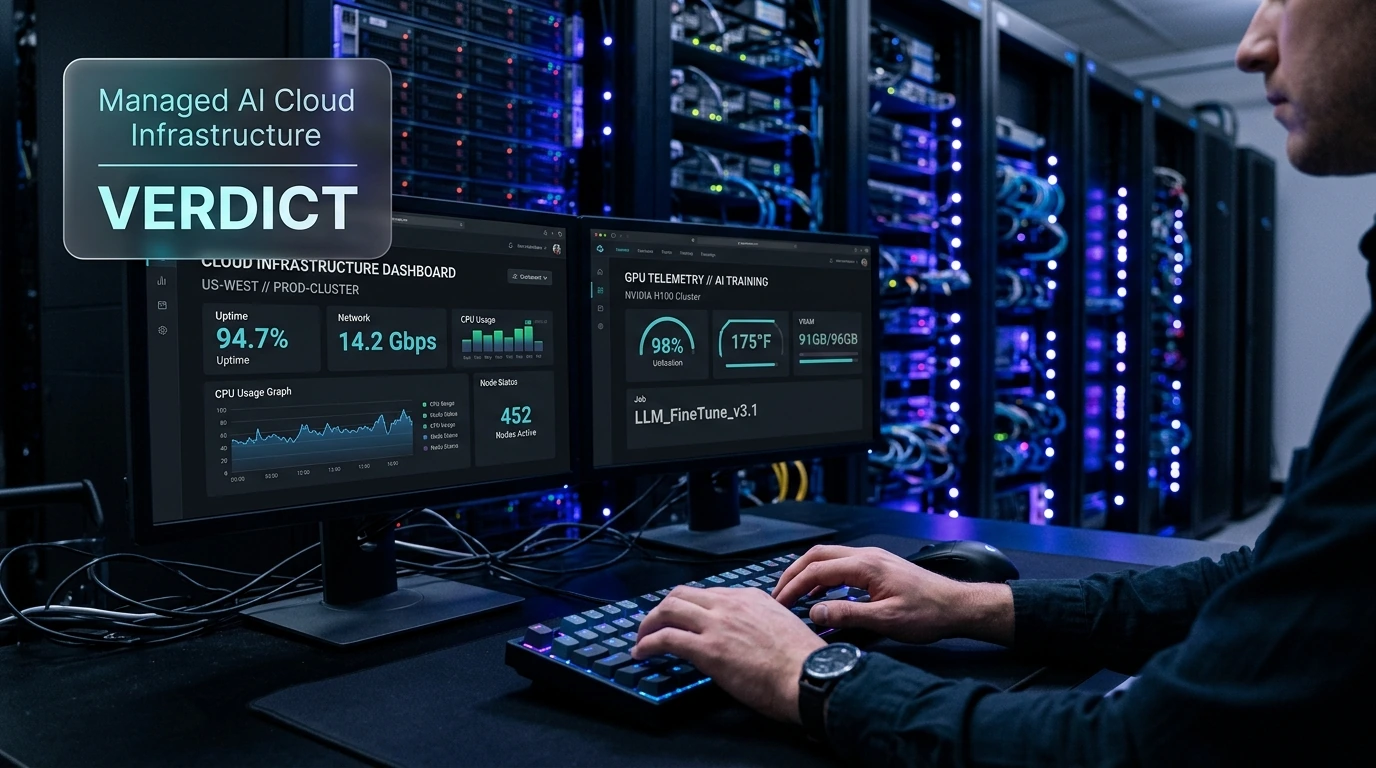
The Immediate Challenge: Navigating the GPU Shortage and Complex Setup
Before diving into the signup process, it is critical to understand the primary obstacles in AI cloud deployment. The global demand for high-performance hardware (like NVIDIA H100s and A100s) means that simply creating an account does not guarantee instant access. Cloud providers enforce strict quota limits on new accounts to prevent abuse and manage resource scarcity. Succeeding requires choosing the right tier, verifying your identity correctly, and submitting a compelling quota increase request.
Required Prerequisites & Tools Checklist
- Corporate Email Address: Avoid using free webmail accounts (like Gmail or Yahoo) as they face higher rates of quota rejection.
- Valid Corporate Credit Card: Virtual cards are frequently flagged and rejected during the identity verification phase.
- Technical Specifications: Know your model's parameters, VRAM requirements, and preferred framework (PyTorch, TensorFlow, etc.).
- SSH Key Pair: Essential for secure terminal access to your cloud instances.
PRO TIP: Avoid the Public Cloud Trap for Simple Workloads
If you are only fine-tuning small models (under 7B parameters), hyper-scalers like AWS or Google Cloud might be overkill and highly expensive. Consider specialized GPU clouds like Lambda Labs, RunPod, or Paperspace for faster access and up to 60% lower costs on single-GPU instances.
Step-by-Step Blueprint: Signing Up and Launching Your First Node
Step 1: Select the Ideal Provider for Your Workload
Your choice depends on your existing ecosystem and the scale of your project:
- Google Cloud Vertex AI: Best if you heavily rely on TensorFlow, Google Colab workflows, or require Google TPUs (Tensor Processing Units) for massive deep learning runs.
- Amazon SageMaker (AWS): The industry standard for enterprise-grade security, data compliance, and robust MLOps pipelines integrated with S3 storage.
- Lambda Labs / RunPod: Highly recommended for independent researchers and startups seeking raw, unmanaged or semi-managed GPU power (NVIDIA H100, A100, RTX 4090) at competitive hourly rates.
Step 2: Account Creation and Identity Verification
Navigate to your chosen provider's portal. For this blueprint, we will focus on a standard enterprise cloud signup path:
- Visit the provider's console registration page (e.g., AWS Console or Google Cloud Console).
- Enter your corporate email, password, and organization details.
- Complete the multi-factor authentication (MFA) setup immediately. Do not skip this step; cloud providers prioritize quota approvals for highly secure accounts.
- Input your billing details. The system will perform a temporary authorization charge (usually $1 to $10) to verify your card's validity.
Step 3: Submit a GPU Quota Increase Request
By default, new accounts have a GPU quota limit of zero. You must request an allocation:
- Navigate to the Service Quotas (AWS) or IAM & Admin > Quotas (Google Cloud) dashboard.
- Search for GPU limits, such as "All P-type instances" (AWS) or "NVIDIA A100 GPUs" (GCP).
- Click Request Quota Increase.
- In the justification box, write a professional, detailed explanation. State your model type (e.g., "Fine-tuning Llama-3-8B"), your framework, and your expected project duration. Vague justifications like "testing" are almost always rejected.
Step 4: Launch Your Managed Jupyter Notebook or Instance
Once your quota is approved (typically taking 24 to 72 hours), you can launch your environment:
- Go to the managed AI section of your console (e.g., Vertex AI Workbench or SageMaker Studio).
- Click Create New Instance / Notebook.
- Select your approved GPU instance (e.g., g5.xlarge on AWS for an NVIDIA A10G).
- Choose a pre-configured machine image that includes CUDA drivers, PyTorch, and Python pre-installed. This saves hours of manual software configuration.
- Click Launch and open your JupyterLab interface directly in your browser.
Common Pitfalls and Critical Mistakes to Avoid
- Leaving Idle Instances Running: GPU instances are billed by the second or hour. Forgetting to shut down an A100 instance over the weekend can cost hundreds of dollars. Always set up auto-shutdown scripts or idle timeouts.
- Ignoring Data Transfer Costs (Egress): While storing data in the cloud is cheap, moving terabytes of training data out of a major cloud provider's ecosystem can result in massive, unexpected egress fees. Keep your storage bucket in the same region as your GPU compute.
- Selecting the Wrong GPU Architecture: Do not pay for an expensive NVIDIA H100 if your workload is memory-bandwidth bound rather than compute-bound. An L4 or A10G is often more cost-effective for inference and light training.
Post-Implementation Verification Checklist
Run these quick checks immediately after launching your instance to ensure everything is operating correctly:
- Verify GPU Visibility: Open a terminal in your instance and run
nvidia-smi. Ensure the output correctly displays your allocated GPU and driver version. - Test PyTorch CUDA Access: Run a quick Python script:
import torch; print(torch.cuda.is_available()). It should returnTrue. - Set Up Billing Alerts: Configure a budget alert at $50 or $100 to receive immediate SMS or email notifications if your spending exceeds expectations.
Frequently Asked Questions (FAQ)
1. How long does it take for cloud providers to approve GPU quota requests?
For specialized GPU clouds like Lambda Labs, access is instant if hardware is available. For hyperscalers like AWS, Azure, or GCP, quota approvals for new accounts typically take between 1 to 3 business days.
2. Can I run open-source models like Llama-3 on managed AI clouds?
Yes. Managed services like AWS SageMaker JumpStart and Vertex AI Model Garden provide one-click deployment pipelines specifically optimized for popular open-source models from Hugging Face.
3. What is the difference between serverless AI endpoints and dedicated GPU instances?
Serverless AI endpoints charge you only when your model is actively processing requests, making them highly cost-effective for low or unpredictable traffic. Dedicated GPU instances run continuously and are ideal for heavy, sustained workloads or model training phases.
link : How to Choose and Sign Up for the Best Managed AI Cloud Infrastructure Services


No comments:
Note: only a member of this blog may post a comment.