

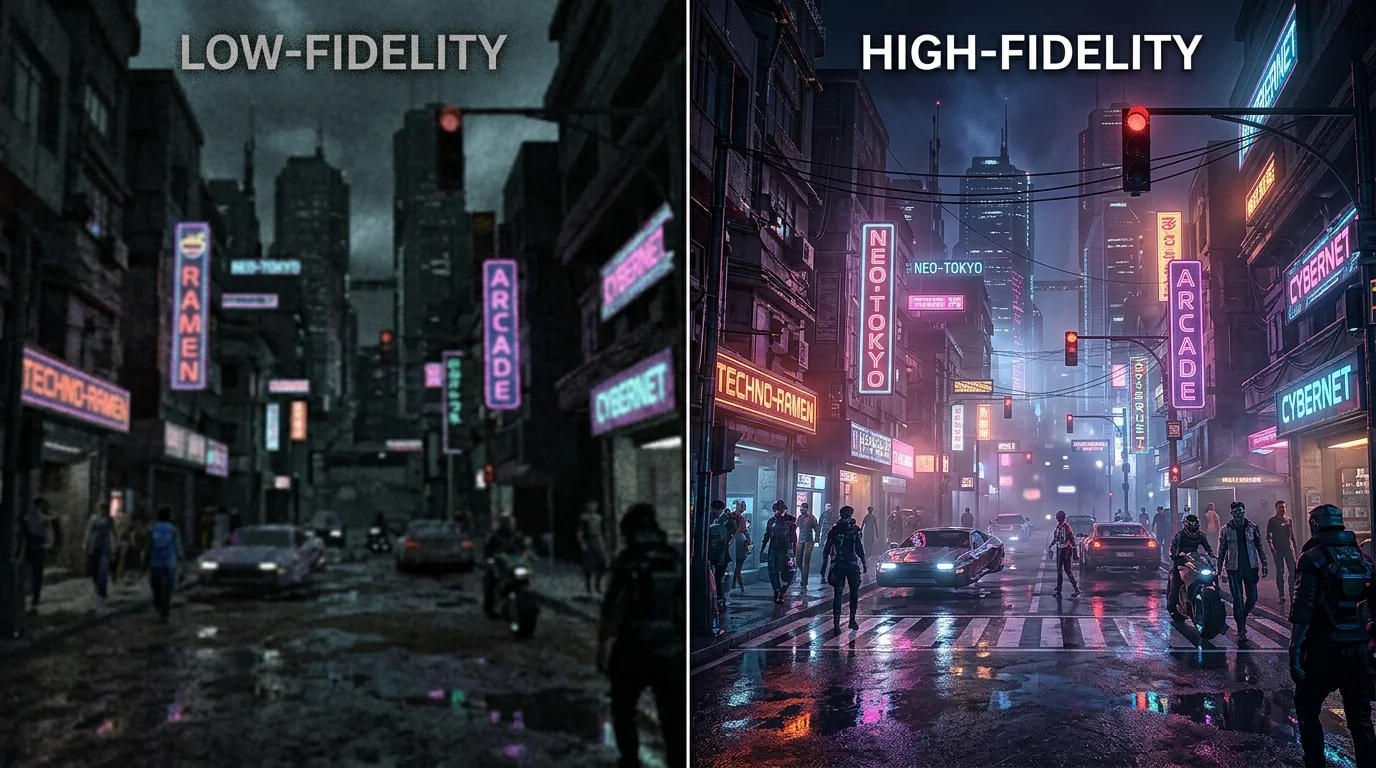
Cyberpunk 2077 remains one of the most visually stunning yet demanding titles on PC, easily punishing even modern hardware if settings are misconfigured. Balancing frame rates with visual fidelity requires understanding which specific graphical options impact performance the most without sacrificing Night City's immersive atmosphere. This guide breaks down the exact settings to adjust so you can achieve smooth gameplay without losing the game's signature neon-drenched aesthetic.
Key Takeaways
- Screen Space Reflections (SSR) and Volumetric Fog are the most demanding non-ray-tracing settings.
- Upscaling technologies (DLSS, FSR, or XeSS) are essential for maintaining stable frame rates at 1440p and 4K.
- Crowd Density heavily strains the CPU; lowering it can resolve stuttering in highly populated areas.
- Path Tracing should only be enabled on high-end GPUs equipped with hardware-level Frame Generation.
The High-Impact Settings (What to Lower First)
To recover lost frames without turning Night City into a blurry mess, you must target the settings with the highest performance cost. Many visual options offer diminishing returns at their maximum values while consuming a massive portion of your GPU's processing power.
- Screen Space Reflections (SSR): This setting controls the quality of reflections on wet streets, cars, and metallic surfaces. Setting this to "Psycho" can reduce your frame rate by up to 15% compared to "High" or "Medium". For the best balance, set this to High or Medium.
- Volumetric Fog Resolution: Volumetric lighting creates beautiful shafts of light through smog and steam, but the "Ultra" setting is incredibly heavy. Dropping this to Medium or High recovers significant performance with almost no noticeable loss in atmosphere.
- Cascaded Shadows Resolution: While sharp shadows look excellent, rendering them at maximum distance eats up VRAM and processing cycles. Setting this to Medium provides clean shadows near your character while saving valuable frame times.
- Crowd Density: This is a CPU-bound setting. If you experience frame drops while driving fast through Kabuki or the City Center, your CPU is likely struggling to simulate the AI. Change this from High to Medium to stabilize your frame pacing.
Performance vs. Visual Impact Matrix
The table below highlights how much performance you can gain by turning down specific settings, alongside the visual trade-off you can expect in-game.
| Setting Name | Performance Cost | Recommended Value | Visual Impact of Lowering |
|---|---|---|---|
| Screen Space Reflections | Very High | High or Medium | Minor graininess on reflective surfaces |
| Volumetric Fog Resolution | High | Medium | Slightly less defined light shafts |
| Crowd Density | High (CPU) | Medium | Fewer pedestrians on sidewalks |
| Subsurface Scattering | Low | High | Crucial for realistic skin rendering |
| Anisotropy (Texture Filtering) | Negligible | 16x | Keeps textures sharp at oblique angles |
Real-World Optimization Scenarios
To show how these settings translate to actual gameplay, let us look at two common hardware configurations and how to optimize them.
Scenario A: The Mid-Range Build (RTX 3060 / RX 6600 XT at 1080p/1440p)
If you are running a mid-range card, your goal is to maintain a locked 60 FPS without turning the game into a pixelated mess. Leave Ray Tracing entirely off. Set textures to High (if you have at least 8GB of VRAM) and adjust Volumetric Fog and SSR to Medium. Enable DLSS or FSR set to "Quality" mode. This configuration ensures clean image reconstruction while freeing up enough GPU headroom to handle heavy combat sequences in crowded areas.
Scenario B: The High-End Build with Ray Tracing (RTX 4070 / RX 7900 XT at 1440p/4K)
With high-end hardware, you can enjoy the transformative visual benefits of Ray Tracing. However, enabling native Ray Tracing or Path Tracing will crush your frame rate. To play comfortably, enable Ray Tracing (Reflections and Sun Shadows only), set DLSS or FSR to "Quality", and turn on Frame Generation if your GPU supports it. This combination delivers breathtaking lighting while keeping your frame rate well above 80 FPS.
The Role of Upscaling and Frame Generation
Cyberpunk 2077 was built with temporal upscalers in mind. Running the game at native resolution, especially above 1080p, is rarely the best choice. Technologies like NVIDIA DLSS, AMD FSR, and Intel XeSS reconstruct lower-resolution frames to look almost identical to native output while offering massive performance gains.
If you have an RTX 40-series card, utilizing DLSS 3 Frame Generation inserts AI-generated frames between traditionally rendered ones, effectively doubling your perceived smoothness. For AMD users, FSR 3 offers a similar frame-generation path. Use these tools as your foundation before fine-tuning individual graphical sliders.
Frequently Asked Questions
Does Cyberpunk 2077 run well on an HDD?
No. An SSD is highly recommended. Running the game on an HDD causes slow texture loading, audio delays, and severe stuttering when moving quickly through the world.
What is the difference between Ray Tracing and Path Tracing?
Ray Tracing applies realistic calculations to specific elements like reflections or shadows. Path Tracing (or Overdrive Mode) calculates all light paths globally in real-time, offering unparalleled realism but requiring incredibly powerful hardware and upscaling to run smoothly.
Why does my game stutter when driving fast?
This is usually a CPU or storage bottleneck. Your PC is struggling to load assets and simulate AI paths quickly enough. Try reducing Crowd Density to Medium and make sure the game is installed on an NVMe SSD.
Should I turn on Motion Blur and Film Grain?
These settings do not affect performance significantly, but they do alter visual clarity. Most players prefer to turn them off to keep the image sharp and clear, though you can keep them on if you prefer a more cinematic, gritty look.
