

Achieving a stable, high frame rate in Fortnite can mean the difference between securing a Victory Royale and returning to the lobby empty-handed. While high-end gaming rigs can muscle through poorly optimized settings, average PCs and laptops require precise configuration to maintain competitive performance. This guide breaks down the exact settings you need to toggle to maximize your FPS, lower input latency, and maintain clear visibility during chaotic endgames.
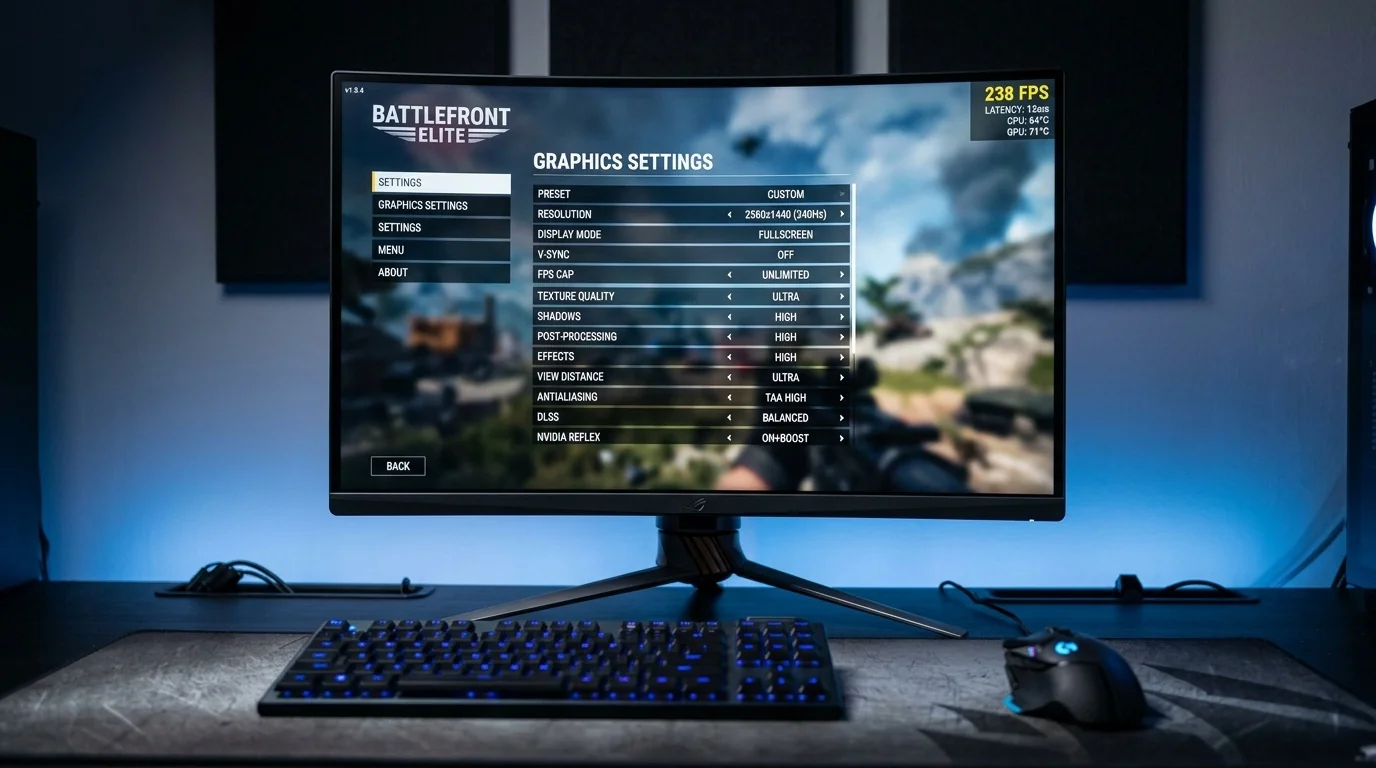
Key Takeaways
- Performance Mode is the single most effective setting for boosting FPS on low-to-mid-range PCs and laptops.
- Shadows and Post-Processing should always be disabled for competitive play to maximize visibility and system resources.
- Matching FPS caps to monitor refresh rates prevents screen tearing and stabilizes frame times, especially on laptops.
- Driver and Windows optimizations are just as critical as in-game settings for eliminating micro-stutters.
Choosing the Right Rendering Mode (DX11 vs. DX12 vs. Performance Mode)
Fortnite offers three distinct rendering APIs. Your choice here sets the baseline for your entire performance profile. Understanding how these modes interact with your hardware is crucial for making the right selection.
- DirectX 11 (DX11): The legacy option. It is generally stable but lacks the modern CPU multi-threading capabilities of newer APIs. Use this only if you experience crashes on other rendering modes.
- DirectX 12 (DX12): Recommended for modern, high-end graphics cards (such as the NVIDIA RTX or AMD RX series). DX12 distributes the rendering load more evenly across multiple CPU cores, which can improve frame stability if your GPU is powerful.
- Performance (Lower Graphical Fidelity): Specifically designed for budget rigs, older systems, and gaming laptops. This mode strips away heavy lighting calculations, high-poly geometries, and complex shaders to prioritize CPU-to-GPU throughput.
Scenario 1: The Budget Gaming Laptop
Consider a budget gaming laptop equipped with an Intel Core i5 processor and a GTX 1650 graphics card. When running Fortnite on DirectX 12 with medium settings, the system struggles to maintain 60 FPS during chaotic build fights, dropping down to 35 FPS. By switching the rendering API to Performance Mode and lowering the 3D resolution to 90%, the frame rate jumps to a stable 120 FPS. While the builds look simpler (often referred to as "mobile graphics"), the mechanical responsiveness and aiming smoothness improve dramatically.
The Ultimate High-FPS Fortnite Settings Configuration
To achieve the highest possible frame rate without completely sacrificing your ability to spot enemies at a distance, use the following optimized configurations in your settings menu.
| Setting Category | Recommended Value | Performance Impact & Reason |
|---|---|---|
| Window Mode | Fullscreen | Lowers input lag and prevents Windows background processes from interrupting the game. |
| Resolution | Native (e.g., 1920x1080) | Matches your monitor. Do not lower this directly; use the 3D Resolution slider instead. |
| Frame Rate Limit | One step above refresh rate | For a 144Hz monitor, cap at 160 or 165 FPS. Prevents unnecessary GPU heat generation. |
| 3D Resolution | 90% to 100% | High impact. Lowering to 90% can yield a 10-15% FPS boost with minimal blurriness. |
| View Distance | Medium or Near | Moderate impact. Medium is preferred to see player-built structures from a distance. |
| Shadows | Off | Very high impact. Turning shadows off brightens dark corners and saves massive GPU headroom. |
| Textures | Low / Medium | VRAM dependent. Set to Low if your GPU has 4GB or less of video memory. |
| Effects & Post-Processing | Low | High impact during explosions and storm phases. Keep Low for visual clarity. |
Advanced Graphics & Latency Settings
Beyond the basic graphics toggles, several advanced settings directly dictate how responsive Fortnite feels to your keyboard, mouse, or controller inputs.
NVIDIA Reflex Low Latency
If you have an NVIDIA graphics card, this setting is critical. It synchronizes the CPU and GPU work queues to reduce systemic input delay.
- On: Reduces input latency significantly. Recommended for most systems.
- On + Boost: Keeps the GPU clock speeds elevated even when the game is CPU-bound. Excellent for preventing sudden latency spikes, though it draws slightly more power and increases laptop temperatures.
V-Sync and Motion Blur
Both of these settings should be set to Off. V-Sync introduces severe input lag by forcing the GPU to wait for the monitor's refresh cycle. Motion Blur adds a artificial smear to fast movements, making it harder to track targets during rapid close-quarters box fights.
Laptop-Specific Optimizations for Fortnite
Gaming laptops face unique hardware limitations compared to desktop PCs, primarily centering around power delivery and thermal management. Running Fortnite uncapped on a laptop often leads to rapid heat buildup, causing the CPU and GPU to throttle their speeds to prevent damage.
Scenario 2: Overcoming Thermal Throttling
A player on a mid-range gaming laptop notices that Fortnite runs beautifully at 140 FPS for the first ten minutes of a match. However, as the internal temperature climbs to 90°C, the game suddenly hitches, dropping frames to 20 FPS for several seconds.
To fix this, the player implements three specific adjustments:
- Caps the in-game frame rate to 120 FPS (matching the laptop's screen) instead of letting it run uncapped. This reduces the workload on the GPU, lowering operating temperatures by 8°C.
- Elevates the back of the laptop by two inches using a simple stand to improve cold air intake.
- Forces the system to prioritize the dedicated GPU over the integrated processor via the Windows Graphics settings.
These changes eliminate the thermal throttling entirely, resulting in a perfectly flat frametime graph and no mid-game stutters.
Windows and GPU Driver Tweaks
Even the best in-game settings cannot overcome a poorly configured operating system. To ensure your PC is directing all available resources to Fortnite, apply these system-level tweaks:
1. Enable Windows Game Mode
Windows Game Mode prevents Windows Update from performing driver installations and sending notifications during gameplay. It also helps stabilize frame rates by allocating more CPU cycles to the game client.
- Press the Windows Key + I to open Settings.
- Navigate to Gaming and select Game Mode.
- Toggle Game Mode to On.
2. Optimize GPU Control Panel Settings
Both NVIDIA and AMD offer control panels that can override application settings for better performance. In the NVIDIA Control Panel, navigate to "Manage 3D Settings" and adjust the following:
- Power Management Mode: Prefer Maximum Performance.
- Texture Filtering - Quality: High Performance.
- Threaded Optimization: On (allows the game to utilize all CPU cores).
Decision Framework: Visual Quality vs. Competitive Edge
Optimizing Fortnite is always a trade-off. Before finalizing your settings, evaluate what matters most to your playstyle:
If your goal is pure performance and mechanical speed, opt for Performance Mode with Low Meshes, 90% 3D Resolution, and Near View Distance. This configuration guarantees the lowest possible input delay and the most consistent frame delivery during intense endgames.
If you prefer a balance of aesthetics and performance (such as content creators or casual players), run DirectX 12 with Shadows Off, Textures on Medium, View Distance on Far, and Anti-Aliasing set to TSR Low or Off. This keeps the island looking vibrant while keeping your frame rates well above the baseline standard.
Frequently Asked Questions
Why does Fortnite stutter so much after a new update?
After a major game update, Fortnite must rebuild its shader compilation cache. This process occurs during your first few matches, causing temporary frame drops and stuttering. Playing a few creative matches or landing in quiet areas of the map will allow the shaders to cache smoothly.
Should I use Performance Mode if I have a high-end GPU?
If you have a modern high-end GPU (like an RTX 4070 or higher), Performance Mode may actually shift too much of the processing burden back onto your CPU, resulting in minimal FPS gains or even slight stutters. High-end rigs usually run more smoothly on DirectX 12 with low-to-medium graphical settings.
Does lowering the 3D Resolution make enemies harder to see?
Yes, dropping the 3D Resolution below 85% will make distant objects and players appear pixelated and blurry. For competitive play, try to keep this setting between 90% and 100%, adjusting other parameters first to recover performance.
Is a cooling pad necessary for playing Fortnite on a laptop?
While not strictly mandatory, a cooling pad or a simple laptop stand that raises the intake vents off the desk surface can drop temperatures by 3°C to 8°C. This helps maintain peak boost clocks and prevents thermal throttling during long gaming sessions.
