

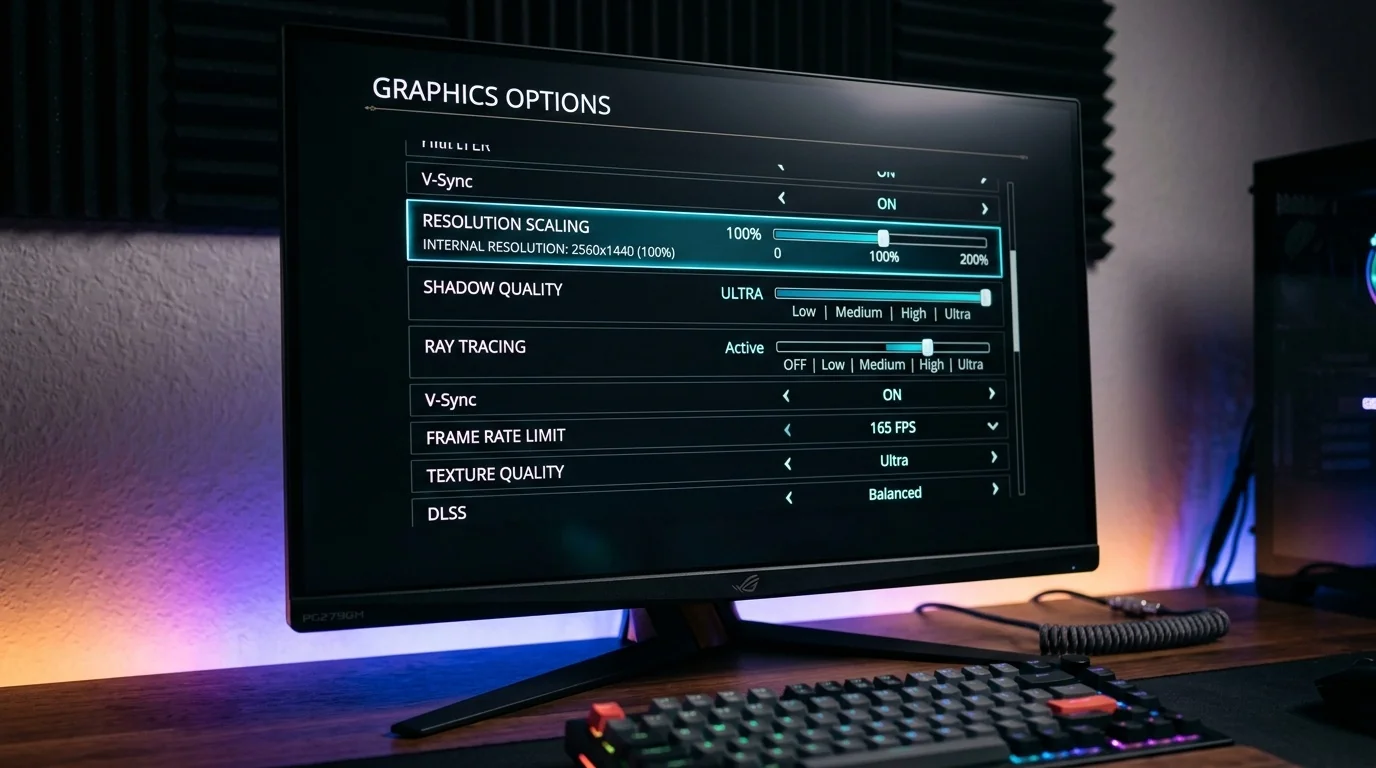
Starting a brand-new PC game only to experience sluggish frame rates, stuttering, or muddy visuals is a frustrating rite of passage for many players. While clicking the default 'Ultra' preset is incredibly tempting, it often wastes precious hardware resources on visual details that are virtually imperceptible during active gameplay. By manually adjusting a handful of critical parameters, you can reclaim massive chunks of performance without ruining the artistic beauty of your favorite games.
Key Takeaways
- Target High-Impact Settings First: Volumetric effects, shadows, and ray tracing offer the largest performance gains when dialed back.
- Match Textures to VRAM: Set texture quality based strictly on your graphics card's physical memory capacity to avoid severe micro-stuttering.
- Leverage Modern Upscalers: Technologies like DLSS, FSR, and XeSS are essential tools for balancing frame rates and image clarity.
- Eliminate Visual Noise: Disabling motion blur, film grain, and chromatic aberration improves both visual clarity and competitive response times.
The 10 Essential Graphics Settings to Adjust
1. Shadows (Shadow Quality)
Shadow rendering is one of the most computationally expensive tasks for any graphics card. High shadow settings require the GPU to calculate complex geometry, perspective maps, and soft-edge filtering. Dropping shadows from 'Ultra' to 'Medium' or 'High' often yields a 10% to 15% increase in frame rates, with the visual difference only noticeable if you stop moving and stare closely at static edges.
2. Volumetric Clouds and Fog
Volumetric effects simulate realistic light scattering through dust, mist, and atmospheric layers. While beautiful, they are notorious performance hogs. Reducing volumetric quality by a single step can instantly stabilize erratic frame rates, especially in open-world environments, with minimal impact on the overall mood of the scene.
3. Upscaling (DLSS, FSR, and XeSS)
Deep Learning Super Sampling (DLSS), FidelityFX Super Resolution (FSR), and Intel XeSS render games at a lower internal resolution and use advanced algorithms to upscale the image to your native display resolution. Setting these to 'Quality' mode provides a massive performance boost while frequently looking identical to, or sometimes sharper than, native rendering.
4. Texture Quality
Unlike other settings, texture quality does not heavily tax your GPU's processing cores; instead, it relies almost entirely on Video RAM (VRAM). If your GPU has enough VRAM to hold the texture files, you can safely set this to 'Ultra' with zero performance loss. However, if you exceed your VRAM limit, the game will utilize system RAM, resulting in severe, unplayable stuttering.
5. Ambient Occlusion (SSAO, HBAO+, Ray-Traced AO)
Ambient Occlusion (AO) creates soft contact shadows where two surfaces meet, adding depth and realism to corners, foliage, and clothing. Standard Screen Space Ambient Occlusion (SSAO) is highly efficient, while Horizon-Based Ambient Occlusion (HBAO+) is slightly heavier but looks cleaner. Ray-Traced AO, however, should be avoided unless you have a high-end GPU with hardware acceleration.
6. Ray Tracing (RT)
Ray tracing simulates realistic light bounces, reflections, and refractions. While visually stunning, it can slash your frame rate in half. For most mid-range PCs, keeping Ray Tracing disabled is the single best way to ensure smooth, high-refresh-rate gameplay.
7. Anisotropic Filtering (Texture Filtering)
Anisotropic Filtering (AF) sharpens textures viewed at oblique angles, such as roads, brick pathways, or distant walls. Because modern GPUs process AF with almost zero performance penalty, you should always set this to 16x. Leaving it at lower values like 2x or 4x makes surfaces look blurry for no tangible performance gain.
8. Motion Blur and Depth of Field
Motion blur simulates camera movement shake, while depth of field blurs the background to focus on a foreground subject. Most gamers prefer to turn these off. Disabling them removes unwanted visual smearing during fast camera movements, which is crucial for competitive play and fast-paced action titles.
9. Anti-Aliasing (TAA, SMAA, MSAA)
Anti-aliasing smooths out jagged edges on 3D objects. Multisample Anti-Aliasing (MSAA) is incredibly demanding and rarely used in modern games. Temporal Anti-Aliasing (TAA) is highly efficient but can cause a soft, blurry image when moving. If a game looks too soft, look for an 'Image Sharpening' slider to counteract the TAA blur, or opt for Subpixel Morphological Anti-Aliasing (SMAA) if available.
10. V-Sync and Variable Refresh Rate (G-Sync / FreeSync)
Vertical Sync (V-Sync) eliminates screen tearing by locking your frame rate to your monitor's refresh rate, but it introduces noticeable input lag. If you own a monitor with G-Sync or FreeSync, disable in-game V-Sync entirely and enable Variable Refresh Rate (VRR) in your GPU driver control panel for a tear-free, low-latency experience.
Graphics Settings Comparison Table
The table below summarizes the performance cost versus the visual benefit of these key settings to help you prioritize your tweaks.
| Setting Name | Performance Impact | Visual Importance | Recommended Value |
|---|---|---|---|
| Texture Quality | Very Low (if within VRAM limit) | High | Match to VRAM capacity |
| Shadow Quality | High | Medium | Medium or High |
| Volumetrics (Fog/Clouds) | High | Low to Medium | Medium |
| Anisotropic Filtering | Negligible | High | 16x |
| Ray Tracing | Extreme | High | Off (unless using a high-end GPU) |
| Motion Blur | Low | Subjective (Often disliked) | Off |
Real-World Optimization Scenarios
To see how these adjustments apply in practice, let us look at two common hardware scenarios and the decision-making process for each.
Scenario A: The VRAM-Constrained Mid-Range Setup
Imagine you are running a graphics card with 8GB of VRAM on a 1440p monitor. When launching a modern, visually demanding action-adventure game, you notice frequent stutters whenever you enter a new zone.
- The Culprit: The game's 'Ultra' preset has allocated 9.5GB of texture memory, exceeding your card's 8GB limit.
- The Solution: Drop Texture Quality from 'Ultra' to 'High' to free up VRAM. Next, enable DLSS or FSR in 'Quality' mode. This reduces the internal rendering resolution, lowering overall memory pressure and instantly smoothing out the frame rate while maintaining sharp image quality.
Scenario B: The Competitive First-Person Shooter Player
In fast-paced competitive shooters, input latency and motion clarity are far more important than photorealistic lighting or cinematic atmosphere.
- The Culprit: High in-game settings cause input lag, while motion blur makes enemies hard to track during quick turns.
- The Solution: Turn off V-Sync, Motion Blur, and Depth of Field. Lower Shadow Quality and Volumetric Fog to 'Low' to maximize frames per second (FPS), which naturally reduces input latency. Set Anisotropic Filtering to 16x so you can still easily spot distant targets standing near walls or structures.
A Simple Decision Framework for Tuning
When optimizing any new game, do not adjust everything at once. Use this step-by-step diagnostic process to find your hardware's sweet spot:
- Start by applying the game's default 'High' preset (not Ultra).
- Turn off controversial post-processing effects like motion blur and film grain.
- If your frame rate is below your monitor's refresh rate, enable spatial upscaling (DLSS/FSR) on the 'Quality' setting.
- If you still experience performance drops, lower Volumetric Effects and Shadow Quality to 'Medium'.
- Monitor your VRAM usage; if it is near maximum, step down the Texture Quality by one tier.
Frequently Asked Questions
Does lowering graphics settings damage my hardware?
No. Lowering graphics settings actually reduces the workload on your GPU and CPU, which can lower operating temperatures and power consumption, extending the lifespan of your components.
What is the difference between DLSS, FSR, and XeSS?
DLSS is proprietary to NVIDIA and uses dedicated hardware (Tensor Cores) to upscale images using AI. FSR is open-source from AMD and works on almost any graphics card, though it relies on spatial and temporal algorithms rather than dedicated AI hardware. XeSS is Intel's solution, which uses machine learning and works on both Intel and competitor graphics cards.
Should I always disable V-Sync?
If you have a G-Sync or FreeSync compatible monitor, you should disable in-game V-Sync to prevent input lag. If you are using an older monitor that does not support variable refresh rates and you notice distracting screen tearing, keeping V-Sync enabled is recommended.
Why does my game stutter even when my average frame rate is high?
Stuttering is often caused by frame time spikes. This happens when the CPU is bottlenecked, when the game is loading assets from a slow mechanical hard drive instead of an SSD, or when you have run out of available VRAM, forcing your system to swap data to slower system memory.
