

Launching a highly anticipated PC game on release day only to face stuttering, crashes, or abysmal frame rates is incredibly frustrating. While developers rush out day-one patches, the key to a smooth launch-day experience almost always lies in how you prepare and optimize your graphics card drivers. By taking a few proactive steps before hitting 'Play,' you can bypass common launch-day bottlenecks and unlock the performance your GPU was built to deliver.
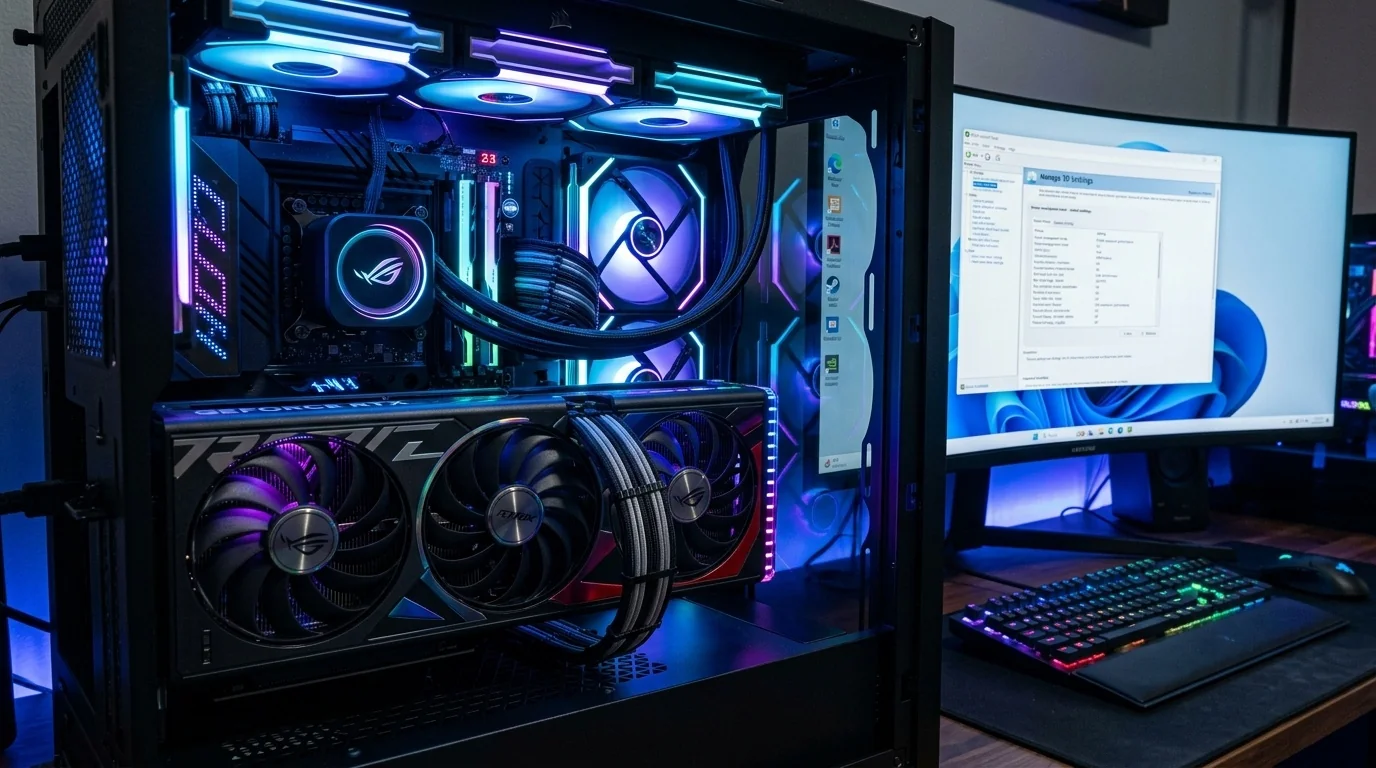
- Clean Installations Matter: Overwriting drivers can leave legacy registry entries that cause day-one stability issues.
- Shader Cache is King: Expanding your shader cache size prevents micro-stutters during early gameplay.
- Use Vendor Tools Wisely: Leverage dedicated software profiles from NVIDIA, AMD, or Intel tailored specifically for new releases.
- Have a Rollback Plan: Sometimes day-one drivers introduce bugs; knowing how to revert safely is crucial.
Why Day-One Drivers Are Critical for Modern Games
Modern video games are incredibly complex software systems that rely on close communication between the game engine and your computer hardware. Graphics card manufacturers—NVIDIA, AMD, and Intel—work directly with game developers months before a game launches. This collaboration allows them to build specific optimizations directly into the graphics driver.
Without these day-one drivers, your GPU may not know how to efficiently compile shaders, allocate VRAM, or handle specific DirectX 12 or Vulkan API calls. This lack of optimization leads to common issues like frame-time spikes, visual artifacts, and desktop crashes. Updated drivers also ship with custom profiles that enable features like DLSS, FSR, XeSS, or ray tracing optimizations specifically tailored to the new game.
Step-by-Step: Preparing Your GPU for Launch Day
To ensure your graphics card is ready to handle a new release, follow this systematic preparation guide. Do not simply click "Express Install" over your existing driver; instead, use a clean installation methodology to avoid software conflicts.
Step 1: Clean Uninstall Legacy Drivers
Over time, repeatedly updating drivers can leave behind orphaned DLL files and corrupted registry keys. For major day-one releases, starting with a clean slate is highly recommended.
- Download the latest driver package from your GPU manufacturer's website and save it to your desktop.
- Download Display Driver Uninstaller (DDU), a trusted industry-standard utility.
- Boot your PC into Windows Safe Mode to prevent active graphics processes from blocking the uninstallation.
- Run DDU, select your GPU brand (NVIDIA, AMD, or Intel), and click "Clean and restart."
Step 2: Perform a Clean Installation
Once your PC restarts in normal mode with basic display drivers, run the installer package you downloaded in Step 1.
- For NVIDIA users: Select "Custom (Advanced)" installation and check the box that says "Perform a clean installation" (if you did not use DDU).
- For AMD users: Expand the "Additional Options" dropdown in the installer and check "Factory Reset."
- For Intel users: Choose the "Execute clean installation" option during the setup wizard.
Optimizing Driver Settings for Day-One Stability
Once the driver is installed, opening the control panel and adjusting a few global settings can significantly improve frame pacing and stability.
1. Maximize Shader Cache Size
Shader compilation is the leading cause of stuttering in modern PC games. When you enter a new area or see an explosion for the first time, the GPU must compile the necessary shaders. By increasing your shader cache size, you allow your PC to store more pre-compiled shaders on your SSD, virtually eliminating these micro-stutters.
- NVIDIA: Open NVIDIA Control Panel > Manage 3D Settings > Global Settings. Find Shader Cache Size and change it from "Driver Default" to 10GB or Unlimited.
- AMD: AMD Adrenalin manages shader caching dynamically, but you can reset or enable pre-compilation under the Graphics tab in gaming profiles.
2. Configure Power Management
By default, graphics cards try to save energy by dynamically lowering clock speeds when demand drops slightly. In unoptimized day-one games, this can cause sudden frame drops. Set your GPU to maintain its clock speeds during gameplay.
- NVIDIA: In Manage 3D Settings, set Power Management Mode to Prefer Maximum Performance.
- AMD: In Adrenalin, navigate to Performance > Tuning, and set your power limit slider to its maximum value (if your cooling setup allows).
Comparing GPU Driver Software Features
Each major GPU manufacturer offers a software suite to manage updates and tweak settings. Understanding what each platform offers helps you optimize more effectively.
| Feature / Capability | NVIDIA Control Panel / App | AMD Software: Adrenalin | Intel Arc Control |
|---|---|---|---|
| Day-One Driver Label | Game Ready Driver (GRD) | Adrenalin Edition (WHQL) | Game On Driver |
| Shader Cache Control | Yes (Manual limits up to Unlimited) | Automatic (Registry reset option) | Automatic optimization |
| Built-in Clean Install | Yes (Custom install option) | Yes (Factory Reset toggle) | Yes (Clean installation toggle) |
| In-Game Overlay Performance | Lightweight, low overhead | Feature-rich, moderate overhead | Evolving, moderate overhead |
Real-World Optimization Scenarios
To understand how these changes translate to actual gameplay, let's look at two common scenarios gamers face on launch day.
Scenario 1: The "Stuttery" Unreal Engine 5 Launch
A player downloads a highly anticipated action-RPG built on Unreal Engine 5. Upon launching, the game stutters violently every time a new visual effect occurs. The player has a powerful GPU but left their driver settings on "Default."
- The Issue: The default shader cache limit (usually 1GB or managed by Windows) was filled within the first 15 minutes of gameplay, forcing the system to delete old shaders and compile them again in real-time.
- The Fix: The player closed the game, changed their Shader Cache Size to 10GB in their GPU control panel, and restarted. After a brief 2-minute warm-up period, the stutters disappeared entirely, resulting in smooth frame delivery.
Scenario 2: Crash-to-Desktop (CTD) on Startup
A gamer attempts to launch a newly released sci-fi shooter. The game shows a splash screen, freezes, and crashes to the desktop without an error code.
- The Issue: The user had updated their graphics driver six times consecutively using the "Express Install" option over the past year. Corrupted registry entries from an older driver version conflicted with the new game's DirectX 12 execution path.
- The Fix: The user ran Display Driver Uninstaller (DDU) in Safe Mode, wiped all traces of the display drivers, and performed a clean installation of the day-one driver. The game launched immediately without further issues.
How to Handle Unstable Day-One Drivers
Sometimes, despite your best efforts, a newly released day-one driver might actually introduce system instability, blue screens, or performance degradation in your older games. If you suspect the new driver is broken, follow this rollback strategy:
- Do not panic; driver rollbacks are common. Download the previous, stable driver version from your GPU manufacturer's archive database.
- Use DDU to clean your system of the problematic day-one driver.
- Install the older, stable driver version.
- Check gaming forums (like Reddit's r/nvidia or r/Amd) to see if other users are experiencing the same issue. Often, community members will post temporary workarounds or registry fixes while the manufacturers work on a hotfix.
Frequently Asked Questions
Should I always install day-one drivers immediately?
If you plan to play the newly released game on launch day, yes. The driver contains critical optimizations without which the game may run poorly or fail to launch. If you are not playing the new game, you can safely wait a few days to see if the driver has any reported bugs.
Will optimizing my driver settings void my graphics card warranty?
No. Adjusting settings inside the official NVIDIA Control Panel, AMD Adrenalin, or Intel Arc Control software is completely safe and does not void your warranty. Only hardware modifications or extreme voltage overclocking via third-party tools carry warranty risks.
Why does my game still stutter even after updating my drivers?
Stuttering can also be caused by CPU bottlenecks, slow storage (running a modern game on an HDD instead of an SSD), or insufficient RAM. Ensure your game is installed on a high-speed SSD and that your background applications are closed to free up system resources.
Is it safe to use beta or hotfix drivers?
Yes. GPU manufacturers frequently release "hotfix" drivers to resolve urgent bugs introduced in major day-one releases. These are safe to install and often resolve specific crashing loops or display bugs ahead of the next WHQL-certified release.
