
How to Manage Laptop Power Limits to Reduce Heat and Fan Noise
When a laptop sounds like a jet engine during everyday tasks, the culprit is almost always aggressive factory power limits pushing the silicon to its thermal threshold. While modern processors are engineered to boost as high and as long as possible, minor manual adjustments to these power limits can drastically lower temperatures and silence fans with negligible impact on real-world performance. This guide will walk you through the precise steps to regain control over your laptop's thermal and acoustic profile.
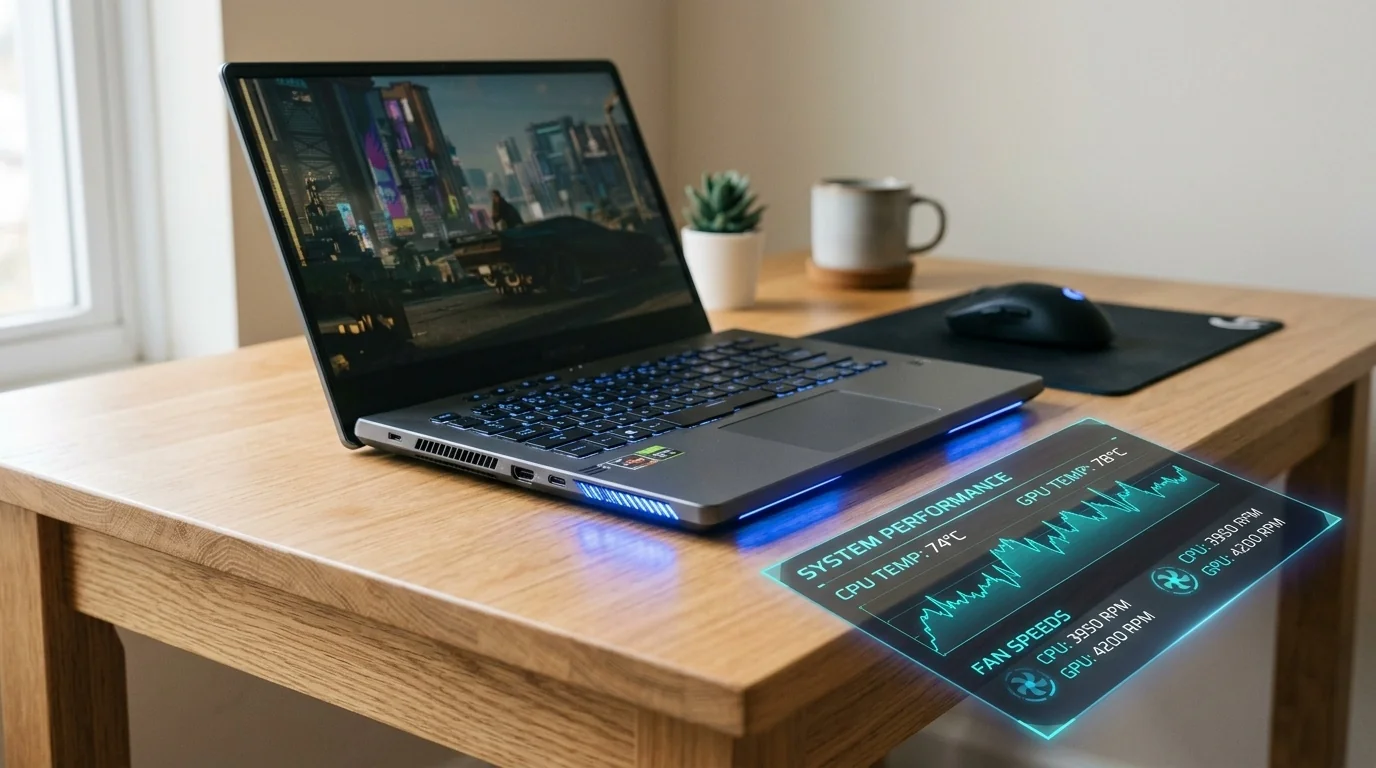
- Understand PL1 and PL2: PL1 governs long-term sustained power, while PL2 controls short-term burst power.
- Diminishing Returns: Shaving 10% to 20% off peak power limits often results in a 10°C drop in heat with less than a 5% loss in actual performance.
- Software is Key: Tools like ThrottleStop (Intel) and Universal x86 Tuning Utility (AMD) allow OS-level control without BIOS modifications.
- Complementary Tactics: Frame rate capping and undervolting work alongside power limits to create a truly whisper-quiet machine.
Understanding Laptop Power Limits (PL1, PL2, and Tau)
To control your laptop’s heat, you must first understand how modern CPUs manage power. Intel and AMD use a dynamic boosting algorithm governed by specific variables:
- PL1 (Power Limit 1): The sustained power limit. This is the maximum wattage the CPU is allowed to draw continuously under long-running workloads like video rendering or gaming.
- PL2 (Power Limit 2): The short-term burst limit. When you launch an application or load a webpage, the CPU spikes to this higher wattage to complete the task instantly.
- Tau (Turbo Time Parameter): The duration (usually in seconds) that the CPU is allowed to maintain the PL2 limit before dropping down to PL1.
Laptop manufacturers often set PL2 incredibly high to win benchmark wars. However, because laptop cooling solutions are physically constrained by thin chassis, running at PL2 even for 28 or 56 seconds can heat the CPU die to 95°C or higher, forcing the cooling fans to spin at maximum speed.
The Trade-Off: Power vs. Performance vs. Acoustics
Silicon efficiency is not linear. Running a CPU at 45 Watts does not deliver twice the performance of running it at 22.5 Watts. In fact, the performance curve flattens significantly at higher wattages. By capping these limits, you cut out the most inefficient portion of the power curve.
| Profile Configuration | Average CPU Temp | Fan Noise Level | Performance Impact |
|---|---|---|---|
| Stock (Out of Box) | 88°C – 96°C | Loud (48-52 dBA) | 100% (Baseline) |
| Optimized (PL1/PL2 Capped) | 74°C – 80°C | Moderate (38-42 dBA) | 94% – 97% |
| Eco/Silent Mode | 60°C – 68°C | Whisper (Silent-35 dBA) | 80% – 85% |
Step-by-Step Guide to Managing Power Limits
Depending on your laptop's processor brand and manufacturer, you have several avenues to adjust these limits. Below are the most reliable methods.
Method 1: OEM Companion Software (The Simplest Route)
Before installing third-party utilities, check your laptop manufacturer’s built-in software (e.g., ASUS Armoury Crate/G-Helper, Lenovo Vantage, MSI Center, or HP Command Center).
- Open the application and look for "Manual," "Custom," or "User" operating modes.
- Look for sliders labeled SPL (Sustained Power Limit), sPPT (Slow Package Power Tracking), or simply PL1 / PL2.
- Reduce the sustained limit (PL1) by approximately 15% to 20%. For example, if your default PL1 is 45W, try setting it to 35W.
- Reduce the burst limit (PL2) to match PL1, or keep it only 5W to 10W higher. This prevents sudden temperature spikes that trigger sudden fan speed increases.
Method 2: Intel CPUs via ThrottleStop
For Intel-based laptops (especially 10th-generation and older, or newer HX-series processors), ThrottleStop is the gold standard for power management.
- Download and extract ThrottleStop.
- Click on the TPL (Turbo Power Limits) button on the main interface.
- In the window that opens, locate the Power Limits section.
- Check the boxes to enable control of Package Power Long (PL1) and Package Power Short (PL2).
- Change the values. A safe starting point for most thin-and-light laptops is 25W for PL1 and 35W for PL2. For larger creator or gaming laptops, try 45W for PL1 and 55W for PL2.
- Click Apply, then select OK. Ensure ThrottleStop is configured to run at Windows startup using Task Scheduler.
Method 3: AMD Ryzen CPUs via Universal x86 Tuning Utility (UXTU)
For laptops powered by AMD Ryzen processors, the Universal x86 Tuning Utility offers deep control over APU power limits.
- Download and install the latest stable release of Universal x86 Tuning Utility.
- Navigate to the Custom Presets tab.
- Locate the Power Limits (APU) section.
- Adjust the Sustained Power Limit (STAPM) and Fast Limit (fPPT). Lowering these values from their defaults (e.g., setting a 35W chip to 25W) will instantly drop temperatures.
- Save the preset and set the utility to apply the settings automatically on boot.
Real-World Scenarios and Practical Tuning
To see how this works in practice, let's look at two common user scenarios.
Scenario A: The Quiet Creator
Sarah uses a creator laptop for video editing and 3D rendering. At stock settings, her laptop hits 95°C, and the fans scream at 5,200 RPM. This makes working in quiet coffee shops or offices highly disruptive. By capping her PL1 from 60W to 42W, her render times only increased by 4% (adding just 12 seconds to a 5-minute render), but her CPU temperatures stabilized at 78°C. The fans dropped to a barely audible 3,100 RPM.
Scenario B: The Framerate-Targeted Gamer
Marcus plays open-world RPGs on his gaming laptop. The CPU frequently boosts to its maximum PL2 limit of 80W, causing thermal throttling spikes that result in micro-stuttering. By locking his PL1 and PL2 to a flat 35W and using his graphics card control panel to cap his in-game frame rate to 60 FPS, his CPU load dropped dramatically. The stuttering vanished because the CPU no longer hit thermal walls, resulting in a perfectly smooth, quiet gaming session.
Complementary Strategies for Maximum Silence
Adjusting CPU power limits is highly effective, but you can achieve even better results when combining it with these secondary techniques:
- GPU Power Management: In gaming laptops, the graphics card produces more heat than the CPU. Use MSI Afterburner to undervolt your GPU or cap your maximum frame rate to match your monitor’s refresh rate. This stops your GPU from working unnecessarily hard.
- Adjusting Windows Processor Power State: If you want a quick fix without third-party tools, go to Control Panel > Power Options > Change Plan Settings > Advanced Power Settings. Under "Processor power management," change the Maximum processor state to 99%. This disables CPU Turbo Boost entirely, instantly dropping temperatures, though it does limit peak single-core speeds.
- Physical Maintenance: Software cannot overcome blocked airways. Ensure your laptop is raised slightly off flat surfaces to maximize airflow, and use a can of compressed air to clear dust from the heatsink fins every six months.
Frequently Asked Questions
Will lowering my power limits void my laptop warranty?
No. Lowering power limits (underclocking or capping wattage) is completely safe and does not void your warranty. Unlike overclocking, which pushes extra voltage and risk damaging silicon, lowering power limits actually reduces physical wear and thermal stress on your internal components.
Why didn't my laptop manufacturer optimize this out of the box?
Manufacturers configure laptops to maximize short-term benchmark scores (like Cinebench) to look competitive in reviews. These short tests often finish before the laptop chassis fully heats up, hiding the acoustic and thermal issues you experience during long-term daily use.
What is the difference between undervolting and reducing power limits?
Undervolting reduces the voltage supplied to the processor at specific clock speeds, allowing it to run more efficiently at the same frequency. Power limiting caps the maximum amount of energy (in Watts) the processor is allowed to consume. Combining both strategies yields the best thermal-to-performance ratio.
Why are my ThrottleStop settings locked or greyed out?
Modern Intel CPUs (especially 11th-generation and newer non-HX processors) have locked voltage and power registers at the firmware level due to security mitigations like Plundervolt. If these options are greyed out, you must rely on your manufacturer's proprietary software profiles or Windows Power Plans to manage performance.
Post a Comment for "How to Manage Laptop Power Limits to Reduce Heat and Fan Noise"