

Mid-game lag spikes and sudden frame drops are rarely caused by your hardware alone. More often, silent background processes are secretly hogging your RAM and hijacking your internet bandwidth for unscheduled updates. This guide will show you how to identify these resource thieves and disable them safely without breaking your operating system.
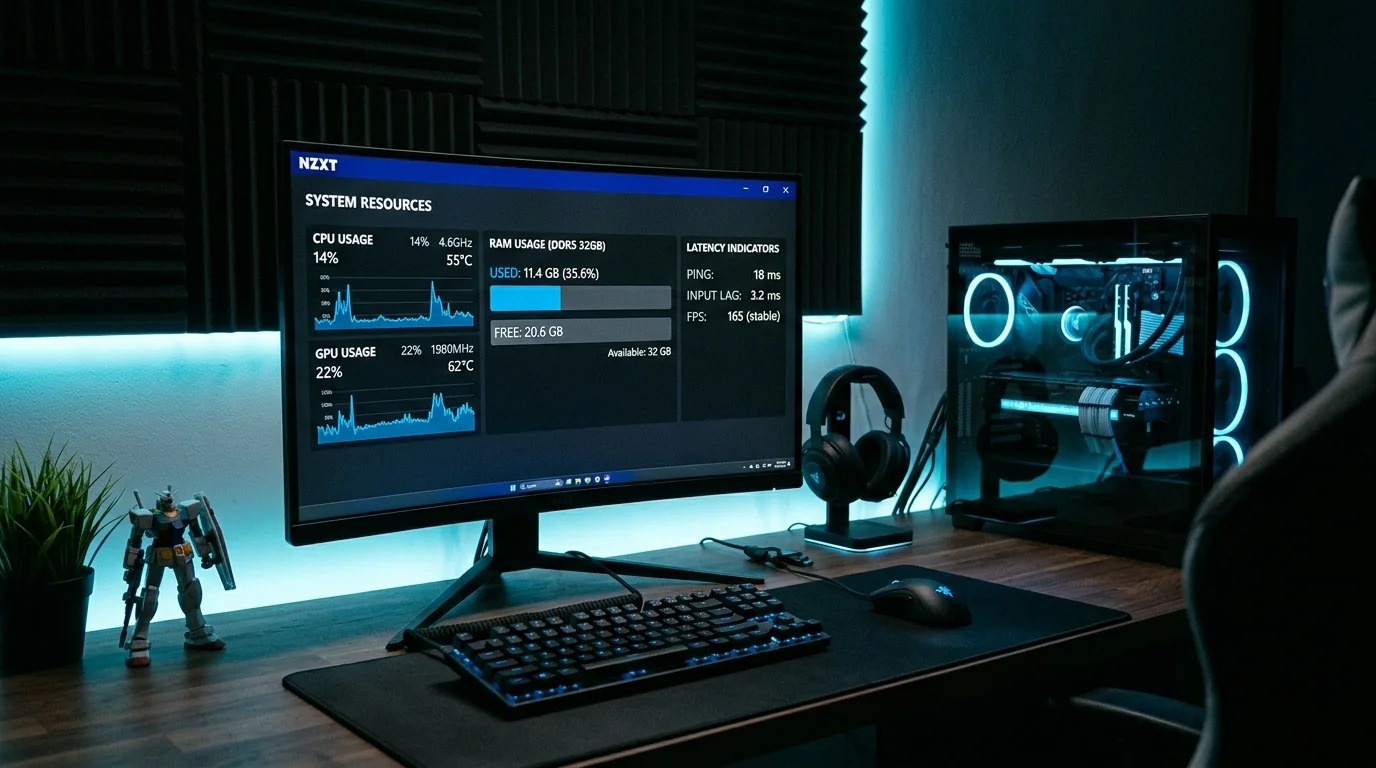
Key Takeaways
- Identify First: Use Task Manager and Resource Monitor to pinpoint the exact apps draining your resources before changing any settings.
- Disable Startup Items: Prevent non-essential launchers and cloud services from booting automatically with your PC.
- Tame Game Launchers: Configure Steam, Epic Games, and EA App to restrict background downloads and auto-updates while you play.
- Use Built-In Tools: Rely on Windows Game Mode and native settings rather than third-party "RAM cleaners," which can degrade performance.
The Silent Performance Killers: RAM vs. Bandwidth
To optimize your PC for gaming, you must address two distinct bottlenecks: memory allocation and network throughput. When your system runs out of physical RAM, it resorts to using your storage drive as virtual memory (the pagefile). This process is significantly slower and causes noticeable micro-stutters during gameplay.
On the network side, background downloads consume your downstream bandwidth, while cloud sync uploads choke your upstream. High upstream utilization is the primary cause of sudden ping spikes and packet loss in multiplayer games like Valorant, Apex Legends, and Call of Duty.
Step-by-Step Guide to Reclaiming Your RAM
Many desktop applications are designed to start automatically and run silently in the system tray. Over time, these cumulative background processes can easily consume 4GB to 8GB of your system memory.
1. Clean Up Your Startup Apps
The easiest way to permanently free up memory is to stop unnecessary programs from launching when you turn on your computer.
- Press Ctrl + Shift + Esc to open the Task Manager.
- Click on the Startup apps tab (represented by a tachometer or startup icon on the left sidebar in Windows 11).
- Review the list. Look for items like Discord, Spotify, Steam, OneDrive, and peripheral software you do not use constantly.
- Right-click the application and select Disable.
2. Disable Native Windows Background Permissions
Windows allows pre-installed apps to run in the background to fetch updates and send notifications. You can disable this behavior for non-essential apps.
- Open Settings (Windows Key + I).
- Navigate to Apps > Installed apps.
- Find an app you do not need running constantly (such as Xbox, Weather, or Cortana), click the three dots, and select Advanced options.
- Under Background apps permissions, change "Let this app run in background" to Never.
Step-by-Step Guide to Securing Your Bandwidth
If your ping jumps from a stable 30ms to a erratic 250ms, background data transfers are the likely culprit. Here is how to lock down your network bandwidth.
1. Disable Windows Delivery Optimization
By default, Windows uses your network connection to share downloaded updates with other PCs on your local network or the internet (peer-to-peer sharing). This can severely impact your upload speeds.
- Open Settings and go to Windows Update.
- Select Advanced options, then scroll down and click on Delivery Optimization.
- Toggle Allow downloads from other PCs to Off.
2. Configure Game Launchers to Block Background Downloads
Steam, Epic Games, and Battle.net frequently push multi-gigabyte updates. If these updates trigger while you are in a match, your gameplay will suffer.
- For Steam: Go to Steam > Settings > Downloads. Uncheck "Allow downloads during gameplay" and check "Throttle downloads while streaming."
- For Epic Games Launcher: Click your profile icon > Settings. Uncheck "Allow Auto-Updates" or check "Throttle Downloads" and set a conservative limit.
- For Battle.net: Go to Settings > Downloads. Under Game Downloads, check "Pause updates when I launch a game."
Resource Impact Comparison
The table below highlights common background applications, their resource footprint, and whether it is safe to terminate them.
| Application / Process | Resource Type | Typical Impact | Safe to Disable? |
|---|---|---|---|
| Google Chrome / Edge (with open tabs) | RAM | High (500MB - 3GB+) | Yes (Close before gaming) |
| OneDrive / Google Drive Sync | Bandwidth & RAM | High (Upload spikes) | Yes (Pause sync) |
| Discord (Hardware Acceleration) | RAM & GPU | Moderate (200MB - 500MB) | Keep open, disable hardware acceleration |
| Antivirus Scans (Windows Defender) | CPU & RAM | High (During active scans) | No (Postpone scan only) |
Real-World Troubleshooting Scenarios
Scenario A: The Competitive Player with High Ping
The Problem: Sarah plays Counter-Strike 2 on a 50 Mbps fiber connection. She randomly experiences severe rubber-banding where her ping shoots up to 400ms for several minutes.
The Solution: Sarah checked her Resource Monitor under the Network tab during a lag spike. She discovered that Adobe Creative Cloud Desktop and OneDrive were performing background synchronization. By changing OneDrive's settings to pause syncing when her PC is on a metered network, and disabling Adobe's startup services, her ping stabilized permanently at 18ms.
Scenario B: The 16GB RAM Stuttering Issue
The Problem: Marcus plays Cyberpunk 2077 on a mid-range PC with 16GB of RAM. He notices that after an hour of play, the game begins to stutter heavily when driving fast through the city.
The Solution: Marcus opened Task Manager and realized that Google Chrome (with 14 background tabs open) and the Epic Games Launcher were consuming over 4.5GB of RAM. By closing Chrome entirely and setting Epic Games to close when he launches a game, he freed up enough physical memory to eliminate the stutters entirely.
Trade-offs and Common Mistakes to Avoid
While optimization is beneficial, over-tweaking your system can lead to instability. Keep these common pitfalls in mind:
- Avoid "RAM Cleaners" and "Game Boosters": These third-party utilities often claim to clear memory, but they do so by forcing active processes into the slow pagefile. Windows' built-in memory management is far more efficient.
- Do Not Disable Essential Windows Services: Disabling services like the Windows Audio, Print Spooler, or basic network protocols to save a few megabytes of RAM can cause system crashes or prevent games from launching altogether.
- Keep Antivirus Active: Never disable your primary antivirus or firewall to boost performance. Instead, configure your security software's "Silent Mode" or "Gaming Mode" to delay system scans while games are running.
Decision Framework: When to Close vs. When to Disable
Use this simple rule of thumb to manage your apps:
- Close Temporarily: Heavy desktop applications like web browsers, photo editors, and office suites should simply be closed before launching a demanding game.
- Disable Permanently: Cloud storage clients, automatic update checkers, and helper utilities for hardware you no longer own should be disabled from the startup menu to keep your operating system lean.
Frequently Asked Questions
1. Does Windows Game Mode actually improve FPS?
Yes, in most modern games, Game Mode provides a measurable performance boost. It prevents background system tasks from interrupting CPU threads dedicated to your game, resulting in more consistent frame times.
2. Is 16GB of RAM still enough for gaming if I close background apps?
Yes, 16GB of RAM remains sufficient for the vast majority of modern games, provided you close heavy background apps like web browsers and creative suites before launching your game.
3. How do I know if an app is safe to disable in Task Manager?
In the "Startup apps" tab, look at the publisher. Items published by Microsoft, Intel, AMD, or NVIDIA are usually system-critical. Third-party applications like chat clients, music players, and game store launchers are always safe to disable.
4. Can Discord overlay cause lag?
Yes. On lower-end systems, the Discord in-game overlay and hardware acceleration features can cause frame drops. If you experience stutters, go to Discord Settings > Advanced and turn off "Hardware Acceleration."
