

A sluggish, unresponsive PC can turn simple daily tasks into a test of patience. Fortunately, gradual slowdowns are rarely fatal; they are usually the result of software bloat, thermal throttling, and neglected background processes. By establishing a systematic maintenance routine, you can reclaim lost speed, protect your components, and significantly extend your hardware's lifespan.
Key Takeaways
- Thermal Management is Crucial: Dust accumulation acts as an insulator, forcing fans to work harder and causing thermal throttling that degrades performance.
- Differentiate Storage Types: Solid-state drives (SSDs) require TRIM optimization, whereas traditional hard disk drives (HDDs) require defragmentation.
- Control Startup Bloat: Restricting background applications at boot dramatically improves startup times and frees up system memory (RAM).
- Monitor Hardware Health: Using diagnostic tools to read S.M.A.R.T. data allows you to replace failing drives before catastrophic data loss occurs.
The Core Pillars of PC Maintenance
Computer maintenance is split into two categories: physical (hardware) and digital (software). Neglecting either side leads to a bottleneck. For example, you can have a perfectly optimized operating system, but if your CPU cooling fan is clogged with dust, your processor will throttle its speed to prevent overheating. Conversely, a dust-free machine will still crawl if the storage drive is full and choked by unnecessary startup processes.
10 Essential PC Maintenance Tips
1. Clean Your Hardware and Fans
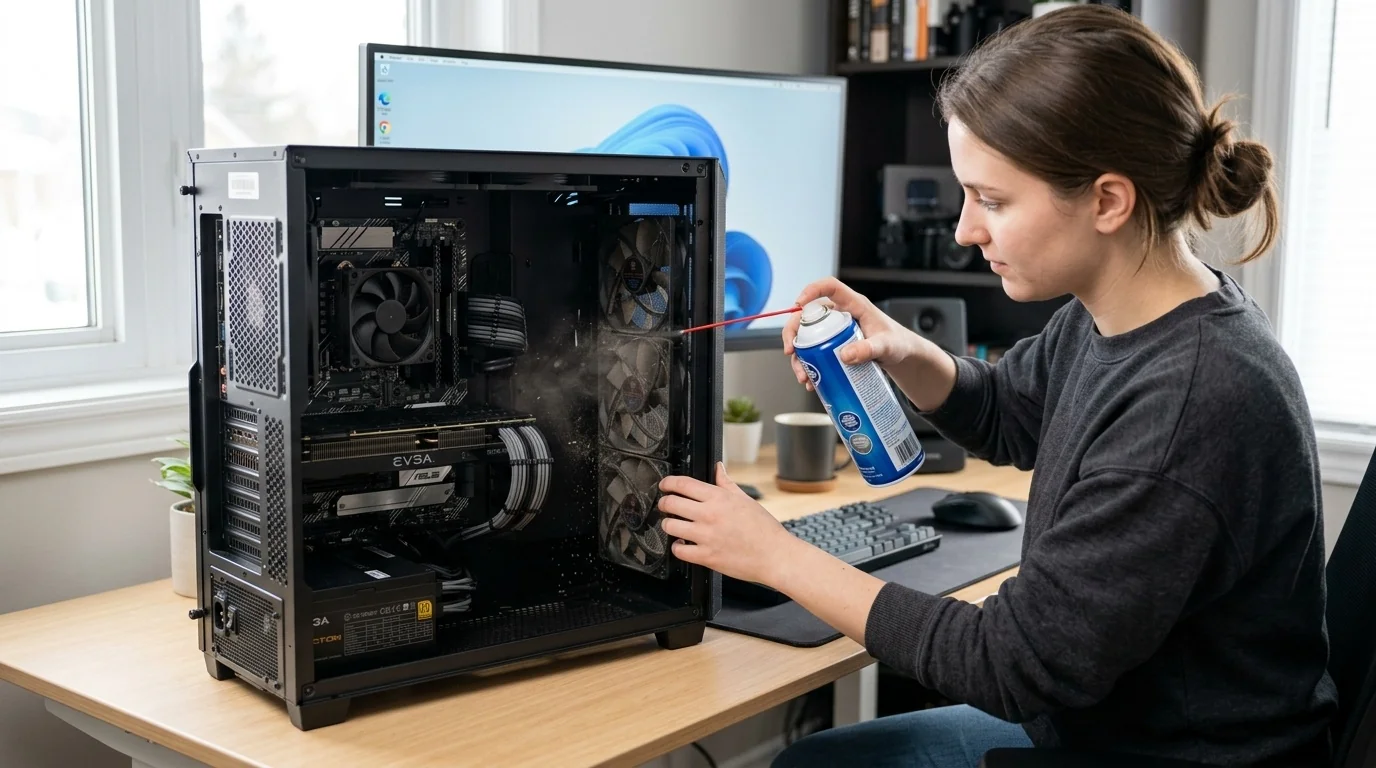
Dust is a silent hardware killer. It accumulates on fan blades, heatsinks, and intake grills, trapping heat inside the chassis. Every six to twelve months, shut down your PC, unplug it, and open the case. Use a can of compressed air to blow dust out of the cooling fans, CPU cooler, graphics card, and power supply. Hold fan blades in place while spraying to prevent them from spinning freely, which can generate reverse voltage and damage the motherboard.
2. Manage Startup Applications
Many software programs configure themselves to launch automatically when your computer boots up. Over time, dozens of background services can run silently, consuming valuable RAM and CPU cycles. Access your system's startup manager to disable applications you do not need immediately upon boot. Your computer will start faster and have more resources available for active tasks.
3. Optimize and Clean Your Storage Drives
Storage drives require different maintenance depending on their underlying technology:
- Solid-State Drives (SSDs): Ensure that the TRIM command is enabled. TRIM tells your SSD which blocks of data are no longer needed, allowing the drive to write new data more efficiently. Never defragment an SSD, as this causes unnecessary wear and tear.
- Hard Disk Drives (HDDs): Run a defragmentation tool periodically. This reorganizes scattered data fragments on the physical platters, reducing the distance the drive head must travel to read files.
4. Uninstall Unused Software
Unused programs waste storage capacity and often leave behind background services, context menu entries, and registry keys. Go through your installed applications list quarterly and remove software you no longer use. For deep uninstallation, specialized utilities can help remove leftover folders and registry entries that standard uninstallers leave behind.
5. Keep Your Operating System and Drivers Updated
Software updates are not just about new features; they frequently contain critical security patches, bug fixes, and performance optimizations. Ensure your operating system is set to update automatically. Additionally, manually update your graphics card drivers, chipset drivers, and network card drivers directly from the hardware manufacturer's website to ensure maximum stability and compatibility.
6. Monitor System Temperatures
High temperatures degrade hardware components over time. Use free hardware monitoring utilities to check your CPU and GPU temperatures under load. If your CPU idle temperatures exceed 50°C, or if they surpass 90°C under heavy load, you may need to re-apply thermal paste to the processor or upgrade your cooling solution.
7. Run Regular Malware Scans
While modern operating systems feature robust built-in security, malware can still slip through via phishing links or compromised downloads. Run a deep system scan at least once a month. Ensure your real-time protection is active, and avoid running multiple active antivirus programs simultaneously, as they will conflict and slow down your system.
8. Check Drive Health with S.M.A.R.T. Diagnostics
Every modern storage drive tracks its own health parameters using Self-Monitoring, Analysis, and Reporting Technology (S.M.A.R.T.). Use diagnostic utilities to read these values. If you notice an increasing count of reallocated sectors or write errors, your drive is beginning to fail. This is your cue to back up your data immediately and replace the drive before it stops working entirely.
9. Purge Temporary and Cache Files
As you browse the web and use software, your operating system accumulates temporary files, log files, and cache data. While these files speed up processes initially, an excessive accumulation can choke your storage space, especially on smaller boot drives. Use built-in system tools like Windows Storage Sense or macOS Storage Management to safely clear these temporary files.
10. Configure Power and Sleep Settings
Leaving a computer running at high performance 24/7 wastes energy and subjects components to continuous wear. Configure your power plan to put the system into sleep or hibernation mode after periods of inactivity. This cools down the hardware, clears system caches during restarts, and lowers your electricity bill.
Real-World Maintenance Scenarios
Scenario A: The Overheating Creative Workstation
A video editor noticed that rendering tasks were taking twice as long as they did a year ago, accompanied by loud fan noise and occasional system crashes. Diagnostic software revealed the CPU was hitting 98°C and thermal throttling down to its base clock speed. After opening the chassis, clearing a thick layer of dust from the radiator, and replacing the dry, five-year-old thermal paste, temperatures dropped to a stable 72°C under load, restoring full rendering performance.
Scenario B: The Slow-Booting Office Laptop
An office worker complained that their laptop took nearly four minutes to become usable after turning it on. An audit of the startup configuration revealed fifteen third-party applications launching at boot, including update checkers, chat clients, and cloud storage utilities. By disabling twelve of these non-essential startup items and clearing 40 GB of temporary files from the nearly full SSD, the boot time was reduced to under 25 seconds.
Recommended Maintenance Schedule
To keep your system running optimally without spending hours on upkeep, divide your tasks into a structured schedule:
| Frequency | Physical Tasks | Digital Tasks |
|---|---|---|
| Weekly | Wipe down keyboard, mouse, and screen. | Reboot the PC; run quick malware scan. |
| Monthly | Check external ventilation ports for dust. | Run disk cleanup; update drivers; check SSD TRIM status. |
| Bi-Annually | Open case; blow out dust with compressed air. | Audit startup apps; uninstall unused software; check S.M.A.R.T. health. |
| Annually | Inspect cables; check thermal paste (if temps are high). | Perform a full system backup audit; clean install OS (optional). |
Frequently Asked Questions
How often should I restart my computer?
It is best practice to restart your computer at least once or twice a week. Restoring or restarting clears temporary system memory, closes runaway background processes, and allows pending security updates to install correctly.
Is it safe to use compressed air on all computer parts?
Yes, compressed air is safe for computer electronics as long as you keep the can upright to prevent liquid propellant from spraying out. Always turn off and unplug the computer before spraying, and keep the nozzle a few inches away from sensitive circuit boards.
Does defragmenting an SSD damage it?
Yes, traditional defragmentation is unnecessary for SSDs and can shorten their lifespan. SSDs do not have moving parts, so file fragmentation does not slow them down. Defragmenting writes unnecessary data to the drive, wearing down its write cycles. Instead, use the built-in "Optimize" command in your OS to run TRIM.
How do I know if my PC is thermal throttling?
If your computer starts out running fast but slows down dramatically after several minutes of gaming, video editing, or other heavy tasks, it is likely thermal throttling. You can confirm this by monitoring your CPU temperatures; if they hover near 90°C to 100°C during these slowdowns, heat is the culprit.
