
Troubleshooting & Revitalizing Your PC: 15 Proven Methods to Boost Performance
Does your computer feel sluggish, taking ages to launch applications or respond to commands? A slow PC can significantly hinder productivity and user experience, transforming routine tasks into frustrating waits. Fortunately, many common performance issues are addressable with a structured approach to system maintenance and optimization. This guide outlines 15 practical steps to help revitalize your machine.
Identifying Performance Bottlenecks and Essential Tools
Before diving into fixes, understanding the root cause of slowdowns is key. Common culprits include excessive startup programs, fragmented hard drives, insufficient RAM, outdated drivers, or malware. Most solutions require only built-in operating system tools, while some may benefit from third-party utilities or minor hardware considerations.
Required Prerequisites & Tools:
- Administrator access to your computer.
- An active internet connection for updates.
- External backup drive (recommended before major changes).
- Antivirus/Anti-malware software (e.g., Windows Defender, Malwarebytes).
- Disk cleanup utility (built-in).
- Disk Defragmenter (built-in, for HDDs only).
Streamlining Software and Digital Clutter
Many performance issues originate from an overloaded operating system, burdened by unnecessary programs and temporary files. Addressing these digital inefficiencies can yield immediate improvements.
- Clean Up Disk Space: Over time, temporary files, system logs, and cached data accumulate. Utilize your operating system's built-in Disk Cleanup utility to remove these unnecessary files. For Windows, search for "Disk Cleanup" and select the drive you wish to clean.
- Uninstall Unused Programs: Every installed application consumes disk space and potentially background resources. Review your installed programs and uninstall any software you no longer use. Access this via "Apps & features" in Windows Settings or "Applications" in macOS Finder.
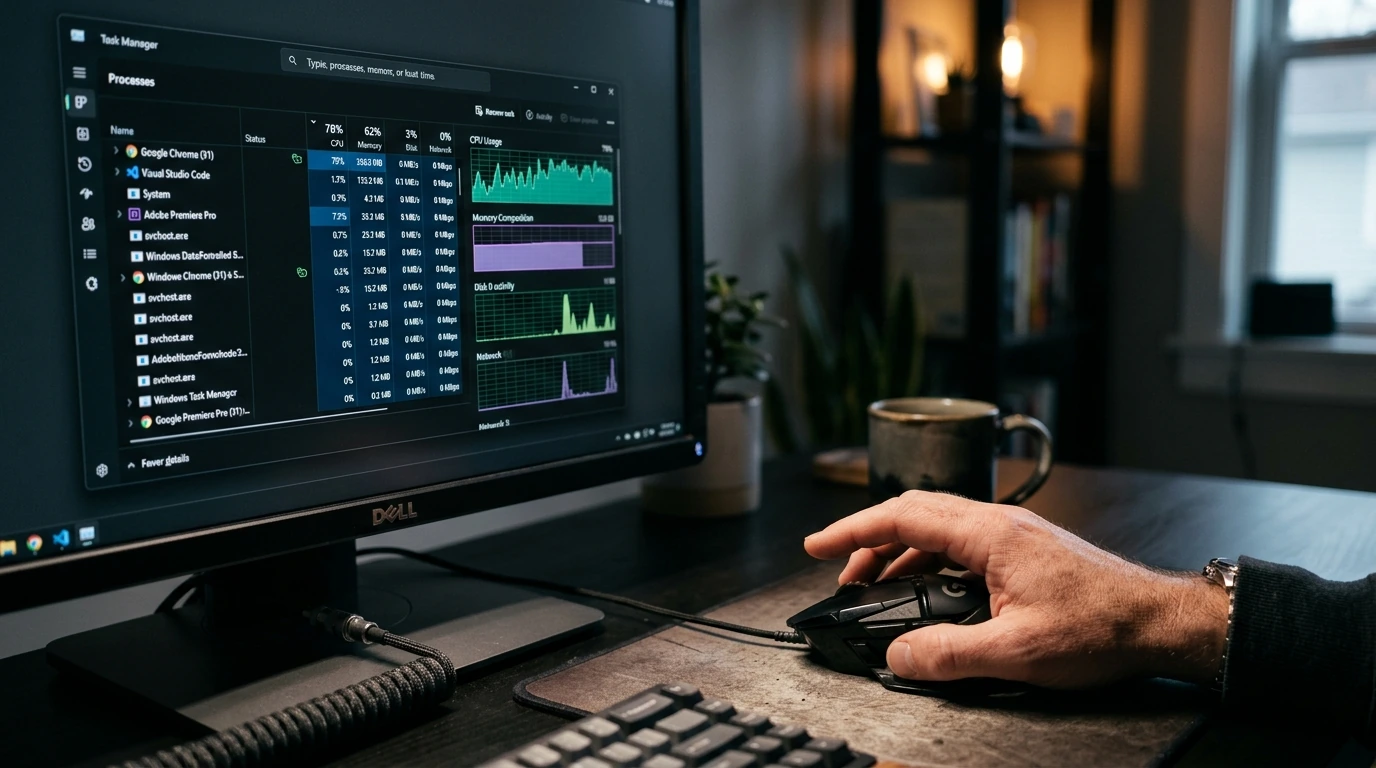
- Manage Startup Programs: Numerous applications are configured to launch automatically when your computer starts, significantly prolonging boot times and consuming RAM. Open Task Manager (Ctrl+Shift+Esc on Windows) or System Preferences > Users & Groups > Login Items (macOS) to disable unnecessary startup items.
- Delete Temporary Files: Beyond Disk Cleanup, manually check folders like
%TEMP%(Windows) for residual temporary files that can be safely deleted. - Optimize Browser Performance: Web browsers can be resource hogs. Regularly clear browser cache, cookies, and history. Consider reducing the number of active extensions, as each one can consume memory and CPU cycles.
- Scan for Malware and Viruses: Malicious software can severely degrade system performance by running hidden processes, consuming bandwidth, and displaying unwanted ads. Run a full system scan with reputable antivirus software. Windows Defender is robust, but a secondary scan with a tool like Malwarebytes can catch additional threats.
- Update Your Operating System: Software updates often include performance enhancements, bug fixes, and security patches. Ensure your operating system (Windows, macOS, Linux) is running the latest stable version.
PRO TIP: Monitor Resource Usage
Regularly check Task Manager (Windows) or Activity Monitor (macOS) to identify which applications are consuming the most CPU, RAM, or disk I/O. This can pinpoint specific programs that are causing slowdowns, allowing you to address them directly by closing, updating, or uninstalling them.
System Refinement and Hardware Considerations
Beyond software cleanup, optimizing system settings and evaluating hardware can unlock further performance gains.
- Update Device Drivers: Outdated or corrupted drivers can cause system instability and performance bottlenecks. Use your operating system's device manager or visit the manufacturer's website (e.g., NVIDIA, AMD, Intel, Realtek) to ensure all drivers are current.
- Defragment Your Hard Drive (HDDs only): If your computer uses a traditional Hard Disk Drive (HDD), defragmenting it can improve file access speeds. Solid State Drives (SSDs) do not require defragmentation and it can even reduce their lifespan.
- Adjust Power Settings: Many computers default to a balanced power plan. Switching to a "High Performance" plan can provide more processing power, though it may consume more energy. Access this via Power Options in the Control Panel (Windows).
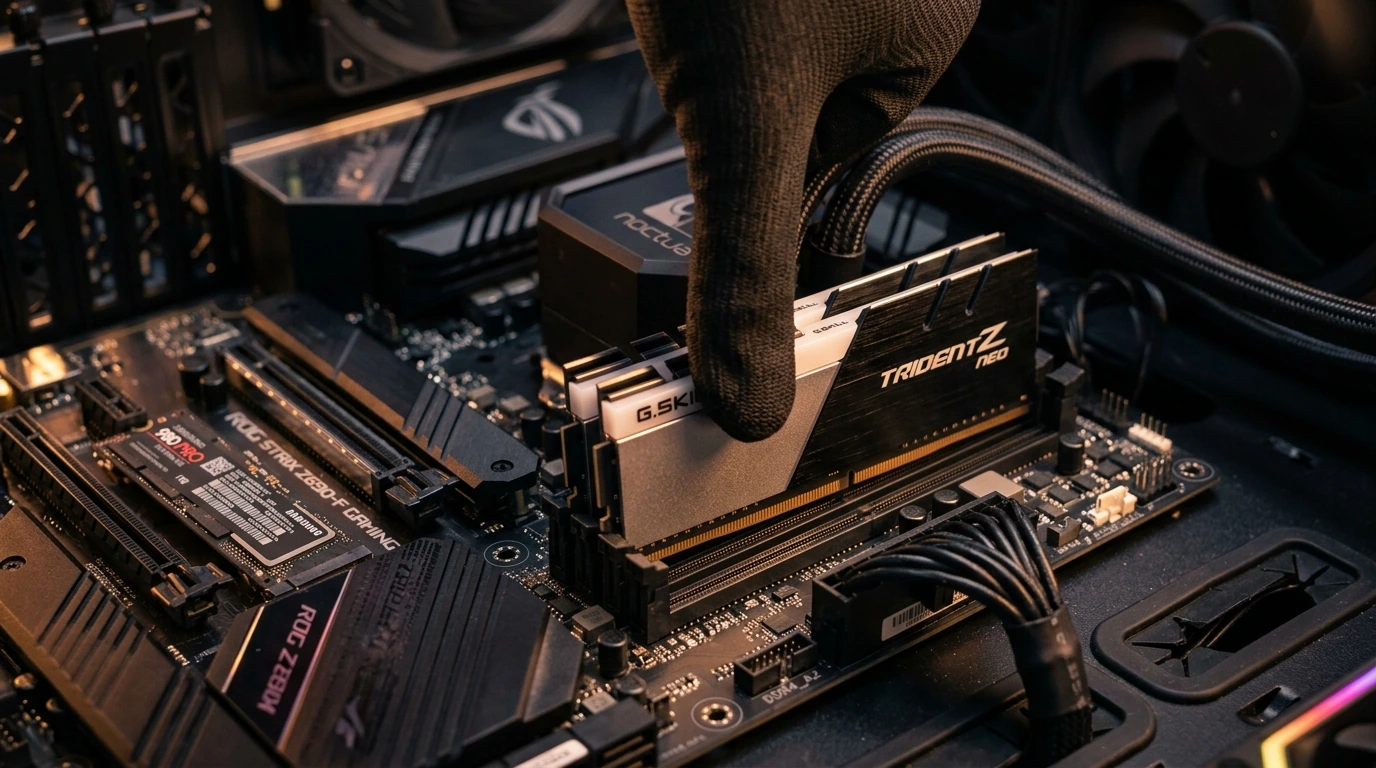
- Consider a RAM Upgrade: Insufficient RAM is a common cause of slowdowns, especially with multiple applications open. Most modern operating systems perform best with 8GB or more RAM. Consult your computer's specifications for compatible memory types.
- Upgrade to an SSD: If your computer still uses an HDD as its primary drive, upgrading to a Solid State Drive (SSD) is arguably the most impactful performance upgrade. SSDs offer significantly faster boot times, application loading, and overall system responsiveness.
Advanced Troubleshooting and Network Optimization
Sometimes, performance issues stem from network-related activities or require more drastic measures.
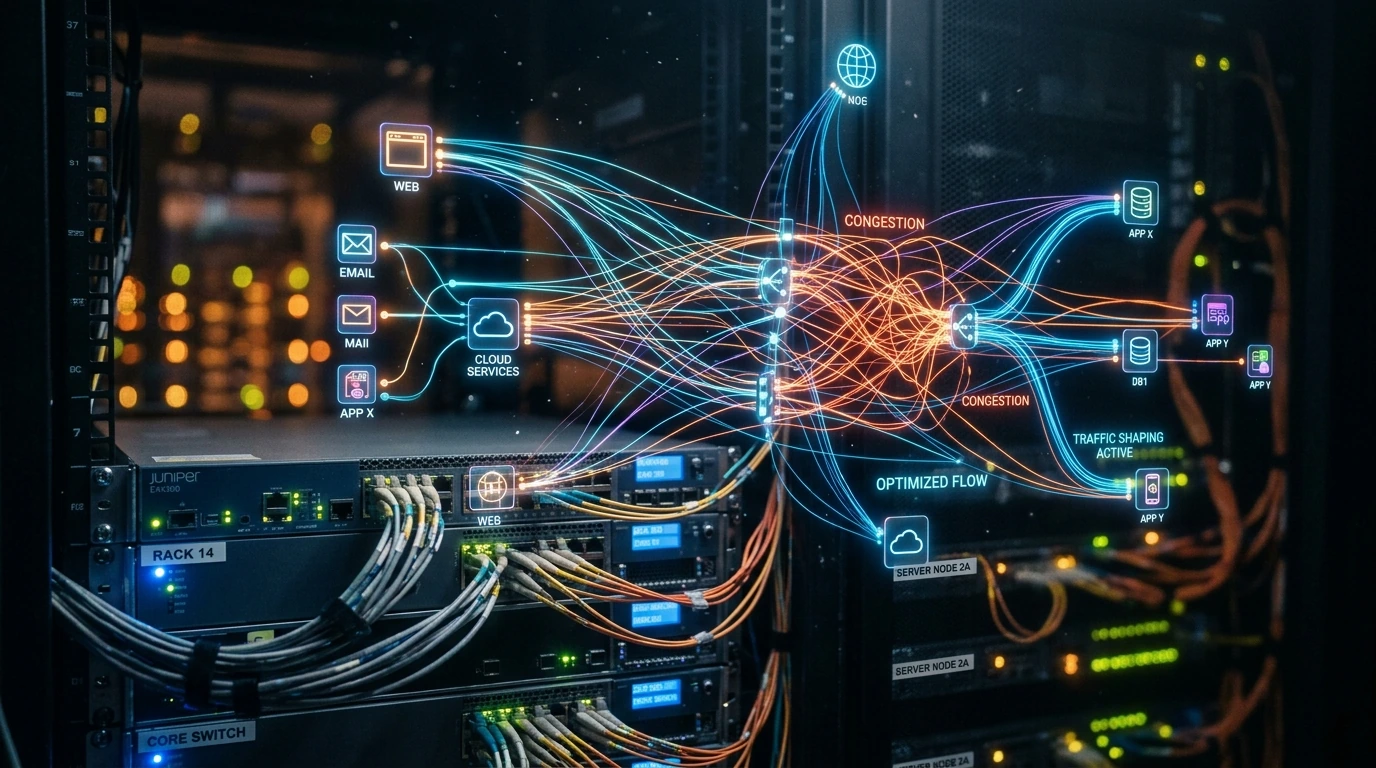
- Check for Background Updates: Many applications, including games and creative suites, download updates in the background, consuming bandwidth and CPU cycles. Configure these applications to update at off-peak times or manually.
- Reset Network Settings/Update Network Drivers: Slow internet can make your computer feel sluggish even if local performance is fine. Resetting network adapters or updating network drivers can resolve connectivity issues that impact overall responsiveness.
- Perform a Factory Reset (Last Resort): If all other steps fail and your computer remains unacceptably slow, a factory reset or clean installation of your operating system can often resolve deep-seated software conflicts and performance issues. Remember to back up all important data first.
Common Pitfalls and Mistakes to Avoid
- Ignoring Backups: Before any major system changes or a factory reset, always back up your critical data. Data loss is irreversible.
- Installing Too Many Optimization Tools: While some tools are helpful, installing multiple "PC cleaner" or "optimizer" utilities can ironically slow down your system and even introduce conflicts. Stick to reputable, well-known software.
- Overclocking Without Proper Knowledge: Attempting to overclock your CPU or GPU without understanding the risks can lead to system instability, hardware damage, and reduced component lifespan.
- Disabling Essential Services: Randomly disabling services in an attempt to free up resources can lead to system errors or prevent core functionalities from working correctly. Research any service before disabling it.
- Neglecting Physical Cleaning: Dust buildup inside your computer can cause components to overheat, leading to thermal throttling and reduced performance. Regularly clean out dust with compressed air.
Post-Optimization Performance Check
After implementing these fixes, it is important to verify that your efforts have yielded the desired improvements.
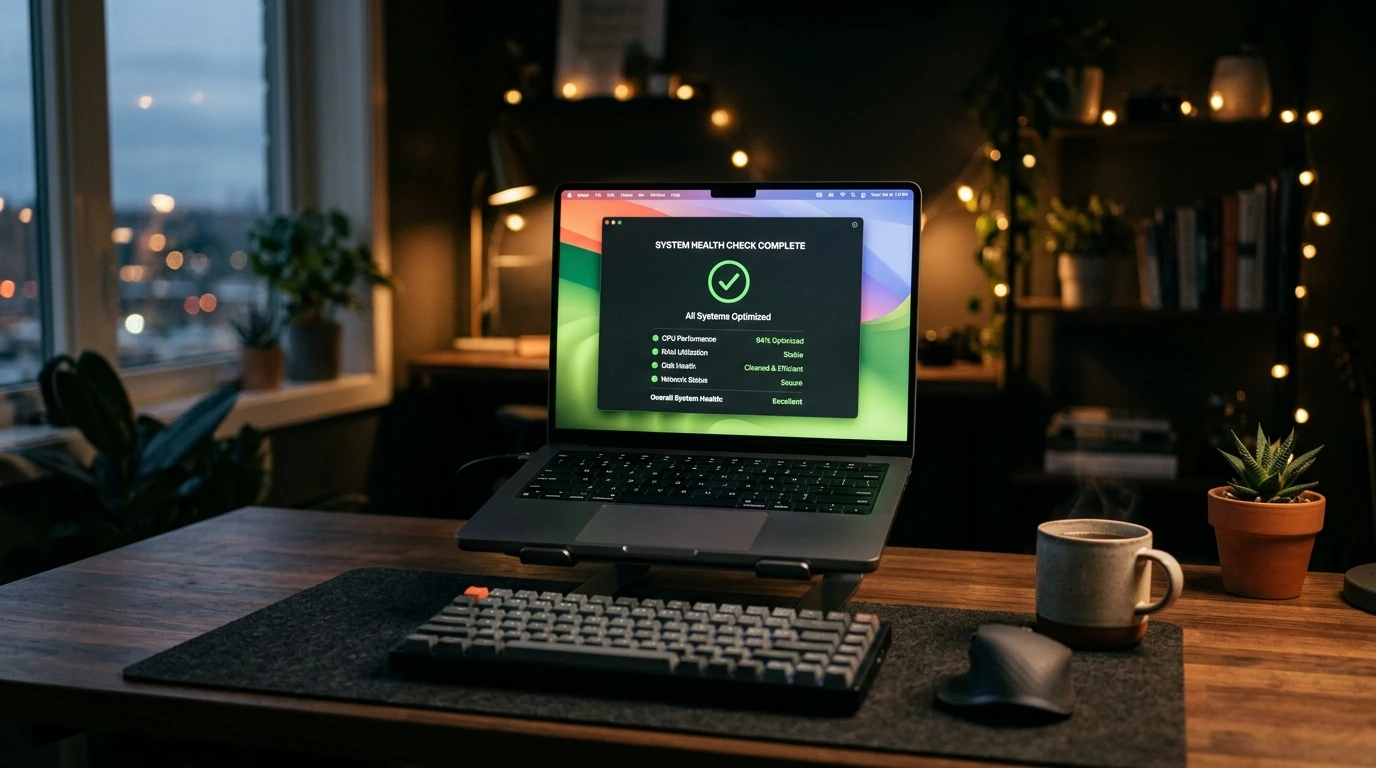
- Monitor Boot Time: Time how long it takes for your computer to start up and reach a usable state.
- Launch Applications: Open frequently used applications (e.g., browser, word processor, photo editor) and observe their loading speed.
- Check Resource Usage: Use Task Manager (Windows) or Activity Monitor (macOS) to see if CPU, RAM, and disk usage are lower under normal workloads.
- Test Multitasking: Open several applications simultaneously and switch between them to assess responsiveness.
- Run a Benchmark (Optional): For a more objective measure, consider running a free benchmark tool (e.g., Cinebench, PCMark Basic) and compare scores to typical results for your hardware configuration.
Navigating the Cloud Cost Labyrinth: A 2026 Guide to Hosting Charges and Pricing Models →
Frequently Asked Questions
- Q: How often should I perform these maintenance steps?
- A: Many steps, like managing startup programs and cleaning temporary files, are beneficial monthly. Driver updates and malware scans should be done regularly, perhaps quarterly, or whenever performance issues arise.
- Q: Can these fixes harm my computer?
- A: Most of these steps are safe system optimizations. However, always back up important data before a factory reset or significant hardware changes. Avoid disabling services or overclocking without proper research.
- Q: Is it worth upgrading an old computer, or should I buy a new one?
- A: For many users, upgrading RAM and especially switching to an SSD can dramatically extend the usable life of an older computer, offering significant performance gains for a relatively low cost. If the CPU is very old (e.g., more than 8-10 years), a new system might offer better overall value.
- Q: Why does my new computer feel slow after a few months?
- A: Even new computers can accumulate digital clutter, background processes, and unnecessary startup items. Regular maintenance, as outlined in this guide, is crucial to maintain optimal performance over time.
Post a Comment for "Troubleshooting & Revitalizing Your PC: 15 Proven Methods to Boost Performance"